Learn about how to make lifecycles work for your design environment.
A lifecycle administration allows you to streamline your work environment by removing the overhead involved in managing groups of files, custom objects, or an entire project. Here in this article, we'll show you how to take your designs from one state to another using Vault Lifecycles.
The lifecycle state represents a certain point in the lifecycle of vault data (e.g., Work in Progress, Review, or Released).
Versions are created automatically in Vault with each Check in and State change. Therefore, each version is a point in history.
With revisions, you can label a significant milestone or set of changes to a document and its related files. The label itself is the revision and the collection of files affected in that revision are considered a revision level. A revision level can be retrieved later so that a document and the version of the related files associated with that particular revision are preserved.
Lifecycle definition is an engine that can be configured to automatically assign security, behaviors, and properties to Vault objects based on where the object is in the life of the design process.
A lifecycle definition uses states to identify the object's status in the lifecycle. For example, let's take a simple engineering process where lifecycle states include work-in-progress, review, and released.
An object moves from one state to another based on the lifecycle definition's transition rules. These transition rules determine when the state change happens if it can occur manually or automatically (or both), based on criteria specified by the administrator. For example, a lifecycle definition can be configured to automatically revise a file when it moves from one state to another. Or, if a user changes a folder's status to obsolete, the lifecycle definition can automatically apply security settings to the folder so that only an administrator can modify the folder and its contents or reinstate it for use.
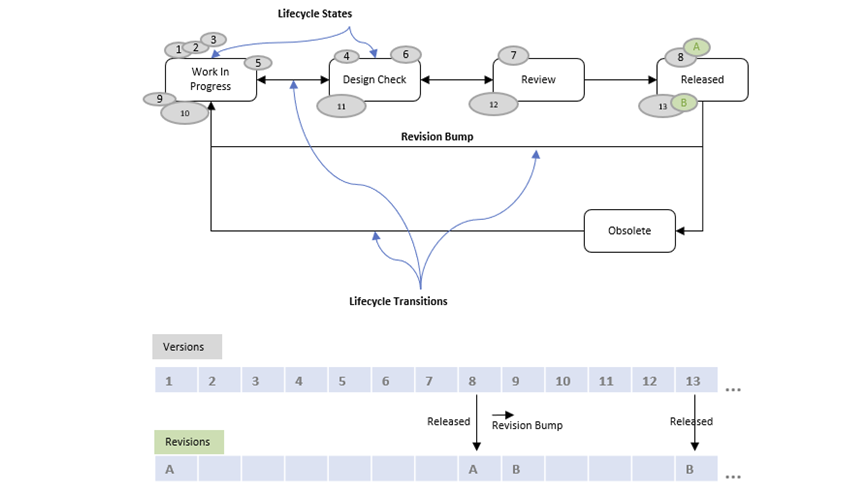
In the above diagram, the object version keeps incrementing when working in the Work in Progress state or the Released state (Revision A with Versions 1 to 8). When the object moves from Released to Work in Progress state; there is a Revision bump from A to B. So the version keeps incrementing with each checkin or state change, and the Revision increments as per the transition rule.
Prerequisite
- Assign a Category to the Lifecycle definition.
Category lets you automatically assign a defined set of behaviors and rules to objects. Any object that is not specifically assigned to a category will be assigned to the default category determined for that entity class. To create a category, see Create a Category.
Assumption
- A revision scheme is assigned to the Category.
Categories are assigned revision schemes, which are then applied to files and items assigned to that category. To assign one or more revision schemes to a category, see Assign Revision Schemes to Categories.
To create a new revision scheme and customize the settings for your design process, see Create a Revision Scheme. Revision management provides consistency throughout the product lifecycle by applying a common definition and behavior to files and items in a vault. Revision schemes are used to manage versioning during product development.
Setting up a Lifecycle Definition
- Create a Lifecycle Definition.
Create a new lifecycle definition and select the category to which the lifecycle definition must apply. Refer to the topic Create a Lifecycle Definition.
- Add Lifecycle States to a lifecycle to meet your design process needs.
- In the Lifecycle Definition dialog, add the lifecycle states to define your workflow.
- Enter the name, color, and description for the new state (e.g., Work In Progress).
- Repeat these steps to create all the states (Design Check, Review, Released) in the workflow.
Refer to the topic Add a Lifecycle State to a Lifecycle.
- For each lifecycle state, you need to configure state security, control options, and transition settings.
Member
Security
Control
Transition
CAD Administrators/ Designers/ Engineers/ Managers/ Manufacturing…
Set member permissions (Read/Modify/Delete - Allow/Deny/None)
Configure purge preference
(All/First and Last/Last/None
- Define criteria when a state transition can occur.
- Set an event to take place when a state transition occurs. For instance, an automatic revision bump.
- Set members (users/groups) that can execute a transition.
- Set control permissions.
- Security tab
Define State security to configure who can do what within each state. For example, it controls which members and groups can read, modify, or delete an object assigned to a state.
- Specify the members that will have a role within the selected state. To do this:
- Uncheck "No state-based security".
- Select Add to specify which member can read, modify, or delete. Next, select members from the Available Members list and click "Add" to move them under Current Members.
-
Select the Allow, Deny, or <blank> permission for the Read, Modify, and Delete columns for each member. See Access Control Lists for more information about permissions.
Permission
Access
Read
- Allow-States can be viewed.
- Deny-States cannot be viewed. If a member is denied read access, then they are not allowed Modify or Delete access either.
- None-State cannot be viewed.
Modify
- Allow-States can be modified.
- Deny-State cannot be modified.
- None-State cannot be modified.
Delete
- Allow-State can be deleted.
- Deny-State cannot be deleted.
- None-State cannot be deleted.
As a best practice, apply security to Groups (not individual users) for easy administration.
For more information, see Edit Lifecycle State Security.
- Specify the members that will have a role within the selected state. To do this:
- Control tab
Configure your purge preferences for files assigned to a lifecycle definition to help manage Vault file retention. Controlled file versions protect the specific document versions in the corresponding state from being purged.
- Select the checkbox to set the state as Released or Obsolete.
Note: The system will always retain at least one version of a file with a released state.
- Select one of the following options:
- All - No versions in this state are removed when a purge is performed. This option is recommended for states where not many versions are created or where each version is critical.
- First and Last - All versions in this state are removed during a purge, except the first and last versions in each series. Use this option for states where the changes between the first and last files are helpful.
- Last - All versions in this state are removed during a purge, except the last version in each series. This option is recommended for states where a record that the file was in the state is essential.
- None - No version in this state will be retained after the purge has been performed, except versions will be retained if they are consumed by a parent file.
- Check the Include existing files versions box to apply purge restriction for lifecycle states for existing versions of files.
Note: If this box is not checked, then the purge version control settings apply only to new file versions.
For more information, see Edit Lifecycle State Control.
- Select the checkbox to set the state as Released or Obsolete.
-
Transitions tab
When an object moves from one lifecycle state to the next, it is called a transition. For example, when a file in the Work in Progress state is changed to a Released state, that is a state transition. Transitions link lifecycle states together in a process. By default, all states link to all other states. For each state, select transition and select Edit.
- Select the state and click Edit.
- In the Transition dialog, for each state transition in a lifecycle, you can configure the criteria, transition event, permission to execute the transition. Select the respective tabs to configure the transition settings.
- Criteria - Configure the property criteria that determine when a state transition can occur. For example, administrators can make it so that a file cannot transition to the next state without the Initial Approver property having a value.
- Actions that occur when the transition is made - Configure which events automatically take place when a successful transition occurs. For instance, select the checkbox "Bump primary revision" to bump the revision to the next revision in the sequence when transitioning from the Released state to the Work in Progress state.
- Security - Determine the members that can execute a transition and set access control permissions (Allow/Deny).
Note:
- If only specific members are allowed to perform a transition between the two states, add Transition security of "Allow" for the appropriate member.
- If the desired workflow doesn't have a direct path between the two states, set the transition security to "Everyone Deny".
For more information, see Edit Lifecycle State Transitions.