To save time, you should bulk edit multiple plot label properties with the AutoCAD Properties palette.
To bulk edit plot segment labels
- Click multiple segment labels in the drawing to select them. The labels are highlighted.
- Right-click anywhere in the drawing and select Label Properties or Properties.
- In the Properties palette, select the Line Label Style pull-down menu as shown in figure 13.
You can choose from all existing plot segment labels.
Note:The General Line Label Styles are also available for annotating plots.
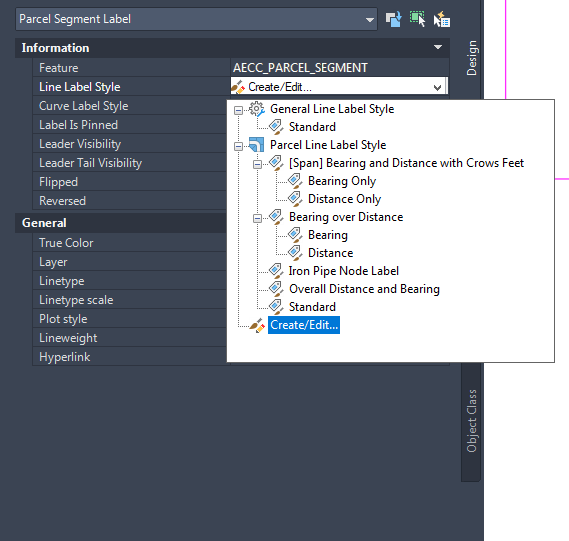
Figure 13: Available plot line label styles
The General Line Label Style can be used with plots as well as feature lines and alignments, and can be selected from the Add Labels panel on the Annotate tab.
The Properties palette also provides access to the Label Style Composer through the Edit Current Style option. This allows for more uninterrupted style property editing because you do not have to navigate to the Toolspace Settings tab.
From the styles pull-down menu in the Properties palette, select Create/Edit (as shown in figure 13) to access the Object (Plot Line Label) Style dialog box as shown in figure 14.
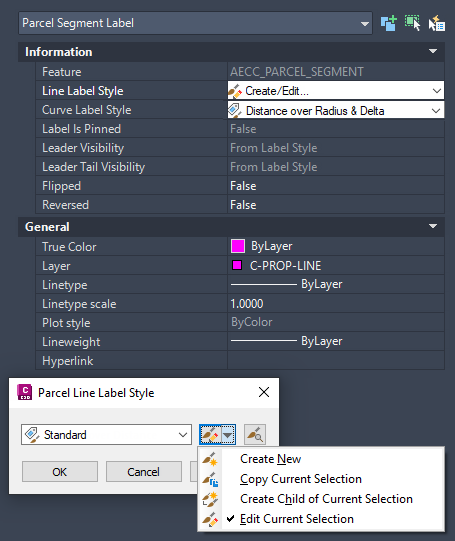
Figure 14: Plot line label style options