You can use the Plot Layout Tools to automatically or semi-automatically divide existing plots. Automatic mode allows you to use the plot layout tools to automatically layout and preview multiple new plots that will occupy the available area. If you turn off Automatic Mode, the layout tools lay out proposed new plots one at a time.
Automatic Mode
Use the Plot Layout Tools Automatic Mode option as shown in figure 3 to quickly lay out multiple new plots. Automatic mode works best with symmetrical areas and regions with uniform shapes. For areas with irregular shapes or tight inside corners, use the manual layout mode.
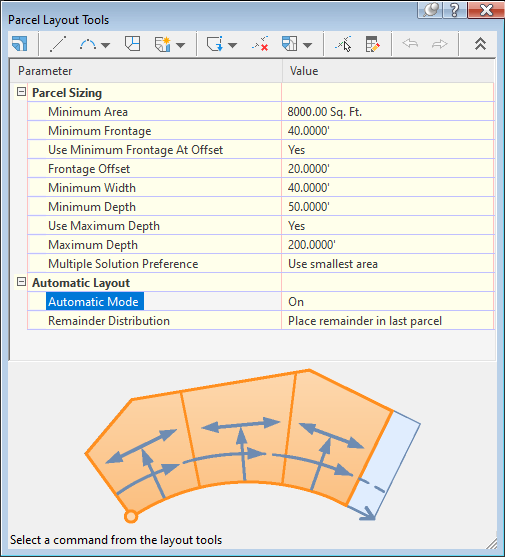
Figure 3: Set to Automatic Mode
When Automatic Mode is turned on, after you specify the frontage start and end points, the preview graphics display the proposed new plots, based on the specified criteria. If you accept the proposed solution, such as the example in figure 4, the plots are created simultaneously.
When in Automatic mode, the Redistribute Remainder option is enabled.
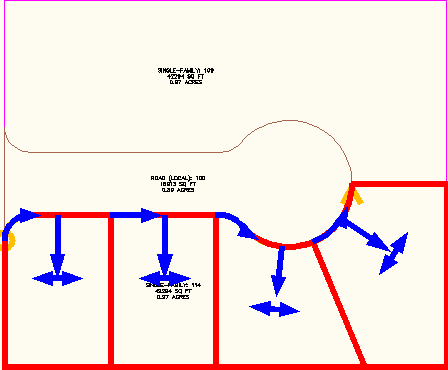
Figure 4: Automatic Mode previews plots that would fill the available area
You can size the plot by specifying a minimum frontage and a minimum area.
You can use the additional parameters, such as frontage offset, minimum width and depth for even greater precision when you initially lay out the plots. The plot sizing parameters allow for a continuous workflow. If you reject a proposed solution, you can simply adjust the parameters and the preview graphics update dynamically.
When you have a large irregularly shaped plot to subdivide, it can create varying plot sizes depending on the creation method used (by angle, by direction, by line). When working with irregular shapes, it is recommended that you create back plot lines, and divide an area into bands, blocks, or pieces where the tool will work well.
Semi-Automatic Plot Layout
You can use the plot layout tools to semi-automatically lay out plots. To do this, turn off Automatic Mode when using the plot sizing commands so that the creation tools lay out plots one at a time. When Automatic Mode is turned off, the preview graphics only display the immediate plot being solved. Even though automatic mode is turned off, the plot tools draft the proposed new plot for you, based on the specified criteria as shown in figure 5.
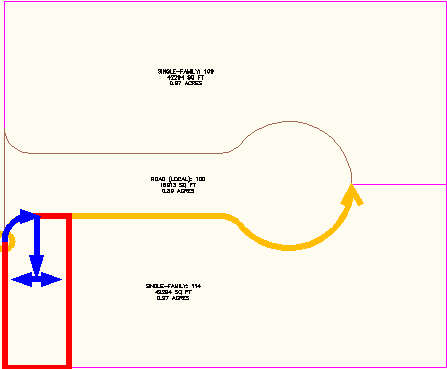
Figure 5: Semi-automatic mode previews one plot solution
When you accept a proposed solution when Automatic Mode is off, the preview graphics display the next proposed new plot as shown in figure 6. You have the option to accept solutions one at a time.
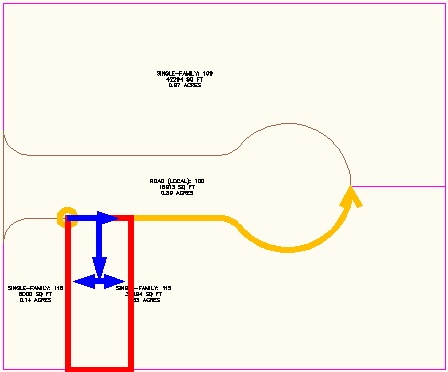
Figure 6: With automatic mode off, you review solutions one at a time