Use the Insert Elevation Point command to insert an elevation point on a feature line.
Specify a location, distance, or increments at which to insert multiple points. When a single point is inserted, you can specify the level.
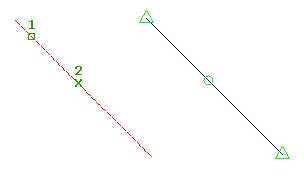
To insert a feature line level point by selecting a location
- Click
 Find.
Find.
- Select the feature line or other object.
- Click to select the location along the feature line to insert the level point.
- Specify the level by entering a value. Or enter Surface to obtain the elevation from a surface. If only one surface is in the drawing it is selected automatically.
- Select another point or specify a distance to insert another point.
To insert a feature line level point by specifying a distance
- Click Find.
- Select the feature line or other object.
- Enter Distance.
- Select an existing point on the feature line to specify the start of the distance. If you select a point other than the start or end point, you must then select the direction.
- Enter a distance to define the location of the level point.
- Do one of the following to define the level of the point:
- Enter a gradient.
- Enter Slope and enter a slope.
- Enter Elevation and enter an elevation. Or enter Surface to obtain the elevation from a surface.
- Enter Difference and enter an elevational difference.
To insert multiple level points at an increment
- Click Find.
- Select the feature line or other object.
- Enter Increment.
- Enter a value to define the length of the increment. Points are placed equidistant along the feature line using the specified increment.
Note: Using this option, you are not prompted for levels. The points are automatically assigned the level that exists at their location on the feature line.
How to activate OSNAP when adding an elevation point to a feature line
Civil 3D may automatically change OSNAP settings when working with certain objects like feature lines. This can disrupt user preferences and cause workflow issues. You can, however, invoke OSNAP when needed in these situations. The following procedure details how to make an individual OSNAP call.
- When a command such as InsertElevPoint is active, hold Shift + right-click to open the contextual menu.
- From the menu, select your desired snap point.
The chosen snap applies only for the next point. Your default OSNAP settings will persist for future object snaps.