General Preferences
 +
+  +
+  +
+ 
Lets you customize various settings and options of Alias.
Windows
Modeling Windows
Background gradient style
None – The window background displays with no gradient.
Linear – The window background displays with a gradient that is darker at the top than the bottom. This is the default.
Centered – The window background displays with a centered gradient that is lighter in the middle.
Show axis triad
Check to show the red, green, and blue XYZ axis marker in each modeling window.
Titlebar transparency
Specifies the level of transparency of the window title bars. A value of 0.0 is completely opaque, and a value of 1.0 is completely transparent (letting you see the grid and model through the title bars).
Tool Option Windows
Remember Tool Option Window Open/Close State
When selected, Alias remembers the state of all tool option windows after you close them. When you reopen the tool option window, all settings and preferences remain the same as they were when you closed the window. Otherwise, tool option windows open with the default settings every time you open them. This option is enabled by default.
Window Collapse Action
Choose how to collapse windows. Choose Title Bar Click, Title Bar Click Double Click it, or Icon Select. Clicking the collapse icon collapses the window no matter which option is selected.
Use Common Tool Window Position
All tool windows appear the same size and in the same position when you select a tool.
Palette and Shelf Windows
List Mode Displays Short Name
Turn this on to display tool short names when the palette is in list mode. By default, this preference is off.
UI Text Quality
Text Rendering Quality
Choose between High or Low. When set to High, Enable Text Anti-Aliasing is permanently turned on.
Enable Text Anti-Aliasing
When Text Rendering Quality is set to Low, you can toggle this setting on and off.
Scale and Size
Sets UI specifications including UI scaling, text font size, spacing, and control size.
System Scale Multiplier
Sets the scale of the UI based on your set system display properties. When using the default value Use System Display Scale (100%), the Alias UI scale is the same as you system properties. The affect of adjusting the scale takes effect immediately. You do not need to restart Alias after setting this preference.
This preference also supports multiple displays that are set to different system display scale settings. For example, if you have two displays and one has system display properties set to 100% and the other is set 200%, adjusting the System Scale Multiplier preference to 150% results in a final scaling of 150% and 300% respectively.
Font Size/Small Font Size
Sets the font sizes for the UI text.
Vertical Spacing
Adjusts the amount of vertical space between the lines of text. The default value is 6.
Transparency
Window Transparency
When selected, inactive control windows that are not embedded in the Alias window are transparent.
Inactive Window Opacity/ Active Window Opacity/Transition Time
Set the rate at which the window becomes transparent when it becomes inactive.
You can override this transparency using the Allow Transparency option in the window title bar.
Navigation
ViewCube
Show ViewCube
Displays the ViewCube.
Mouse Button Mapping
Navigate
Azimuth/Twist – The mouse buttons behave as follows:
- Left – Moving the mouse horizontally controls the azimuth. Moving the mouse vertically controls the elevation.
- Middle – Tracks horizontally and vertically.
- Right – Moving the mouse vertically dollies in and out. Moving the mouse horizontally twists.
Tumble/Zoom – The mouse buttons behave as follows:
Left – Tumbles horizontally or vertically around the cursor position, or the point of interest, if present. (Click and release to position the point of interest.)
Middle – Tracks horizontally and vertically.
Right – Dollies in and out.
Note: A hotkey can be set to toggle quickly between these two viewing modes. It is located under Special > Generally Useful Functions in the Hotkeys/Menu Editor.
Point of Interest
Point of Interest
- None – There is no point of interest. Camera movements are centered around the origin of the scene.
- Dynamic – The POI is invisible and is placed with every Shift+Alt+left or right-click on an object.
- Persistent – The POI is visible and is placed with every Shift+Alt-click on an object. When this option is selected, the Show Point of Interest Jack and Dolly to Point options become available.
Show point of interest Jack
When this option is not selected, the POI displays only when first placed. It does not display on subsequent tumbling.
Constrained Tumble
Allow axis constrained tumble
Forces tumbling to happen around one axis. Tumbling is constrained about an axis that is perpendicular to the line described by the initial mouse movement, and once the tumble has been started, the mouse needs to deviate substantially off the initial line in order for the camera to no longer tumble about the initially described axis.
Constraint sensitivity
Larger values make it easier for the tumbling to get constrained to an axis. Smaller values make it more difficult.
Dolly
Dolly to mouse
Check on to set the dolly-in or dolly-out point to be the mouse cursor. If not checked, the dolly-in or dolly-out point is at the center of window. If Dolly to Point is also checked, Dolly to Point takes precedence—the point of interest will be the dolly focus if it is visible in the active window.
Dolly to point
Check on to set the dolly-in or dolly-out point to be the point of interest on screen. If checked off, the dolly point will be the mouse cursor if Dolly to Mouse is checked, or the origin if neither Dolly To Point nor Dolly To Mouse is checked.
Transition
View transition time
Specifies the time (in seconds) it takes for one view to smoothly rotate into another. Choose a value between 0.0 and 4.0 by typing in the numeric field or dragging the slider.
View step angle
Specifies the angle increment when using the arrow keys to change the azimuth ( /
/ ) or elevation (
 /
/ ).
).
Modeling
Mouse Button Mapping
Move On Ground Plane
Choose one of the following to determine the way the mouse buttons enable you to move objects in the perspective view:
- Left=X Mid=Y Right=Z
- Left=Free Mid=X Right=Y
Move On Construction Plane
Choose one of the following to determine the way the mouse buttons enable you to move objects in the perspective view when you have set a construction plane:
- Left=X Mid=Y Right=Z
- Left=Free Mid=X Right=Y
Transform
Prompt Line Default
Sets whether promptline input is set to absolute or relative numeric values.
Guidelines
Transform Guides
Check on or off the guidelines and numerical box that appear when you use the Move tool.
Maximum Number of Guidelines
Set to a value between 0 and 10.
If you want to create guidelines when drawing normal NURBS curves, open the options box for the curves tool, and turn on the Create Guidelines option.
Markup
Markup Settings
Use Width and Height of Windows
The width and height of the view window determines the drawable area of the Markup. When this preference is off, you can specify the aspect ratio, width, and height of this area.
Maintain Aspect Ratio
Constrains the Markup Width and Markup Height adjustments to their current dimension ratios. For example, if you set Markup Width to 1920 and Markup Height to 1080, and then turn on Maintain Aspect Ratio, any adjustments to either Width or Height automatically maintains the original 16:9 dimension ratio.
Markup Width
Sets the width of the drawable area.
Markup Height
Sets the height of the drawable area.
Create Variant
Automatically creates a variant of the Markup and adds it the Variant Lister.
See Variant Lister.
Staging
Naming
Rename Stage on Save
When selected, the stage name changes to correspond with the .wire file name when you save the file using Save As.
Saving
Save Wire on Stage Set Save
Sets the default value of the Wire Store column for new stages in the Stage Editor. When selected, the default value is to save the stage when the stage set is saved.
Layers
Naming
Modeling Layers Mode
Name – The layers display any name that you choose for them. By default they are called L1, L2, L3, and so on.
Number – The layers are labelled with a numeral, in the order in which they are created: #1, #2, #3, and so on. These numbers cannot be changed.
Both – The layers display both their number and name. Only the layer name is editable (by double-clicking on it).
Active Layer Name On Create
When on, newly created layers have the layer name field active, which allows you to rename the layer right away.
Shading
Inactive Layers
When this option is selected, objects on inactive layers can be shaded using Visualization > Diagnostic Shading or Visualization > Hardware Shade.
Reference Layers
When this option is selected, objects on reference layers can be shaded using Visualization > Diagnostic Shading or Visualization > Hardware Shade.
Layer Bar
Minimum Layer Width/ Maximum Layer Width

Sets the minimum and maximum widths for the layer bar. Use these options to shorten layer bars when you have several layers in your scene or make it larger when you have fewer layers. By default, the Minimum Layer Width is 36 pixels and the Maximum Layer Width is 360 pixels.
Undo
Steps
Limit Number of Undos
Check if you want to reduce the amount of memory used to keep track of actions that can be undone. If checked, the Maximum Undos control slider becomes available.
Maximum Undos
Use this control slider to set the maximum number of Undos.
Memory
Limit Memory Used
Check to limit the operations that can be undone based on RAM. If checked, the Maximum Memory slider becomes available.
Maximum Memory (Mbytes)
Allows you to limit the amount of RAM that will be allocated for Undo operations. The available range is 1 megabytes (no memory allocated for Undo operations) to 500 megabytes. The default is 300 megabytes.
File Paths
Saving
Checkpoint File Location
Set the folder for CheckPoint files to be stored. If this string is left blank, the folder defaults to current project/wire/Checkpoints.
For more information about CheckPoint files, see File > Checkpoint.
MSave File Location
Set the folder for files to be stored in the event of Alias terminating abnormally. If this string is left blank, the default is current /project/wire/M.SAVES.
History Visualizer
Preset Directories
Click Open Window to open the Set Preset Directories window. From here you can add or remove locations for saving History Presets as well as set one as the active Presets save directory.
Reference
Reference Directories
Click Open Window to access the Set References Directories window. From here you can add or remove locations for Reference Directories as well as set one as the active WREF save directory.
Visualization
User Library Location
The location of the shaders that appear in the Shader Library. This location can also be specified in the Shader Library window by selecting the Add Directory icon:  . If this preference is blank, a default library is used.
For more information, see Shader Library.
Plugins
Plugin Search Path
The path(s) that are searched for plug-ins. Separate paths on the lines with semicolons (;). Paths are searched in order.
Plugin Verboose Output
Print Brief or Full messages to the error log (Utilities > Errlog) while loading and unloading plug-ins.
Errors
Exception Log
Lets you specify the location of the exception log file (ExceptionLog-userName-binaryName-pid-mmddyyyyhhmmss.log). An exception log is created automatically after Alias quits unexpectedly, or freezes and you have to end its process.
If this preference is blank, Exception Logs get saved to the default location. For example:
C:\Users\<user>\AppData\Roaming\Autodesk\Alias\UserPrefs2024.0\ExceptionLogs.
For more information, see About exception logs.
Custom Menu
Custom menu
Sets the file location for the file that populates custom menus. For more information, see Create a custom menu.
Dynamo
Dynamo Library Location
Sets the location of Dynamo and Dynamo Player sample scripts. When Alias starts, the Dynamo Toolbox shelf gets built based on the Dynamo scripts contained in the set Dynamo Library location.
You can also set this path using the ALIAS_USER_DYNAMO_LIB_LOCATION environment variable.
Live Reference Data
Storage Path
Sets the location of Live Reference cache files, which are shared with VRED as part of Live Referencing. When you create a Live Reference in VRED, the application searches this location for the Live Reference. See Managing Live Reference Files.
Help
Enable ToolTips
Display short text hints that appear in the interface when the mouse cursor hovers over a tool icon for longer than 1 second. Clicking in the tool hint area displays brief descriptions of tools. These descriptions display in the set Help Language.
Help Language
Select which language of help to display when using the Alias Online Help. If Enable ToolTips is on, the set language is also used for the ToolTip descriptions.
Help Location
Select whether Alias uses Online Help, or Installed Help.
Installed Help Location
If Installed Help is selected, enter the location, either a file system path or a URL of the offline help. For example:
E:\Alias\2023.1\Alias-2023-1-offline-helphttp://webserver/docs/Alias/Help
You must set this option to open the help from the Help menu.
Custom Puck Preferences

Shelf Source

Lets you select from a list of the shelves in your set profile to use as inputs to the Custom Puck. This includes the default workspace shelves or any custom shelf. By default, this is set to Default Custom Puck Data as the input. To choose another shelf, select it from the Populate Using list.
Click the Open Shelf button to open the shelf you've selected in the Populate Using list. You can then quickly make any edits to the shelf to optimize for display in the Custom Puck.
Center Controls
Lets you specify which controls populate the puck center.
Navigation Control - When on, the puck center includes a hit zone for accessing the viewport navigation tools. You can then use LBM to tumble, MMB to pan, and RMB to zoom from this area. This is on by default.
Marking Menus - When on, the puck center includes a hit zone for accessing Marking Menus using the LMB, MMB, and RMB. This is off by default.
Styling

Choose what to display for the tools in the Custom Puck Inner Ring and Outer Ring : Icon Only, Icon & Text, and Text Only. By default, this preference is set to Icon & Text.
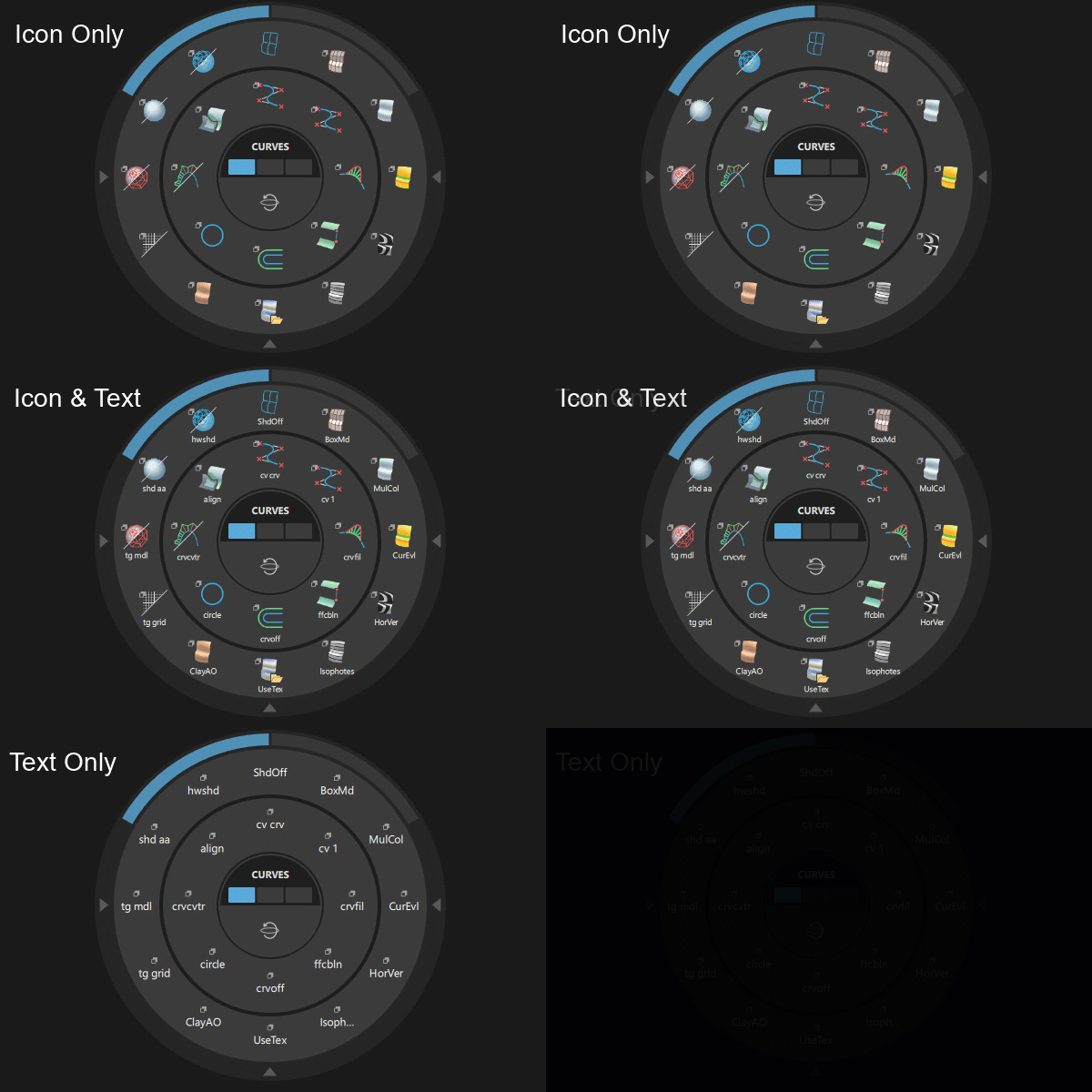
Inner Ring
Use the Maximum Items slider to set the number of items that populate the inner ring menu. After the maximum value is reached, items are added to an overflow area directly below the Custom Puck.
Tabs Control
Lets you choose the behavior of the middle-mouse wheel when scrolling through the center tabs.
- Wrap Around - Scrolling past the last tab takes you back to the start. This is the default setting.
- Stop At Start/End - Scrolling stops at the last tab. Turn the mouse wheel in the opposite direction to scroll through the tabs, starting with the previous tab. Scrolling stops at the first tab.
Miscellaneous
Current Tool Location
Input
Use Pick Chooser
Check the Pick Chooser on or off. If it is on (the default), a small box appears under the mouse when more than one object is picked by a mouse click. This box contains a list of all pickable items under the mouse and allows you to choose the one you want.
Viewing
Hide CVs/ Hide Locators
Hides CVs or locators in the viewport while you manipulate the view, such as when tumbling or zooming. Turn these on to improve Alias interaction performance.
Modeling
When Geometric Normal Flips
Select how to adjust visual normals when geometric normals flip.
Reset Visual Normal - Use the Visual, or Visual and Geometric options in the Unify Normals control window (Surface Edit > Orientation > Unify Surface Orientation).
Keep Visual Normal - Adds a Geometric option to the Unify Normals control window. When the Geometric option is selected, only geometric normals are unified. Visual normals on changed surfaces retain their direction.
Locators
- Show Border - When on, a box displays around the locator text, such as labels and values. Use the Border Transparency slider to set the desired transparency of the box.
Set Non Proportional View Tool
- Non Proportional Scaling Box - Check on if you want the Set Non Proportional View tool to use a selection box to determine the extent and center of the scaled view.
If checked off, the tool squishes and stretches the view interactively as you drag the mouse.This is the default.
Dynamo Player
- Maximum Preloaded Scripts - Controls how many Dynamo Player scripts are kept in memory. The default value is set to 5, but you can increase the value if you are using more than five scripts in a session. Adjust this value to improve performance and responsiveness during script loading and updates.