Hotkeys/Menu Editor
The Hotkey Editor lets you add and edit the shortcut keys (hotkeys) for palette tools, menu items, and other functions.
You also use it to select which menu items and palette tools are included in the short menus.
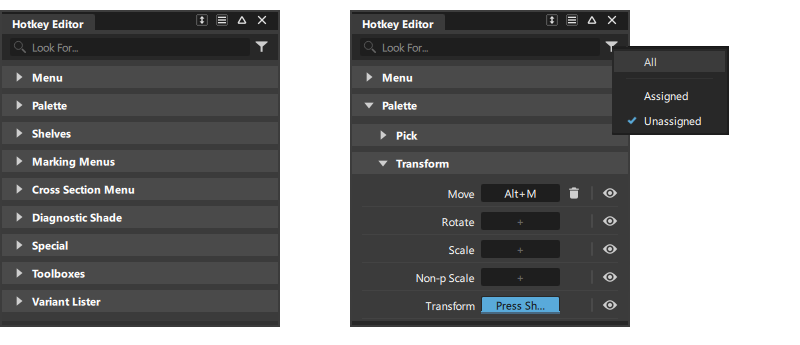
The Menu and Palette tools are listed at the top of the editor, with subsections for each tab or menu in the same order as they appear in the interface.
Hotkeys are assigned by clicking the '+' icon beside a tool name and pressing the required hotkey on the keyboard.
Some default hotkeys are assigned on first launch. These are listed in Interface Reference - Hotkeys.
Hotkeys, Workspaces and Preference Profiles
The set of assigned hotkeys are saved with a preference Profile.
All Workspaces in a preference Profile use the same set of hotkey assignments.
Hotkey Editor icon bar
 Search - Lets you use keywords to search for tools and menu items by name. Note: it is not possible to search by hotkey name.
 Filters - Displays the tool list according to hotkey assignment.
Single character hotkeys and promptline entry
When a key is pressed on the keyboard, the system needs to determine whether the input is a hotkey, or promptline input in response to a tool.
There are two modes that can be toggled using the promptline icon shown below, this replaces the Tgl Single Hotkeys setting in previous Alias versions:

 Auto Numeric Input: On.
 - Reserved single keys
A,Rand numbers cannot be used for hotkeys. - When a tool prompts for number input, pressing
A,Rand number keys will automatically activate promptline entry. You do not need to useTabor click in the promptline area to activate it for number input. - All other single keys will be interpreted as a hotkey.
- Reserved single keys
 Auto Numeric Input: Off.
- All single keys can be used for hotkeys including
A,Rand numbers. - When a tool prompts for number input, use either the
Tabkey or click in the promptline to activate it, then enter the number.
- All single keys can be used for hotkeys including
Tab key or click in the promptline to activate it, then enter the text.Assign, modify or remove a hotkey
The following can be used as hotkeys:
- Hotkeys that have a modifier key (
Alt,Shift,Ctrl) before a letter or number. For exampleCtrl+C,Alt+A. - Function keys F1-F12.
- Single hotkeys. Note: Using the reserved keys
A,Rand numbers will require to be selected on the promptline. - Numeric keys on the number keypad.
To assign or modify a hotkey:
Locate the tool that you want to set the hotkey for.

Click in the '+' field next to the tool name, the field will display in blue with the text 'Press Shortcut'.

Press the required key or key combination on the keyboard.

Press enter or select another hotkey '+' field to enter another hotkey assignment. Either:
- The hotkey is assigned:

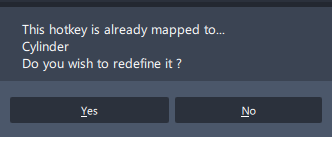
A warning message is shown if the hotkey is already assigned to another item:
Remove a hotkey assignment
Use the  icon beside a tool or menu item to unassign a hotkey.
Create a Short Menu and Palette
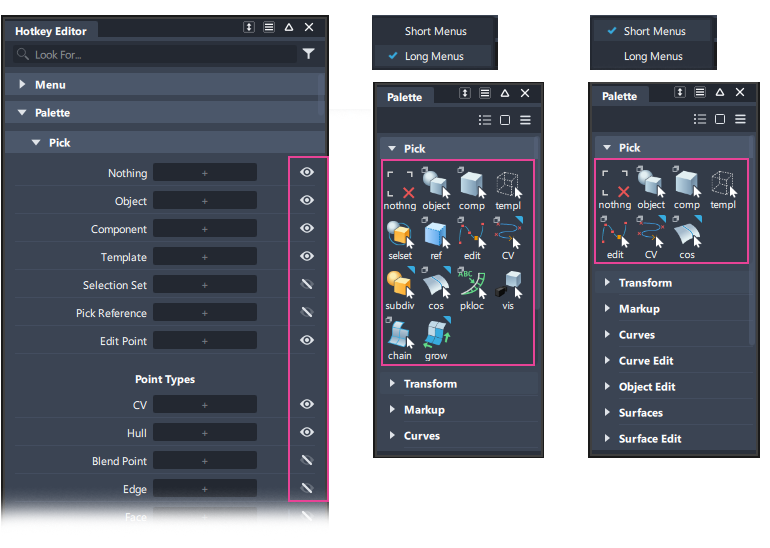
On launch, all tools are selected for the short menu, so to modify the interface select the tools you don't want to see by turning off the eye icon  .
.
Use Preferences > Menus > Short Menus to switch between Long and Short menus.
Hotkey Editor sections
Menu and Palette sections
The Menu and Palette sections are organized in the same way as the menus and palette tabs in the interface, making it easy to find the tool you want to assign to. Alternatively use the search function to find the tool.
Shelves and Marking menus
This is a dynamic section that will update when new Shelf sets or Marking menu sets are created.
Hotkeys can be assigned for any items on shelves, which means that you can have different hotkeys for the same tool. For example, the Look-At tool is given the default hotkeys Alt + L and F both for use in different Workspaces.
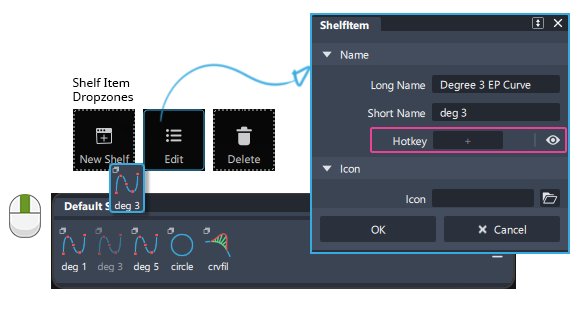
The same edit icon is available in the Marking Menu Editor.
Special
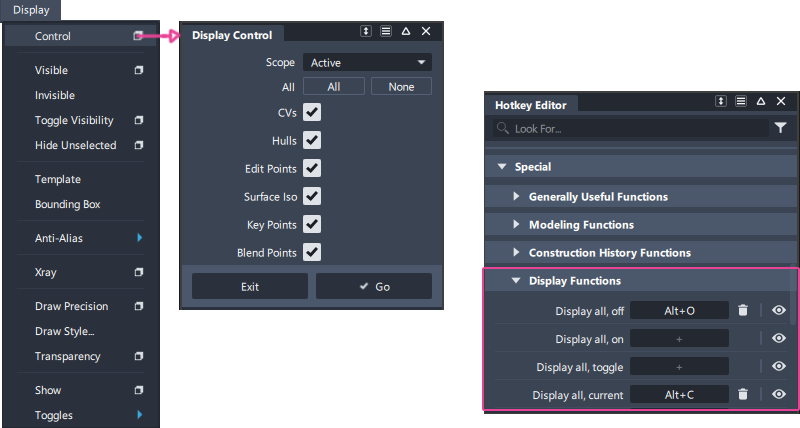
The Special section allows you to set hotkeys for functions that don't relate directly to a single tool, but may be an option within a tool.
For example, Special > Display Functions lists different settings for the Display > Control tool that can be set for quick display of CVs and Hulls:
Cross Section Menu, Variant lister
Hotkey assignments have been created to the menu items for these editors.
Diagnostic Shade, Toolboxes
When a single tool opens a toolbox with many tools within, these sections can be used to assign hotkeys to the tools within toolboxes.
Import / Export a Hotkey set
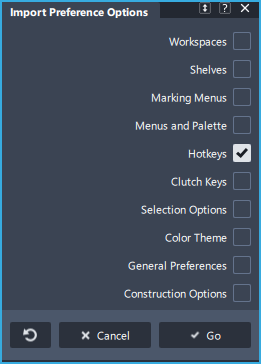
There is no specific Hotkey import or export tool, instead the hotkeys are saved with the preference Profile. This can be imported to another profile by selecting Hotkeys only to import.
To Export a hotkey set, use Preferences > User Preferences > Export Profile.
To Import a hotkey set, use Preferences > User Preferences > Import and Merge
 and turn off all sections other than hotkeys.