Canvas Lister

The Canvas Lister shows all of the canvases in a project. Use the lister to import and manage your canvases. Images can be imported as a canvas, which lets you place and transform them as planes.
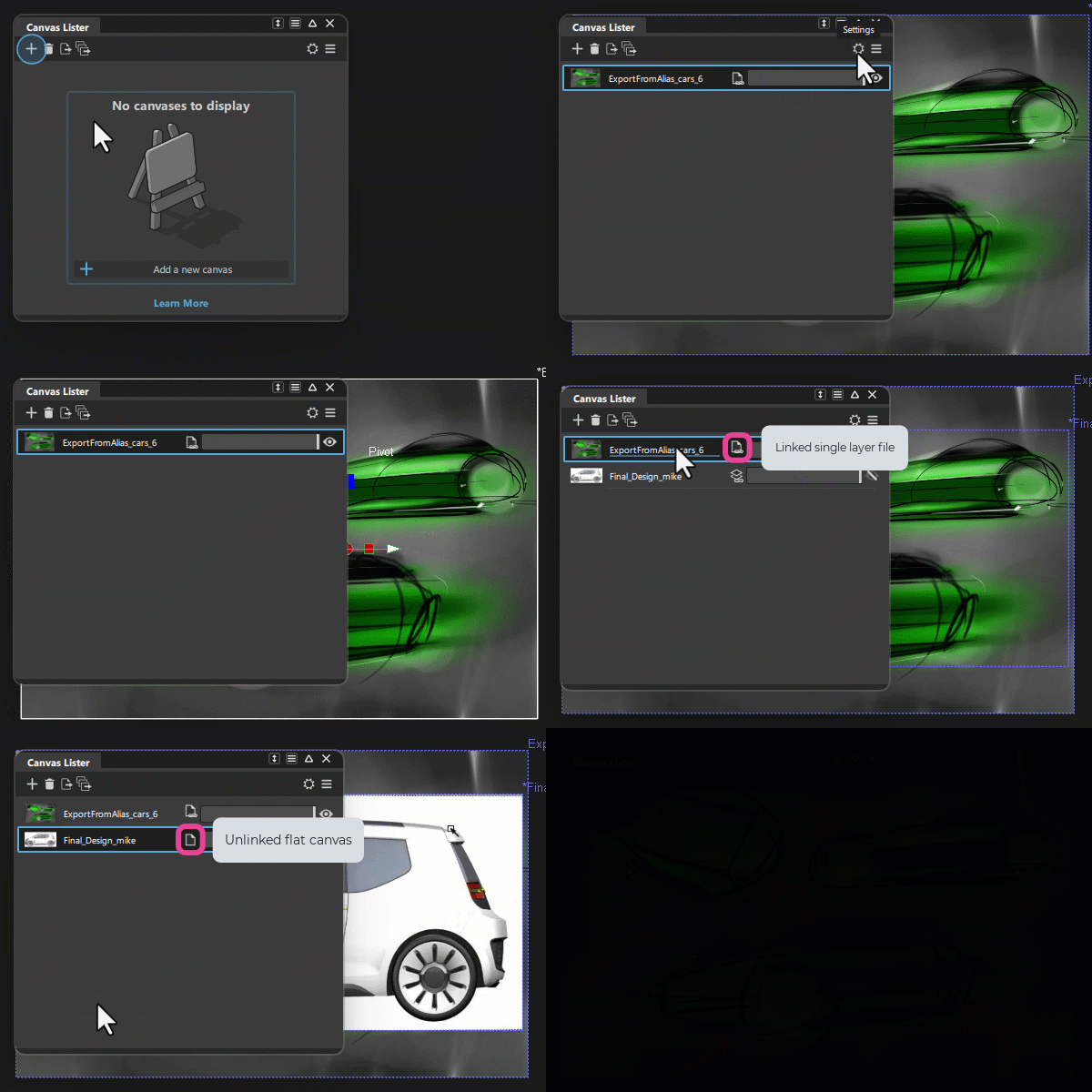
This is useful for setting up reference images that need to exist in the scene. Canvases provide similar functionality as Image Planes do in previous versions of Alias.
Canvas Lister icon bar
 Add Canvas - Add a new canvas by importing an image.
 Delete Canvas - Delete the selected canvas.
 Export All Canvases /
  Export Selected Canvases -
Export all or the currently selected canvases to the .jpg image format. Export Options can be customized in the Export Canvas Options.
Export Selected Canvases -
Export all or the currently selected canvases to the .jpg image format. Export Options can be customized in the Export Canvas Options.
 Settings - Access the Setting menu:
- Preview Size - Adjust preview size of canvas thumbnails.
 More menu - Access the More menu:
- Add - Add a new canvas by importing an image.
- Transform - Use the Transform manipulator to move, scale, or rotate your canvas image (also available in the More menu).
- Export - Exports all canvases as .jpg images. Click the
 icon to access the Export Canvas Options (also available in the context-menu).
 - Delete - Delete the selected canvas (also available in the context-menu).
Image status icons
These icons provide information about imported images. Roll your mouse over them to display image update options. When an image is linked, Alias detects edits made by another application, showing the Reload icon in the list.
 Linked multilayer file - The file is an image with multiple layers, such as a PSD, which cannot be modified. You can flatten it to a single layer for editing with some Alias Markup plug-ins, such as the erasePaper.plugin and ColorToGrayscale.plugin. Click the icon to flatten or replace the image.
 Unlinked flat canvas - The file is a flattened image. Click the icon to replace it.
 Linked single layer file - The file is an image with no additional layers, such as a .png or .jpg. Click the icon to replace it.
 File out-of-date - The image file has been edited. Click the icon to reload it with the latest updates.
Canvas Lister context menu
Look At
Automatically centers the view on the selected canvas.
Replace
Lets you replace the selected canvas with a new image file.
Reload
Lets you reload canvases that are out of date with the source image file.
Export Canvas Options
Use these options to export canvases as images. Export canvases as images. Canvases can be exported with the scene included, this is useful for exporting transparent reference imagery with the scene behind it included in the image.
Export Canvases
You can choose to export all canvases or only the selected canvases in the lister.
Include Scene
If checked, the contents within the viewport, in addition to the Markup itself, will be shown in the export.
Image File Type
The following image formats are available:
- .jpeg
- .png with alpha
- .png
- .tiff with alpha
- .tiff
- .bmp
Quality Level
This option only appears when the File Type is jpeg. Use the menu (Maximum, High, Medium or Low) or the slider (values from 1 to 100) to adjust the quality of the jpeg image. A higher quality will result in a larger file size.
Specify Image Size
If checked, two sliders enable you to set (in pixels) the dimensions of the output image.
Maintain Aspect Ratio
If this option is checked, the Vertical Size value is first adjusted so that the aspect ratio corresponds to that of the current window. Changing the horizontal or vertical size will then automatically adjust the other slider so that the aspect ratio of the image is preserved. This option only appears when Specify Image Size in on.
Horizontal / Vertical Size
Size (in pixels) of the output image. These options only appear when Specify Image Size in on.