Variant Lister

Shows or hides the Variant Lister, which lets you create, edit, and store different variations or alternatives of the model views, shading, and annotations.
All variants in the scene are accessible with a single click of the thumbnail representing the variant. Playback can be used to run a slide show of variants.
Variants can also be set and accessed in the Navbar > Variants icon, but are displayed as a simple list without grouping.
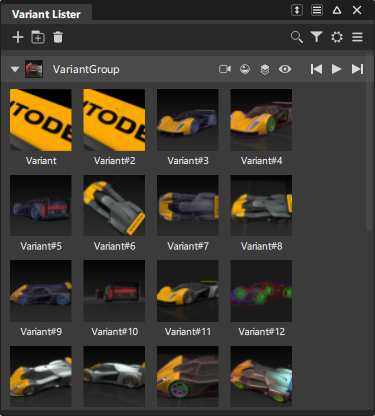
Variant Lister icon bar
 New Variant - Creates a new variant and adds it to the selected Variant Group. If no groups exist, a new group is created as well as the new variant. (Also available in the More menu.)
You can create capture variants directly inside a Variant group by selecting the Capture Variant icon 
 New Group - Creates an empty Variant Group. (Also available in the More menu.)
 Delete - Deletes the selected variant. (Also available in the More and context menus.)
 Search - Use keywords to search for variants and variant groups by name.
 Filter - Lets you display variants by the specified state.
 - Setting - Access the Setting menu:
- Show Mask - Toggles the display of the mask icons controlling which elements are applied when switching to a variant.
- Show Play Back Controls - Toggles the display of the Play back icons for stepping through variants or playing a continuous slide show of variant views.
- Preview Size - Adjusts the size of the preview thumbnail image.
- Cycle Time - Adjust the time paused in one view before moving to the next view in playback. The default setting is 0.5 seconds
 - More - Access the Variant Lister More menu:
Copy Variant Views/ Paste Variant Views - Use these options to copy and paste camera views from one stage to another.
Publish - Lets you save one or more variants as image files. Click the
 icon to open the Publish Variant Options window, which provides standard options for exporting image files. For details, see Export Canvas Options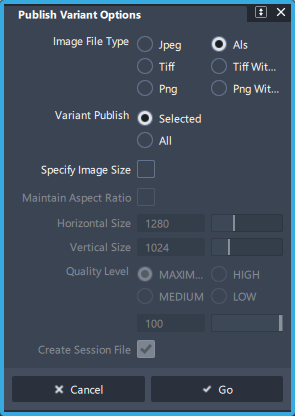
Variant Lister Group icon bar
The mask icons appear if Settings > Show Mask is selected. The settings are also available on the context menu (RMB) for the group.
Select which elements are applied when switching between variants.
 Camera information (view, up, position, etc)
 Active environment
 Shading information (hardware shading, diagnostic shading, switch shader assignments, grid display)
 Layer visibility information (layer visibility, category visibility, reference layer visibility)
 Visibility information
The playback icons appear if Settings > Show Play Back Controls is selected (and if the Variant Lister is wide enough to display them).
 Step back to display the previous variant in the group.
 Step forward to display the next variant in the group.
 Play a slide show of the variants with the timing controlled by Settings > Cycle Time.
 Stop a slide show.
Variant and group context menus
Use the right-mouse button (RMB) on a variant icon or a group title bar bar to open the context menu.
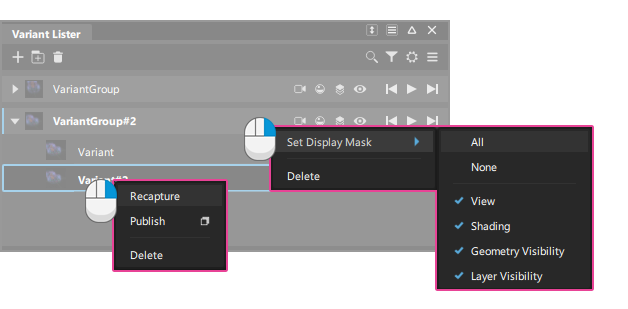
Variant context menu
Recapture - Use Recapture to update a variant saved view to the current view.
Publish - Save one or more variants as image files. See More menu
.Delete - Deletes the variant.
Variant group context menu
Set Display Mask - Use to set all display options on or off. Can also be used to select individual options when the icons are hidden due to a narrow window size for the variant Lister.
Delete - Deletes the variant group.
Variant Lister workflows
View your variants from the Variant Lister
To display a variant, click the appropriate variant thumbnail in the Variant Lister.
To view the variants in sequence, starting at the current variant (indicated by a light blue outline around the variant thumbnail), click the Previous or Next button in the Variant Lister or use the arrow keys on the keyboard.
You can also use the Page Up and Page Down keys as a quick way to show the previous or next variant without the need to open the Variant Lister.
Select Preferences > Interface > Hotkeys/Menu Editor and in the Variant Lister section set hotkeys for specific variants, and the following variant operations:
- Display Next in Group
- Display Prev in Group
- Delete Current Variant
- Cycle Variants in Group
- Capture New Variant in Group.
To see the variants in a slide show, click the Play button. The slide show starts at the currently selected variant (light blue outline) and displays the following variants in order, all the way to the end of the group. It then loops around to the first variant and continues cycling indefinitely.
To stop the slide show, click the stop icon in the playback tools, or click anywhere in the variant lister window.
To change the number of seconds to wait between displaying variants in playback, drag the Cycle Time slider on the settings menu in the icon bar.
Set variant playback timings
There are two settings that affect view transitions:
Cycle Time - The number of seconds to wait on a view before moving to the next view in playback.
View transition time - When switching from one variant (or view) to the next, the camera is animated to take you smoothly from one view to another without getting disoriented.
The time (in seconds) taken to transition from one view to the next is controlled by the View transition time option in Preferences > General Preferences (Navigation > Transition section).
The default is 0.5 seconds. When this value is set to 0.0, the smooth animation is turned off.
Use masks to control which attributes are applied to variant groups
The mask icons change which of the stored attributes in the variant are applied when the variant is selected for display. For example, if shading is turned off, then cycling through the variants won't apply the shading parameters that were saved with the variant. Instead, the current parameters are used.
- Applies camera information (view, up, position, etc.)
- Applies shading information (hardware shading, diagnostic shading, switch shader assignments, grid display)
- Applies layer visibility information (layer visibility, category visibility, reference layer visibility)
- Visibility information
Save one or more variants as image files
Ctrl-click the thumbnails to select them in the Variant Lister.
Right-click on a thumbnail and select Publish
.In the option box, set the image file type, size, and quality, then click Go. A file browser window displays.
Choose a folder and type a name for your image or group of images.
The saved images are called
<file name>_<variant name>.<file type>.Note: If variant names are not unique, “_<#>” is added to the image names to make them unique, for example: issue_variant#1.jpg, issue_variant#2.jpg, and so on.
Group and move variants
- To create a group, click New Group.
- To collapse or expand the group, click the arrow icon to the left of the group name in the group title bar.
- To delete a group, use the RMB context menu on the group title bar and choose Delete.
- To change the order of variants in a group or move them to another group, drag and drop variants thumbnails with the middle mouse button.