History View

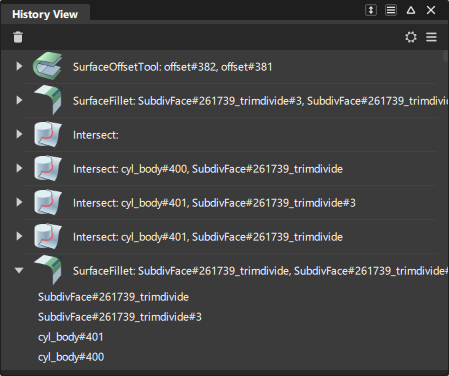
Opens the History View window. Use History View to view and edit the construction history of the picked objects. The window shows operations you have performed that are maintaining construction history.
 to the right of the promptline.
 For more information see Windows > History Visualizer.
History View icon bar
 - Suspend History - Suspends construction history updates for picked objects.
 - Delete Selected - Deletes the selected construction history. This does not delete the actual objects, only the construction history being maintained. It is the same as picking the object and choosing Delete > Delete Construction History.
 - Displays the history view of all the objects in the scene (also available in the More menu).
 - Displays the history view of picked objects (also available in the More menu).
 - Focuses the view based on the layers selected in the Object Lister or Layer Bar. For example, selecting a layer automatically focuses the graph view on nodes in the selected layer (also available in the More menu).
 - Filter - Lets you filter the view by node type, such a tool node or input node. When you load a WIRE file, the History View populates a list of tool nodes contained in the file. By default, all of the nodes are on for filtering. To focus the view on a specific tool node, turn off the filtering for all other tool nodes.
- Setting - Access the Settings menu:

- View All - Show all objects with history.
- View Picked - Show only the picked objects with history.
- View By Layer - Show only the objects with history on the layers selected in the Object Lister or Layer Bar.
- Affecting Picked - Show the objects contributing to the history of the picked objects.
- Affected by Picked - Show the objects which were created from the picked objects.
- Collapse All - Collapse all objects.
- Expand All - Expand all objects.
- Sort by Type - Group operations together on the list by the tool used.
- Sort by Creation - Group operations together on the list by the order of creation.
 - More - Access the More menu.
History View workflows
Sort the objects by the tool used to create them
- To group objects created by the same tool together, open the history window’s Settings menu and choose Sort By Type.
- To list objects normally (roughly in the order you created them), turn off Sort By Type.
View how an object was created
In the History View window’s Settings menu, choose View Picked.
Pick the object.
Click the arrow next to the name of the object.

The list shows the operation’s constructors (inputs) and target (output).
Tip: Press and hold the on the name of an object in the History View window to highlight the object in the modeling windows.
Change the tool options used to create an object
In the History View window, click the tool icon next to the name of the object to access the tool options used to create the object.

Edit tool option history by clicking an object
Choose Query Edit.
Click the object, either in the view or in the Object Lister (Windows > Object Lister).
If the object has editable history, the Query Edit tool will automatically select the appropriate tool for editing.
Delete construction history
Breaks the links between the picked object and any objects that you used to create it.
- Pick the object from which you want to delete construction history.
- Click the in the toolbar. You can also select Delete History from the context menu or the More menu.
Suspend and resume construction history updates
To suspend history updates on all objects, either click the Suspend History icon in the toolbar or open the More menu and choose Suspend Global. To affect only the picked objects, choose Suspend Selected.
Suspended construction history is indicated by this icon:
 .
.To resume history updates on all objects, either click the Suspend History icon in the toolbar or choose Resume Global. To affect only the picked objects, choose Resume Selected.