The Sheet Set Manager for Web (Web SSM) was removed in AutoCAD 2026 Update 1.1 and later releases. The Connected Sheet Set Manager (Connected SSM) is now used for sheet sets stored locally, on a shared network drive, or in the cloud.
The Connected Sheet Set Manager uses the Sheet Set Manager palette and supports all its features. It also allows multiple users to co-edit the same cloud-based sheet set (DST) file. Unlike the Classic Sheet Set Manager, the Connected Sheet Set Manager does not rely on Desktop Connector (DC) when opening a cloud-based DST file. Instead, the file is opened directly from Forma Data Management.
Differences Between the Connected and Web Sheet Set Managers
The following table outlines the differences between the Connected Sheet Set Manager and the Sheet Set Manager for Web.
| Feature | Connected Sheet Set Manager | Sheet Set Manager for Web |
|---|---|---|
| AutoCAD products/releases |
|
|
| User interface (UI) | Sheet Set Manager palette | Sheet Set Manager for Web palette |
| Co-editing for cloud-based DST files | ✓ | ✓ |
| Open locally stored DST file | ✓ | — |
| Publishing requires on Desktop Connector (DC) | ✓, local publishing | —, cloud-based publishing |
| Publish/eTransmit options | Full feature support | Partial feature support |
| Sheet set list table | ✓ | ✓ |
| Sheet and model views including support for callout blocks | ✓ | — |
| Automatic numbering of sheets | — | ✓ |
Open and Lock a Sheet Set
Both the Connected Sheet Set Manager and Sheet Set Manager for Web can open DST files directly from Forma Data Management, but not from locally synchronized Desktop Connector folders. When a user opens a DST file in either manager, the file is locked by that user. This prevents others from deleting or modifying the file using other tools.
However, other users can still open the same DST file and join the collaborative editing session.
If the first user closes the sheet set and leaves the collaborative session, the DST file may still appear as locked by that user until all users close the sheet set. Once all users have exited, the file is unlocked.
Handle Sheet Set Open Errors
The following are common errors you might encounter when opening a DST file in the Connected Sheet Set Manager, along with their meanings and how to resolve them.
- Locked for Edit by <user name>
-
If the DST file is locked when the Connected Sheet Set Manager attempts to open it, the sheet set opens in view-only mode. A lock icon (
 ) appears next to the sheet set name, with a tooltip that reads "Locked for Edit by <user name>."
To edit the DST file, ask the user who locked it or a project administrator to unlock it.
Note: Even if you lock the DST file yourself, you cannot edit it in the Sheet Set Manager until it is unlocked. You must unlock it before opening it. - No Editing Permission for This Sheet Set
-
If you do not have edit permissions for the DST file, the sheet set opens in view-only mode. A lock icon (
) appears next to the sheet set name, with a tooltip that reads "No editing permission for this sheet set."
To edit the DST file, request the necessary permissions from a project administrator.
- File Size Exceeded
-
If the DST file exceeds 6.3 MB, the sheet set will not open. A modal dialog appears with a warning that the file size limit has been exceeded.
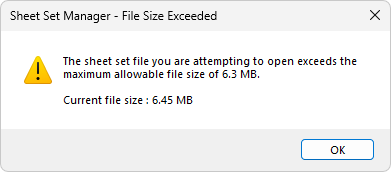
To work with this sheet set, set the SSMOPENMODE system variable to 1 to open the file locally.
Note: Collaborative editing is not supported when SSMOPENMODE is set to 1.
Collaborative Editing on a Sheet Set
The Connected Sheet Set Manager allows multiple users to co-edit the same DST file with real-time synchronization of changes, similar to the Sheet Set Manager for Web. An icon ( ) appears next to the sheet set name to indicate a collaborative editing session. Hovering over the icon displays the names of the current editors.
Users can join the same collaborative editing session through the Connected or Web Sheet Set Managers, either from the AutoCAD desktop application or the web app.
Save and Unlock a Sheet Set
The following describes when a DST file is saved and unlocked in the Connected Sheet Set Manager:
- If the last user closes the sheet set by right-clicking and selecting Close Sheet Set in the Sheet Set Manager palette, the DST file is saved and unlocked immediately.
- If the last user closes the sheet set by exiting the AutoCAD desktop application (instead of using Close Sheet Set), the DST file is saved and unlocked within 1 to 15 minutes. To ensure changes are saved and the file is unlocked quickly, use the Close Sheet Set option.
- Closing the Connected Sheet Set Manager without closing the AutoCAD desktop application does not close the sheet set and does not save or unlock the DST file. When the manager is reopened, previously open sheet sets remain active (unless they have timed out). This behavior is the same as in the Classic Sheet Set Manager.
- If no edits are made to a DST file opened from Forma Data Management for 60–90 minutes, the system automatically closes the inactive session, saves the file, and unlocks it.
Timeout of a Sheet Set Editing Session
As mentioned previously, if no edits are made by any connected user for 60–90 minutes, the system closes the inactive session, saves the DST file, and unlocks it.
The Connected Sheet Set Manager then switches the DST file to view-only mode, indicated by a lock icon () next to the sheet set name. A Reload button ( ) is also displayed to alert users that the session has timed out. Clicking this button reloads the sheet set and resumes editing.
Use Connected Support Files
The Support File Location property was removed with the release of the Connected Sheet Set Manager. Both the Connected Sheet Set Manager and the Sheet Set Manager for Web now use Connected Support Files when they are configured for a project.
If Connected Support Files are not configured:
- The Connected Sheet Set Manager uses the support files defined in the current AutoCAD user profile.
- The Sheet Set Manager for Web uses the AutoCAD Backend Support Files configured in AutoCAD Web.
For more information about configuring Connected Support Files in the AutoCAD desktop application, FAQ: How do I Set Up Project-Aware Settings for a Sheet Set?
Publish Sheets in a Sheet Set
The Connected Sheet Set Manager supports all Publish features available in the Classic Sheet Set Manager.
The following table outlines the differences between the Connected Sheet Set Manager and the Sheet Set Manager for Web when publishing drawings.
| Option | Connected Sheet Set Manager | Sheet Set Manager for Web |
|---|---|---|
| Publish requires Desktop Connector (DC) |
✓, local publishing Local plot services are used for publishing. Drawing and referenced files are downloaded through Desktop Connector, and published PDF files are uploaded through Desktop Connector. |
—, cloud-based publishing Forge Design Automation (AutoCAD.IO) is used for publishing. It downloads drawing and referenced files from Forma Data Management and uploads the published PDF files directly to Forma Data Management. |
| Publish options | Full feature support
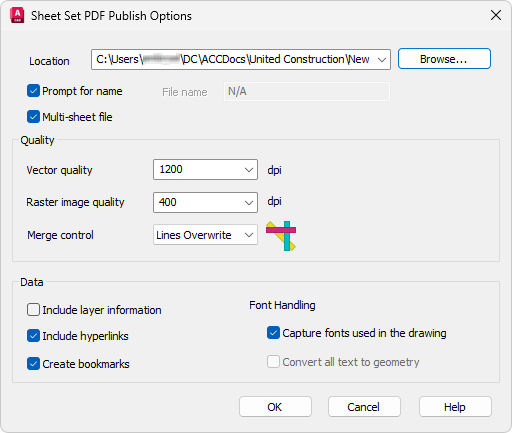 |
Partial feature support
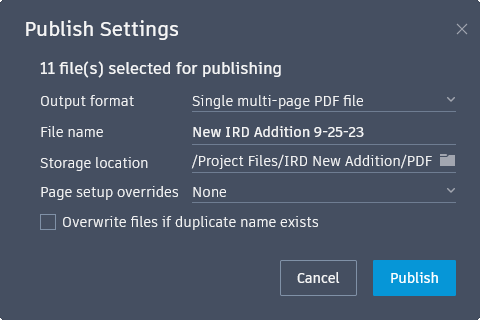 |
| Publish to different formats | ✓ | — |
| Publish to local or shared network drives | ✓ | — |
| Publish to a physical device | ✓ | — |