Light Menu Settings
When accessing Action as a Timeline FX, you have access to some of these Light settings in the Timeline FX ribbon. To see the full Light menu, click Editor to enter Action in the Effects environment.
Basics Menu
Light Type option
Select the type of light to apply to the scene.
| Light Type: | Description: | Example: |
|---|---|---|
| Point / Spot | A point light radiates light uniformly in all directions. A spotlight radiates a cone of light centred along the spotlight direction. Use the Spread field to change the spread angle. A spread of 90° or less creates a spotlight. | 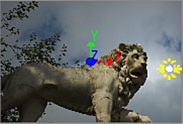 |
| Directional | A directional light shines evenly in one direction only. The light icon in the scene displays an arrow showing the direction of the light. Use a directional light to simulate a very distant point light source (for example, the sun as viewed from the surface of the Earth). | 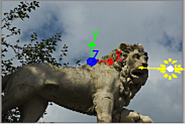 |
| Ambient | An ambient light shines in two ways—some of the light shines evenly in all directions from the location of the light (similar to a point light), and some of the light shines evenly in all directions from all directions (as if emitted from the inner surface of an infinitely large sphere). Use the Shade field to set the percentage on ambient light applied. Note: The ambient light type is not the same as the global Scene Ambient lighting available for the whole Action scene. |
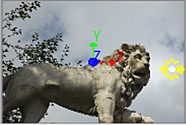 |
| Rectangle Area | A rectangle area light is similar to a point or spot light except that it produces a hotspot based on the shape of the rectangle. Use the area size fields to set the size of the rectangle. | 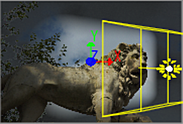 |
| Ellipse Area | An ellipse area light is similar to a point or spot light light except that it produces a hotspot based on the shape of the ellipse. Use the area size fields to set the size of the ellipse | 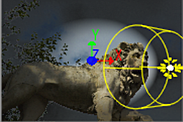 |
Different settings may appear directly below the Light Type drop-down depending on the type selected.
Width field
Displays the width of an area or directional light.
Height field
Displays the height of an area or directional light.
Shade field
Displays the percentage of ambient light applied.
Light Mode option
Select Free to light the scene in the direction that you aim the light, or Target to aim the light at a target object in the scene based on a point of interest.
Light Intensity field
Displays the intensity of the selected light. Available in the Light menu Basics and Profile tabs.
Light Spread field
Displays the spread angle. A value of 90° or less creates a spotlight. Available in the Light menu Basics and Profile tabs.
X Position field
Displays the position of the selected light along the X axis.
Y Position field
Displays the position of the selected light along the Y axis.
Z Position field
Displays the position of the selected light along the Z axis.
Path
Enable to animate the position of the light using a spline drawn in the scene. Disable to animate the position of a light using explicit animation.
Motion Blur
Enable to use a motion blur effect for the selected light (can only be used if the global Motion Blur is enabled in the Setup menu).
X Rotation field
Displays the rotation of the selected light along the X axis. Available when Free is selected as the Light Mode option.
Y Rotation field
Displays the rotation the selected light along the Y axis. Available when Free is selected as the Light Mode option.
Z Rotation field
Displays the rotation the selected light along the Z axis. Available when Free is selected as the Light Mode option.
Distance field
Displays the position of the light's focus. Available when Free is selected as the Light Mode option.
X Point of Interest field
Displays the position of the point of interest along the X axis. Available when Target is selected as the Light Mode option.
Y Point of Interest field
Displays the position of the point of interest along the Y axis. Available when Target is selected as the Light Mode option.
Z Point of Interest field
Displays the position of the point of interest along the Z axis. Available when Target is selected as the Light Mode option.
Roll field
Displays the amount of light roll. Available when Target is selected as the Light Mode option.
Red Light field
Displays the red value of the selected light.
Green Light field
Displays the green value of the selected light.
Blue Light field
Displays the blue value of the selected light.
Light colour
Displays the colour of the light source.
Active
Enable to turn the selected light source on.
Lightbox Order option
Select whether an attached Lightbox effect occurs before (Pre) or after (Post; default) the light.
Light Source option
Select whether the light or Lightbox effect is added to the result of previous lights in the Priority Editor (Additive Light) or to the source diffuse (Solo Light).
Active
Enable to light up the scene using added light sources. When disabled, no lighting effects appear in the scene; surfaces and 3D models appear flat. This same setting can be found in the Action Setup menu and the Light menu.
Scene Ambient
Enable to have global ambient lighting in your Action scene. This same setting can be found in the Action Setup menu and the Light menu.
Profile Menu
Settings for controlling the light bevel curve are located in the Light Profile menu.
Light Intensity field
Displays the intensity of the selected light. Available in the Light menu Basics and Profile tabs.
Light Spread field
Displays the spread angle. A value of 90° or less creates a spotlight. Available in the Light menu Basics and Profile tabs.
Light Attenuation field
Displays the level of amplitude of the light. Available when Parametric is selected as the Falloff Model option.
Light Falloff field
Displays the amount of falloff around the edge of the light source (also changes the size of the specular highlight). Available when Custom is selected as the Falloff Model option.
Decay Type option
Select the type of decay to apply to the light source.
Decay field
Displays the rate at which light decreases for the chosen decay type.
Falloff Model Settings
Falloff Model option
Select whether to use a parametric or custom falloff model. A custom falloff allows you to interactively use the profile curve, while a parametric falloff displays the curve for visual reference only.
Falloff In field
Displays the level of incoming light falloff. Available when Parametric is selected as the Falloff Model option.
Falloff Out field
Displays the level of outgoing light falloff. Available when Parametric is selected as the Falloff Model option.
Light Bevel curve
Displays the specific profile of the selected light. Use the options in the Tools drop-down to add, select, delete, or move keyframes on the bevel curve. When using a parametric falloff model, the curve is read-only.
See Using the Light Bevel Curve.
Home
Resets the Bevel curve viewer to show the whole curve.
Undo
Undoes the last set of Bevel curve operations.
Reset
Resets the Bevel curve.
Lightbox Menu
Use these settings when a Lightbox node is attached to a Light.
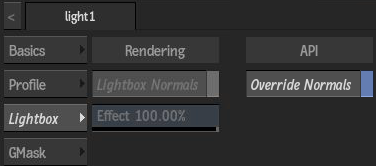
Lightbox Normals
Enable to take normals into consideration to compute the transparency of the Lightbox effect on the scene.
Effect field
Displays how much the orientation of the normals affects the result of the shader, relative to the light position in the scene. Available when Lightbox Normals is enabled.
Override Normals
Enable to force all surfaces to be affected by the Lightbox shader, when Light Normal attenuation isn't appropriate for the Lightbox effect. Disable to only affect front-facing surfaces, relative to the light. The default behaviour of this parameter can be set as an XML tag in the shader.
GMask Menu
Use this setting when a GMask is connected to a Light with a GMask link.
GMask Link Texture Size option
Select the texture size of a GMask connected to a Light through a GMask Link.