Emissive Menu Settings
Controls Menu
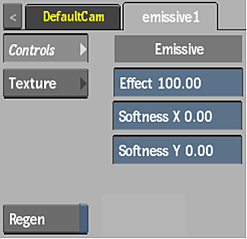
Effect field
Displays the amount of emissive colour.
Softness X field
Displays the amount of X-axis blur applied to the emissive map.
Softness Y field
Displays the amount of Y-axis blur applied to the emissive map.
Regen
Enable to dynamically refresh the image as changes are made to the emissive settings.
Texture Menu
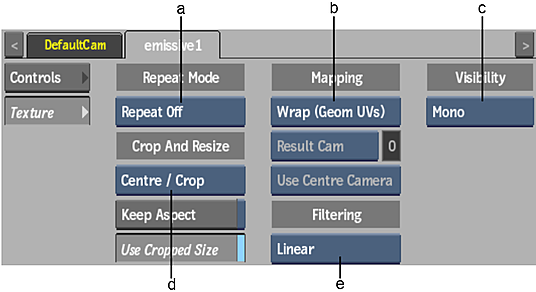
(a) Repeat Mode (b) Mapping (c) Camera Type (d) Fit Method (e) Filter
Repeat Mode option
Select how the emissive map pattern is repeated on the surface.
Fit Method option
Select a fit method option to be applied to the emissive map.
Keep Aspect
Enable to preserve the aspect ratio of non-square pixels (not available for the Fill fit method).
Use Cropped Size
Enable to replace the emissive map with the cropped size of the emissive media. Disable to use the cropped emissive media as is.
Mapping option
Select the type of texture mapping.


Camera option
Specify which camera's FOV to take into account when using perspective or projection mapping.
Camera field
Displays the active perspective or projection camera number.
Stereo Camera Projection option
Select whether to use the centre, left, or right camera from a stereo camera rig when projection mapping.
Filter option
Select the type of filtering to apply to the emissive map.
| Type | Description |
|---|---|
| Nearest | No filtering — the pixel of the texture closest to the screen pixel is displayed. |
| Linear | Basic bilinear filtering. |
| Anisotropic | Non-proportional filtering between X and Y (faster to process than EWA, but with a lesser quality). |
| Aniso+Linear | A combination of Anisotropic and Linear filtering. |
| EWA | A high-quality elliptical weighted average filter to produce enhanced rendering results (slower to process than other filters). |
| EWA+Linear | A combination of EWA and Linear filtering (offers the most advanced filter processing). |
Camera Type option
Select the camera type visibility for the emissive map. For example, you can use this setting to apply a Left Eye and Right Eye camera type for two maps that are children of the same surface or geometry in a stereo scene.