Position Menu Settings
Controls Menu
Use the Orientation settings to help Action with information on how the position map was rendered. The Normals settings affect the generated normals present in the position map.
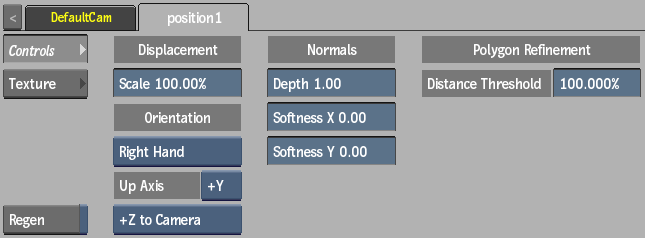
Scale field
Displays the scale of the position map in relation to Action space.
Orientation option
Select whether the orientation of the coordinate system of the map is Left Hand or Right Hand.
Up Axis option
Select which axis is the up axis of the map.
Camera option
Select which axis of the map corresponds to the Z axis in Action. The selection in the Up Axis drop-down determines the available selections for this option.
Depth field
Displays the amount of Z scale applied to the generated normals. Higher values attenuate the effect toward the normals of the parent surface.
Softness X field
Displays the amount of X-axis blur applied to the map.
Softness Y field
Displays the amount of Y-axis blur applied to the map.
Distance Threshold field
Displays the threshold at which the longest triangles producing disconnected meshes in the geometry are hidden.
Texture Menu
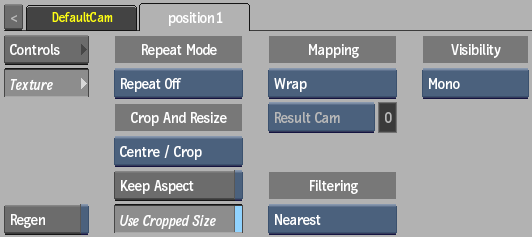
Repeat mode option
Select how the map pattern is repeated on the surface.
Fit Method option
Select a fit method option to be applied to the map.
Keep Aspect
Enable to preserve the aspect ratio of non-square pixels (not available for the Fill fit method).
Use Cropped Size
Enable to replace the map with the cropped size of the media. Disable to use the cropped media as is.
Mapping option
Select the type of texture mapping.
| Select: | Description: |
|---|---|
| Wrap (Geom UVs) | Wrap mapping completely envelops the 3D model with the texture map according to the object’s texture coordinates. To use this option, you must import a model that has its own texture coordinates. When using Wrap mode, you can also apply UV mapping settings from the Geometry menu. |
| Plane | Planar mapping applies the map without distorting the front plane of the 3D model, similar to a movie projector casting an image onto a screen. All 3D coordinates of the geometry are mapped to this plane to generate the texture values. Planar mapping positions the lower-left corner of the map on the 3D model’s axis. When you apply planar mapping, any surfaces on the 3D model perpendicular to the front plane cause the pixels at the edge of the texture to project along the “sides” of the object. |
| Tri-Planar | Similar to plane mapping, except that it applies the map from all 3 axes, blending using the normals orientation with respect to the axis of projection. |
| Perspective | Perspective mapping is similar to planar mapping, except that it performs a perspective transformation of the map based on the selected camera’s field of view (FOV). When you select Perspective as the mapping type, the Perspective Camera option becomes active, allowing you to specify the active camera. The FOV of the camera has an impact on the resulting effect of any transform applied to the parent axis of the texture. On stereo cameras, the interaxial distance between left and right cameras also has an effect on the resulting perspective transform. |
| Tri-Perspective | Similar to perspective mapping, except that it applies the map from all 3 axes, blending using the normals orientation with respect to the axis of perspective. |
| Projection | The texture behaves as if it is projected by the selected camera. Projection mapping is useful as an alternative to projecting textures using the Projector node, especially when it is necessary to project while preserving a specific camera POV. |
Camera option
Specify which camera's FOV to take into account when using perspective or projection mapping.
Camera field
Displays the active perspective or projection camera number.
Filter option
Select the type of filtering to apply to the map.
Camera Type option
Select the camera type visibility for the map.