Tags
 Indicates a feature suggested and voted up by users on the Flame Feedback portal.
Improvements have been made to the Tags feature introduced in 2025.1 Update.
- The list of existing tags is now available from a drop-down button within the Add Tags, Media Panel, and Timeline Search windows, making it easier to add tags and search for clips and segments based on an existing tag.
- In the Search windows, when a tag is selected from the drop-down button, it is added to the list of tags to search for, separated by a comma.
- To make room for the new button, the Operator button has been moved to the left in the Timeline Search window.
- Modifications made in the Manage Tags window are applied to all selected objects in the Media Panel, in an absolute manner.
- The number of affected objects is displayed in the Manage Tags window title to help you understand the scope of the changes you are about to make.
Set Tags in the Render Node
Tags can be added to a Render node, making them automatically present on every new clip originating from it.
To manually add a tag, use the Add button below the Tags list. To rename or delete a tag, either open the context menu for a tag within the list or use the Manage button.
It is also possible to propagate the tags from a clip node using the Paste Special or T-Click workflows. If tags are already present, the application will ask if you want to append the new tags to them, or replace them.

Shared Tags
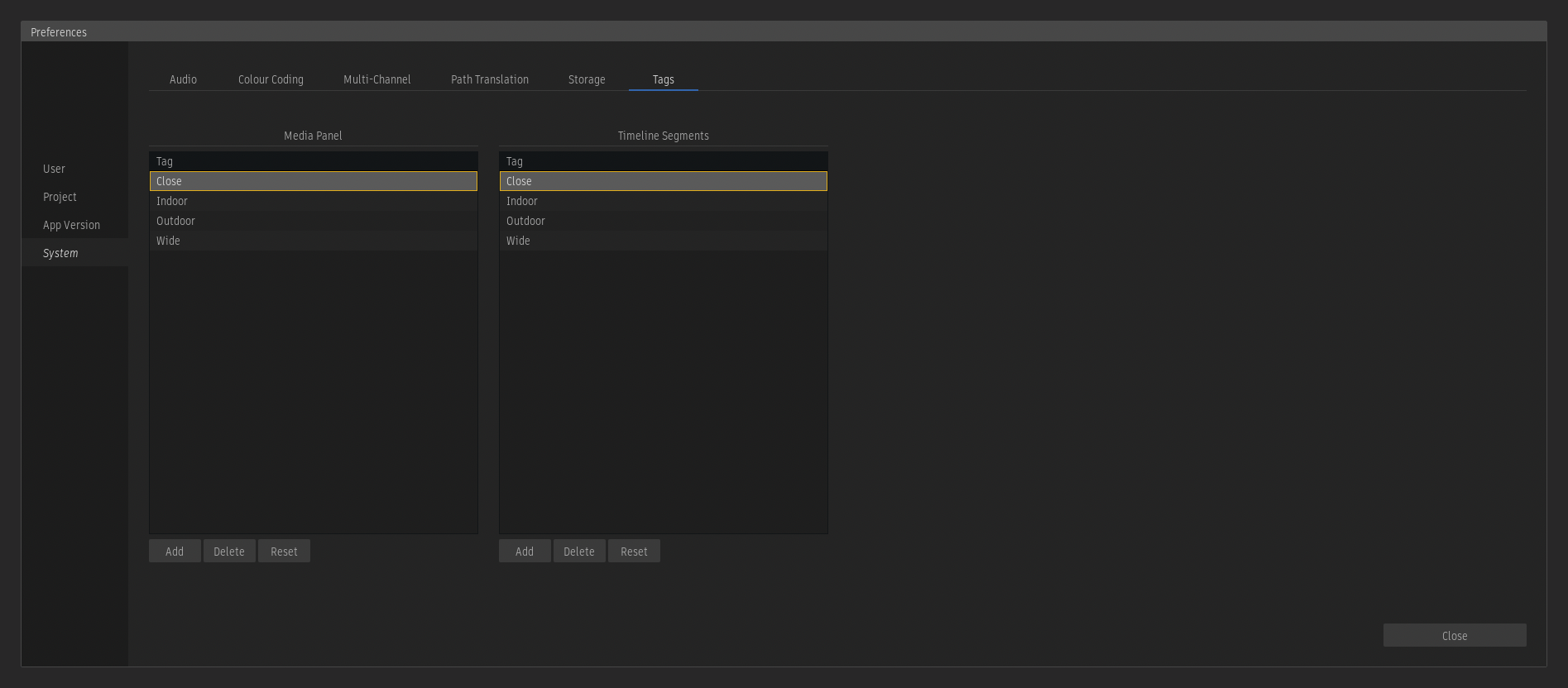
Tags shared amongst all users and projects can be set in the Tags Preferences.
Tags added to the Media Panel and Timeline Segments table are available from the Shared section in the Add Existing Tags drop-down buttons.
Tags added directly to a Clip or Timeline Segment are available from the Project section.
For more information, see: