To Run Motion Simulations
The Simulation Player contains several fields including:
Final Time
Images
Filter
Simulation Time
Percent of Realized Simulation
Real Time of Computation
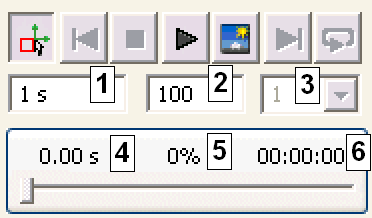
Simulation Panel
Final Time field
Controls the total time available for simulation.
Images field
Controls the number of image frames available for a simulation.
Filter field
Controls the frame display step. If the value is set to 1, all frames play. If the value is set to 5, every fifth frame displays, and so on. This field is editable when simulation mode is active, but a simulation is not running.
Simulation Time Value
Shows the duration of the motion of the mechanism as would be witnessed with the physical model.
Percent value
Shows the percentage complete of a simulation.
Real Time of Computation value
Shows the actual time it takes to run the simulation. The complexity of the model and the resources of your computer affect the time.
Before you run the simulation, make the following adjustments.
Set up a simulation
On the Simulation Player, in the Final Time field, enter 0.5 s.
Tip: Use the tooltips to see the names of the fields in the Simulation Player.In the Images field, enter 200. Increasing the image count improves the results when viewed using the Output Grapher.
On the Simulation Panel, click Run.
As the Motor component moves, the other components making up the kinematic chain respond.
Note: Because we did not yet specify any frictional or damping forces, the mechanism is lossless. There is no friction automatically created between components.If the simulation is still running, on the simulation panel, click Stop.
Click Activate construction mode.
As you can see, running the simulation did not result in motion because the kinematic chain is incomplete. In the following chapter, you complete the construction and enable motion.
| For more information | Location |
|---|---|
| Tutorial | Simulation - Fundamentals - Part 2 |