iLogic Enhancements
Learn about enhancements made to iLogic.
iLogic Support for Model State
iLogic is expanded to support the following Model State workflows:
ThisDoc.Document support for Model State In a component occurrence of a model state document, the existing ThisDoc.Document property returns the member document.
- The ThisDoc.Document property is expanded to support returning the member document when running in a component occurrence of a model state document.
- The new ThisDoc.FactoryDocument property returns the factory document when running either in a top-level document or in an assembly component. In a component occurrence document, this returns the associated factory document. In a top-level document, this returns the same object as ThisDoc.Document.
- In a drawing, the new ThisDrawing.ModelFactoryDocument property returns the factory document for the first model view (or nothing if there is no model view).
- In a drawing view, the new ICadDrawingView.ModelFactoryDocument property returns the factory document for that view (or nothing if it is not a model view).
There is a new event called Model State Activated now available in the Event Triggers dialog box. This trigger occurs when a model state is activated. Use this trigger to run a rule in the document in which the event occurred.
New function lets you add a component in a specified model state
A new function called AddWithModelState is now available on the Components object (IManagedComponents interface). This function adds a managed occurrence of a part or subassembly.
Note: Capture Current State on an existing component that includes a model state, in turn creates code that includes AddWithModelState.iLogic edit-in-place and model states
There are some restrictions on what you can do with iLogic rules when you are editing a model state component in place. In a model state, when a component member file is being in-place edited within an assembly:
You can edit, run, and suppress rules.
You can't add or delete rules.
There is no change to edit-in-place support for components that aren't model state components: You can add an iLogic rule:
From the top level document.
At the sub-component level in the in-place-edit environment.
Instructions to Modify an Occurrence Parameter with a Model State
Access the steps here: To Modify an Occurrence Parameter with a Model State.
For more information on Model States, see About Model States.
iLogic Support for Instance Properties
Use the new Instance property snippets to read and create Instance Properties.
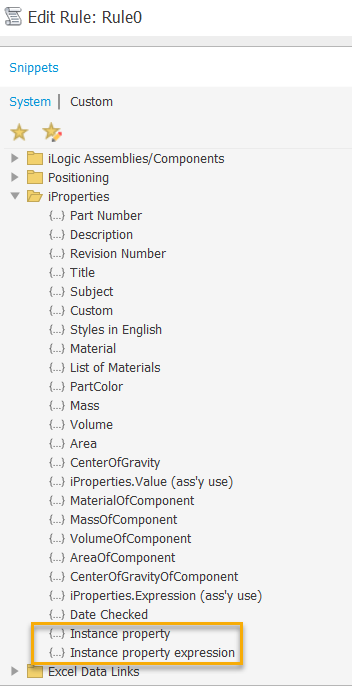
For information on snippets in iLogic, see About Code Snippets in iLogic.
iLogic Support for User Parameter Change Event
There is a new event named Any User Parameter Change in the Event Triggers dialog box. This event is triggered when you change the value of a User parameter.
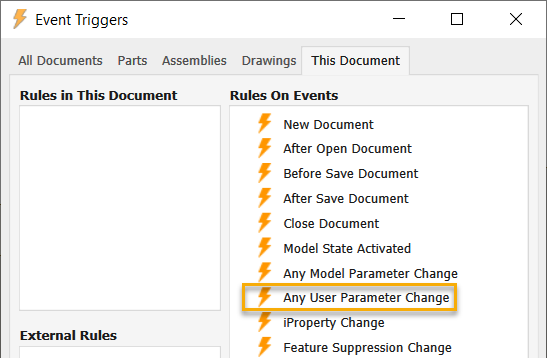
For information on Triggers in iLogic, see To Work with Event Triggers in iLogic.
iLogic Deployment Enhancement
You can now create a deployment that includes your customized settings in the iLogic Configuration dialog box.
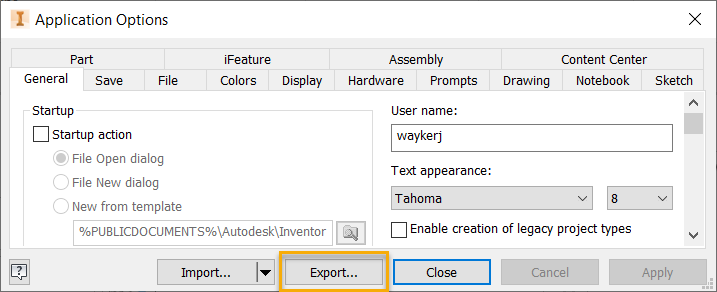
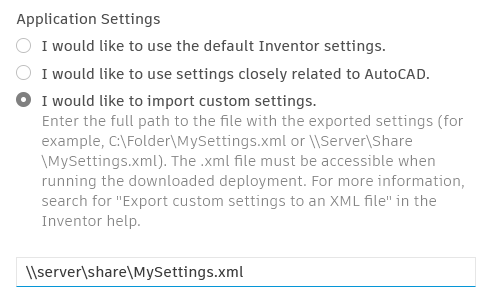
| In the Application Options dialog box, click Export. Export saves the current Application Options and the settings in the iLogic Configuration dialog box to an .xml file | When creating your deployment, select I would like to import custom settings, and enter the path to the exported .xml file |
 |  |