Constraints Enhancements
New options allow you to quickly identify under constrained components.
Constraint status now displays by default in the assembly browser as a  ,
,  , or
, or  to indicate one of three states:
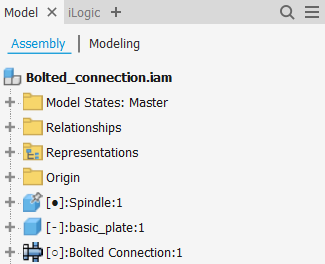
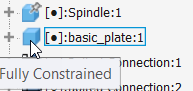
Fully constrained A black dot indicates the component is fully constrained.
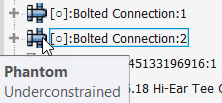
Under constrained A hollow dot indicates the component is under constrained and needs attention. To resolve, start by opening the Edit Constraint dialog box to identify possible issues.
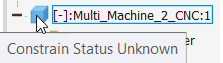
Unknown A dash indicates the constrained status of the component is unknown. To resolve this state, rebuild the assembly: On the ribbon: Tools tab
 Manage tab Update panel Rebuild All
  .
.
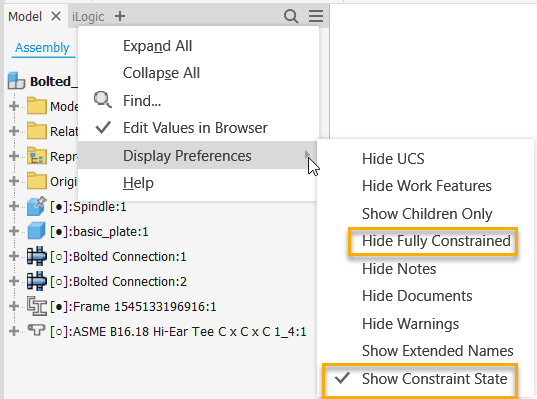
Use the new Display Preferences menu options to:
- Hide Fully Constrained: Only display components that have constraint issues.
- Show Constraint State: Display all constraint status (, , and )
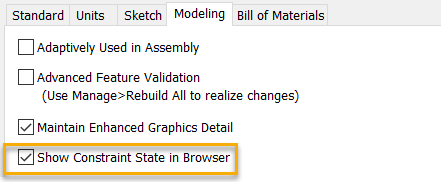
The new setting, Show Constraint State in Browser is also available from Tools Manage Document Settings Modeling tab. By default, the setting is enabled.

For more information, see Working with the Assembly Browser and Modeling Tab Reference (Document Settings) .