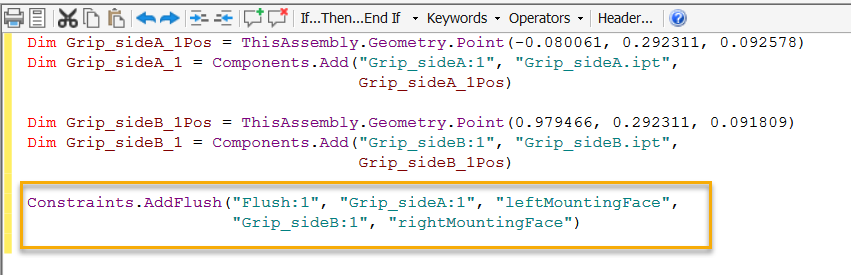
Create a Rule to Add Constraint(s) Directly to Faces and Edges
First, assign a name to a face or edge, and then create a rule that adds the constraint(s) directly to a faces or edge with those names.
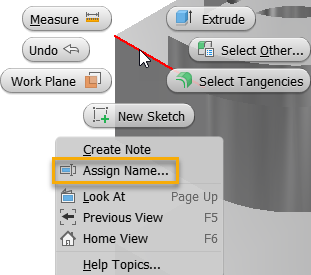
In a part file, right-click on the geometry that is or will be constrained to another part, and select Assign Name.
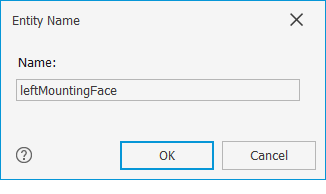
Enter a descriptive name to the constrained geometry to make it easier to identify the geometry in the rule editor.
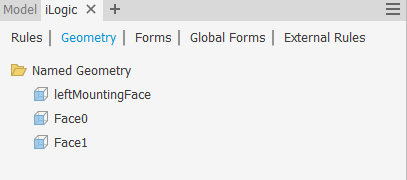
The assigned name displays in the Geometry tab in the iLogic browser and on the geometry in the graphics window (part file only).
In the assembly file, in the Edit Rule dialog box on the Model tab, multi-select the part names, right-click, and then select Capture.Current.State (Components Constraints.Add) from the context menu.
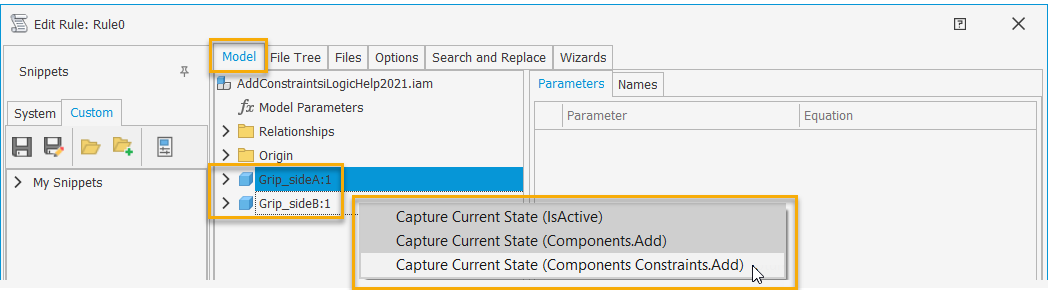
The rule editor populates with the new rule. The constraint will be re-created whenever you run the rule.
Note: If the geometry was not assigned a name in the part file, the Rule Editor creates a generic name for the geometry.