To Use Rule Wizards
iLogic wizards help you create sophisticated rules for certain tasks.
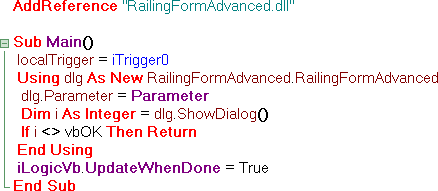
Control Dialog Box Based on Model Parameters
Click Create Rule for a Dialog on the Wizards tab of the Edit Rule dialog box.
The Open DLL File dialog box displays the contents of the iLogicAdd folder, which contains previously created DLL files.
Note: You may need to create the iLogicAdd folder as C:\Program Files\Autodesk\Inventor {version}\Bin\iLogicAdd.Select a DLL to populate the Rule for External DLL dialog box with the appropriate class and variable names.
Click OK to generate the code.
Capture Current Display View
- Click Capture Current View on the Wizards tab of the Edit Rule dialog box.
- Select a Size Option from the Capture View dialog box.
- Save and Restore current view extents - Restores the view to the orientation and zoom settings from when the rule captured the view.
- Don’t change view size on restore - Moves the model to the center of the display and sets the orientation, but does not change the zoom.
- Fit to model extents on restore - Moves the model to the middle of the display and fills the display (same as Zoom All).
- Click OK to generate the code.
Generate Message Box
Use this wizard to create a rule that generates a message box.
Click Message Box on the Wizards tab of the Edit Rule dialog box.
Enter the Title to appear at the top of the message box.
Select the combination of buttons to appear on the message box.
Indicate the default button by selecting the number that corresponds to its relative placement in the order, based on the Buttons selection.
For example, if you have chosen YesNoCancel as your button scheme, and your default button is No, select 2.
Select a status Icon to be displayed in the message box.
Enter the text to be displayed in the message box, surrounded by quotes.
Click Preview to display the message box using your selections.
Click OK to generate the code.
Display Diagnostic Information When Parameter Values Fall Outside Range
- Click Parameter Limits on the Wizards tab of the Edit Rule dialog box.
- Enter the Name of the parameter.
- Specify the maximum and minimum values.
- Enter the message Title and message text to display for violations of the maximum and minimum values.
- Click Apply to generate the code, or click Default Message to reset the messages to their default text.