Overview of the MaterialX data model
MaterialX is an open standard for defining rich material and look development content. It addresses the need for interoperability and standardization in the definition of complex materials across different rendering and authoring tools. MaterialX facilitates the consistent exchange of material specifications, allowing artists and engineers to describe material properties and visual appearances in a renderer-agnostic manner. Key features of MaterialX include:
- Interoperability: Allows for seamless material transfer between different digital content creation tools and rendering platforms.
- Flexibility: Supports a wide range of material definitions, from simple to highly complex.
- Extensibility: Users can extend the standard with custom definitions to cater to specific needs.
- Compatibility: Designed to integrate with modern workflows and leverage contemporary graphics hardware.
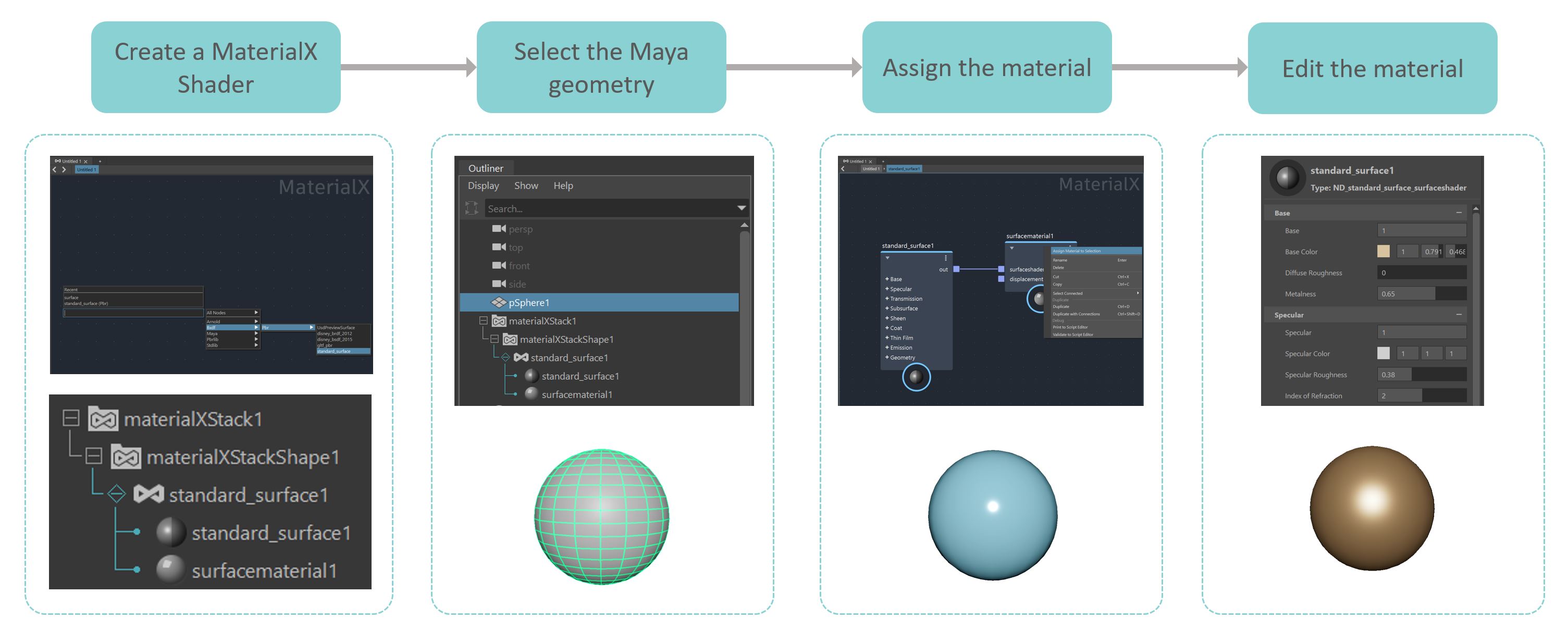
The MaterialX data model in LookdevX lets you work directly with different types of geometry, including native Maya geometry. Follow the steps below to learn how to work with MaterialX with the Maya geometry in your scene.
For maximum portability of your MaterialX documents, it is recommended to use nodes from the Standard libraries such as the stdlib, bxdf, nprlib, and pbrlib.
Basic workflow:
MaterialX data model supports surface, displacement and volume shaders. The following diagram describes a workflow for working with LookdevX using the MaterialX data model.
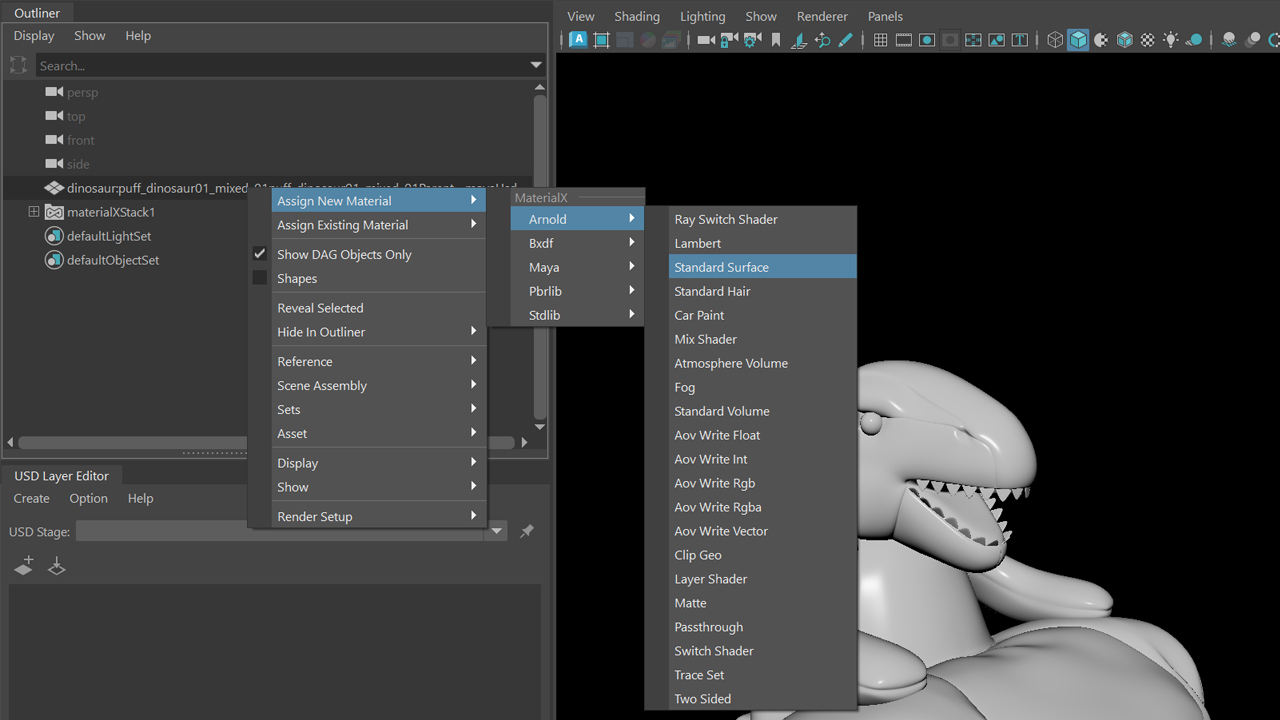
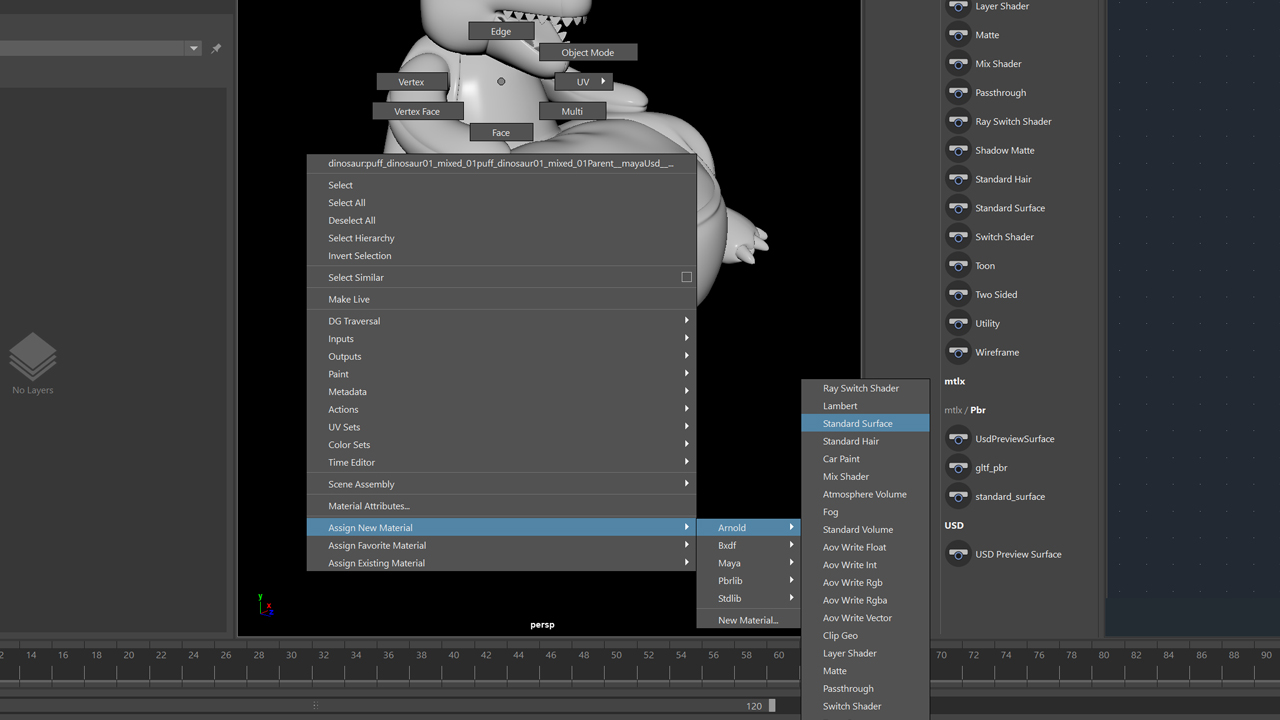
Assign new materials A material assignment menu is available in both the Outliner and Viewport. You can assign either surface or volume materials to your model.
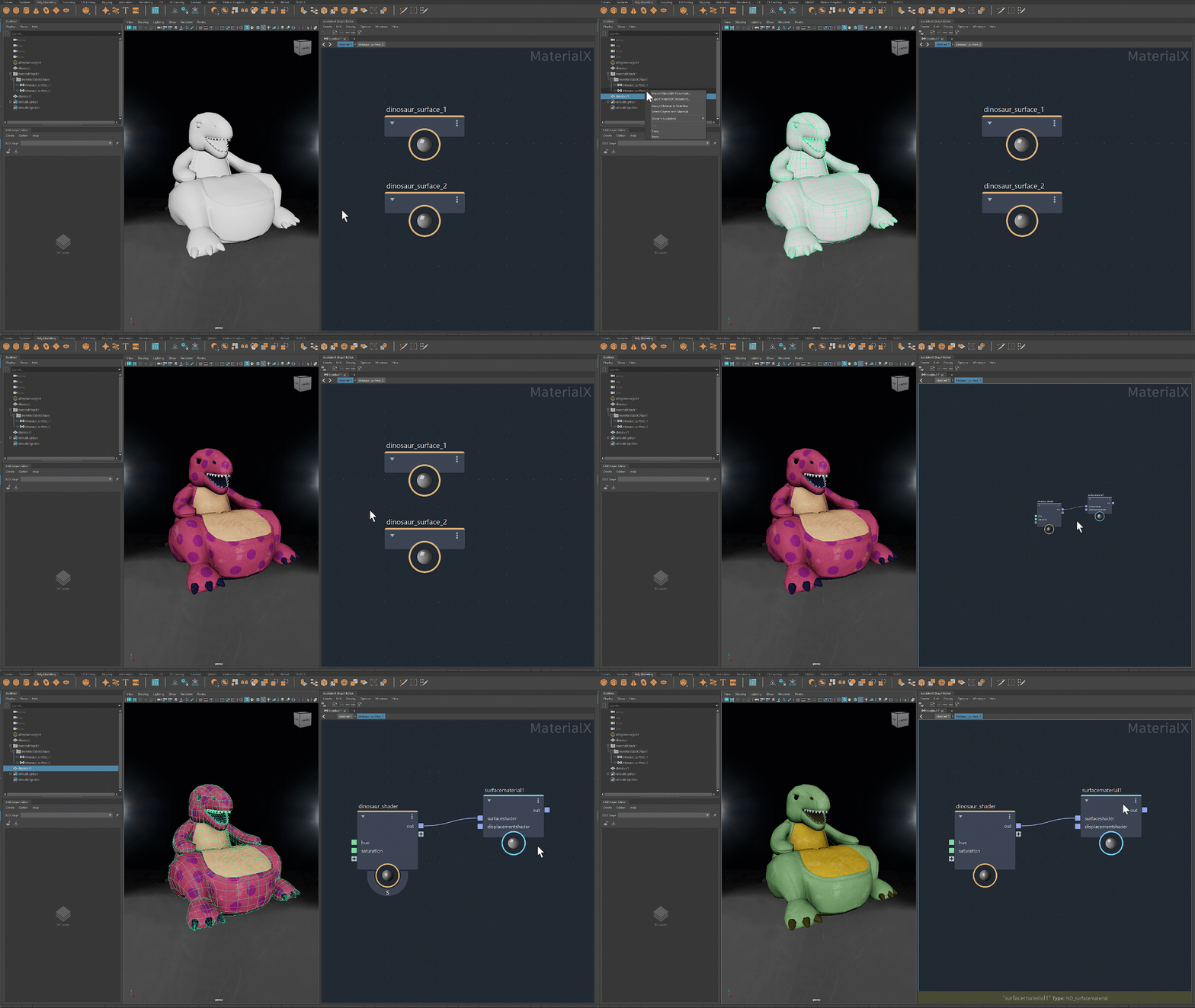
Assign existing materials You can right-click to assign an existing material to Maya geometry in both the Outliner and LookdevX Graph Editor.
Relative Path on Export
Paths to textures in a MaterialX document are made relative to the location on disk where the MaterialX file is located. Setting the path of textures relative to the MaterialX file makes sharing the document easier.
To set paths relative on export:
- Open the LookdevX preferences and ensure that "Relative to MaterialX File On Export" under the section Relative Pathing is checked ON.
- On the Outliner, right-click a MaterialX Stack or a MaterialX Document, and ensure that "Make paths relative to MaterialX File" is checked ON in the Export dialog that appears.
Loading MaterialX Document Workflow
MaterialX documents can be loaded into Maya. A loaded MaterialX document retains a link to the original document located externally from your Maya scene. The original document can be local to your computer or on a network drive.
To load a MaterialX document, click the Create menu and choose MaterialX Stack. Next, right-click the stack in the Outliner and choose Load MaterialX Document... . The loaded MaterialX document can be edited in LookdevX like any other MaterialX document. As edits are made, a new icon in the Outliner will indicate when the document has unsaved edits.
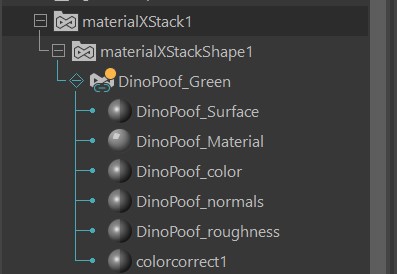
If the MaterialX document contains relative paths, loading the document will resolve them correctly, and paths for textures and images can be switched between relative and absolute via the Parameter Editor. This ensures consistent and flexible file referencing, enhancing project portability and workflow management.
Loaded MaterialX documents with edits have three options in the Outliner, right-click on the edited document and choose one of the following:
- Save MaterialX Document: This option will save the edits to the file on disk.
- Discard MaterialX Document Changes: This option will remove any edits and revert the document back to its previously saved state.
- Save Copy As...: This option saves a copy of the document in its current state but the document remains edited with unsaved changes in the scene.
Saving Maya files with edited loaded MaterialX documents
Several options are available for saving edits to loaded MaterialX documents when saving the Maya file. If a loaded MaterialX document has edits, and the Maya scene is saved, a window will appear.

The options in the Save MaterialX Document dialog allow setting the desired behavior of what happens to edits when the Maya file is saved. If an option to not show the window is chosen, preferences can be changed in the LookdevX section of the Maya Preferences.
- Always save MaterialX changes: Edits to loaded MaterialX documents are always saved and this options window will no longer appear when saving the Maya scene.
- Always discard MaterialX changes: Edits to loaded MaterialX documents are always discarded and this options window will no longer appear when saving the Maya scene.
- Ask me before saving MaterialX changes: This options window will always open to confirm the desired action to save or to discard changes to the loaded document.
If the preference to "Ask me before saving MaterialX changes" is selected, choose one of the following buttons to decide how to handle the edits in the loaded document:
- Cancel: Closes the window without setting a preference, saving, or discarding changes. The Maya save scene action is also cancelled.
- Discard: Discards any edits to the loaded MaterialX document, the Maya scene is saved.
- Save: Saves any changes to the loaded MaterialX document, the Maya scene is saved.
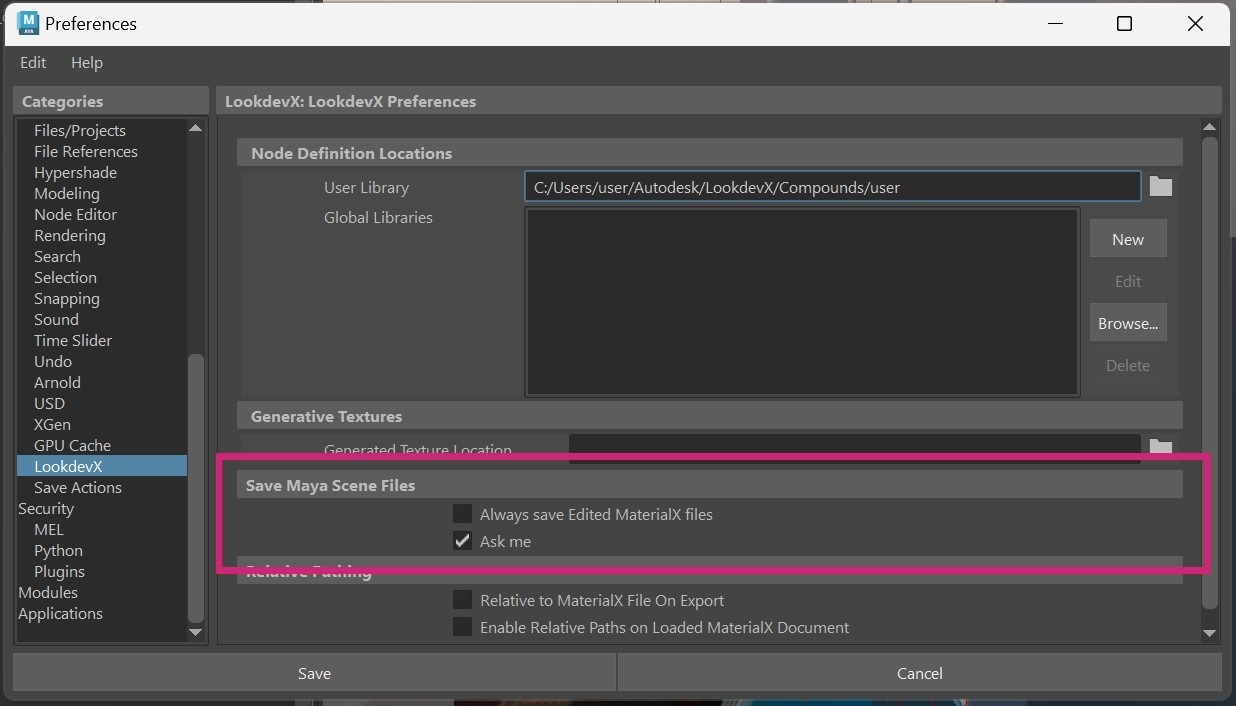
To access the preferences in the Preferences panel, choose the Windows menu, then choose Settings/Preferences, next choose LookdevX. Under the Save Maya Scene Files section of the preferences, two options are available:
- Always save Edited MaterialX files: Edits to loaded MaterialX documents are always saved and this options window will no longer appear when saving the Maya scene.
- Ask me: This options window will always open to confirm the desired action to save or to discard changes to the loaded document.
Known Limitations
- MaterialX does not support DirectX 11