 The conversion process enables you to define mappings from the source data to corresponding feature classes and attribute values in the current industry model. You can convert multiple sources in one operation. You can apply filters to the sources to convert only the data of interest from each source.
To convert data to industry model features
- In AutoCAD Map 3D toolset, switch to the Maintenance workspace.
- Open a project or an industry model template or file.
The current industry model will be the target for the converted data.
 – Click .
 - In the Convert to Industry Model dialog box, under Source Data, click any of the following:
 – Add File-based Sources. Use this option to convert data from DWG, SDF, SHP, and SQLite sources to design features.
  – Add FDO Connection Sources To Convert. Use this option to convert data from an FDO connection to design features. You must first connect to the source using .
  – Add Industry Model Sources To Convert. Use this option to convert data stored in previous versions of AutoCAD Map 3D toolset Enterprise. In this case, minimal mapping is needed.
 – After adding the source data and assigning an industry model, you can expedite the data mapping process by clicking the Automatic Mapping button.
 Feature classes and their properties may not always have logical names. The mapping process allows you to set logical names that are easier to understand. For example, instead of using the feature class name like EL_OH_CONDUCTOR, it could be mapped as Conductor.
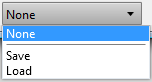
- If you have saved a mapping profile, at the bottom of the Source Data list, click Load and specify a saved mapping profile.
- Select and clear mapping check boxes as desired and click Convert.
You can select multiple sources to convert.
Tip: Right-clicking in the source data column of the Data Mapping area opens a menu where you can choose to select or deselect all features and properties. - To apply a filter to the source data, right-click the data source and click Filter Source.
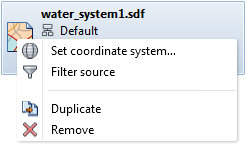
- If necessary, you can change the coordinate system assigned to the source data. Right-click the source and click Set Coordinate System.
- In the Data Mapping area, define the mapping between items in the source data and feature classes and attributes in the industry model data model.
If the source is DWG, you can create mappings from layers, entities, or blocks, to corresponding feature classes in the industry model. From the drop-down list, select Entity, Block Name,Layer, or Object Data.
To create mappings between particular attributes, click the attribute of interest in the source list, then click the drop-down list in the All Models column.
- When you have completed the mapping for a source, you can save the mapping as a profile. You can later reload the profile for future conversions. From the dropdown at the bottom of the Source Data list, click Save.
- To validate the connectivity of features and run design validation rules, select Reinitialize and Validate Topology.
This option will display any connectivity and rule errors encountered in the Topology Checker palette when the source data is converted.
- When you have finished creating the mapping between the source and the industry model, click Convert.