Selecting and editing keyframes
In the FCurves window, selected keyframes display with tangent handles by default. The Value display shows the value of a selected property on the vertical axis, and its Time display on the horizontal axis.
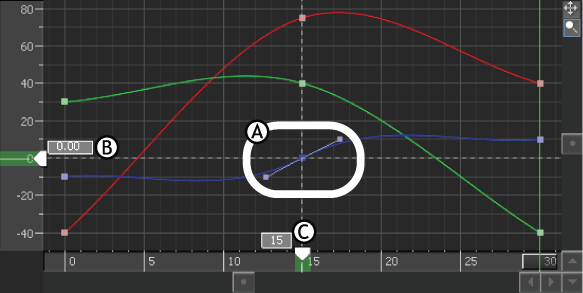
A. Selected keyframe with tangent handles B. Value (0.00) of selected keyframe displayed in the Value display C. Time (frame 15) of selected keyframe displayed in the Time display
Selecting and deselecting keyframes on the Dopesheet Timeline area is similar to selecting and deselecting keyframes in the Transport Controls. You can only select one keyframe or keyframe region at a time in the Dopesheet window. When you select a keyframe or keyframe region in the Dopesheet window, it is not selected in the Transport Controls. For example, you can select one keyframe in the Transport Controls window and a separate keyframe region in the Dopesheet window. However, the result of any change to the keyframes on the Dopesheet Timeline area appear on the Action timeline, and vice versa.
The following describes methods for selecting, deselecting, and deleting keyframes.
To select keyframes:
- Click a single keyframe, or click-drag over several keyframes to include them in a keyframe region. You can also right-click and select the Select All or Select Keys in Box options in the context menu.
- Ctrl-click additional keyframes to create or expand a keyframe region.
To select a keyframe region:
- Shift-click the first and last keyframe to select a keyframe range.
To expand a selection region:
Ctrl-click additional keyframes.
When multiple keyframes are selected, a dotted line outlines the selection area (as seen in the following figure), and four values display, two on the Vertical axis, and two on the Horizontal axis.
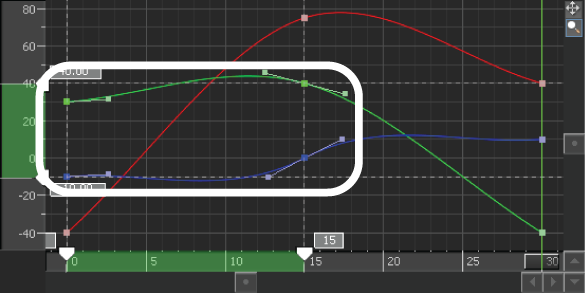
Selected region displays as a gray box
To deselect keyframes:
- Double-click an empty space beside the keyframe, either on the Action timeline or in the FCurves pane.
To deselect a keyframe region:
- Spacebar-click or double-click an empty space on the Action timeline or on another keyframe.
To delete a keyframe or keyframe region:
Right-click the keyframe or keyframe region and choose Delete from the context menu or press the Delete key.
In the FCurves window, the keyframe's associated slope on the function curve is removed and the slope between the preceding and following keyframes is joined.
To cut, copy, and paste keyframes:
- Right-click the keyframe selection and choose the appropriate option from the Transport context menu or use the appropriate keyboard shortcut (see Transport Controls context menu).
To navigate between keyframes:
- Use the Back and Forward buttons in the Key Controls window, or the left and right arrows on the keyboard to move between keyframes on the Action timeline.
To offset keyframe selections:
Drag the region or its Time display to a location, or double-click the first Time display, type the frame you want the keyframe to move to.
Note:To cancel the offset, click outside of the Time display before pressing Enter.
Press Enter.
If the Move Ripple option is activated, keyframes surrounding the region are pushed relative to the offset.
To stretch or shrink keyframe regions:
Drag the region’s first or last keyframe or Time display to a location on the Action timeline, or double-click the region’s last Time display and enter the precise frame to which you want the region to stretch.
Note:To cancel the stretch, click outside of the Time display before pressing Enter.
Press Enter.
If Stretch Ripple is activated, keyframes surrounding the region are offset according to the stretch.