Close the gap between a part's lowest point and the platform surface, ignoring any attached supports or even other parts that might be in the way
Put part on platform manually
This command is available in the Move dialog as well as a dedicated command in the Arrange menu.
- Ensure the part is orientated correctly within the platform, for instance using the Move and Rotate functions.
- From the main menu, choose
Arrange >
 Put part on platform to move the part flush with the bed.
Tip: Use the keyboard shortcut Ctrl + Down-Arrow.
Put part on platform to move the part flush with the bed.
Tip: Use the keyboard shortcut Ctrl + Down-Arrow.
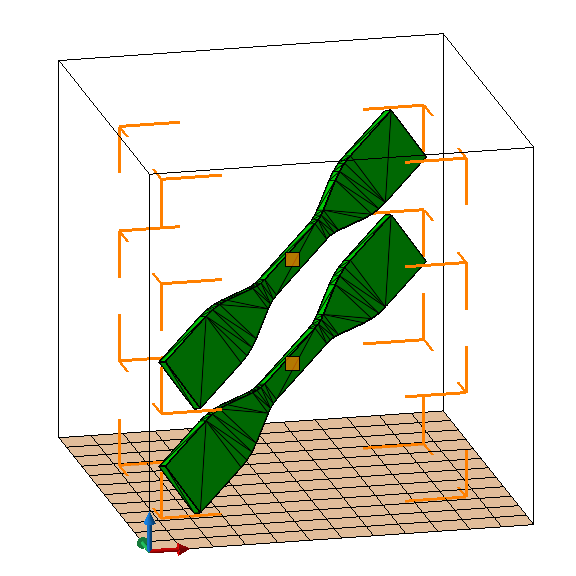
The same part, before and after putting it on the platform
Always force parts onto the platform
Forcing the parts onto the platform, with or without a specified distance, is a function of selected machine workspaces. The switch for that is present in the context view of an active workspace:

Example