Customize Properties in the TakeOffFileMap Node
Make a back-up copy of the property map file you wish to customize. This is likely to be the file: C:\Program Files\Autodesk\Navisworks Manage [year]\Quantification\TakeoffPropertyMap.xml, or a Navisworks xml property map of your choice.
This means you can revert to the original file if necessary.
Open your model in Navisworks.
Click > Home tab > Select and Search panel > Find Items
 .
.In the left navigation pane, click your model (as opposed to individual objects).
In the Category column, select Item from the drop-down list.
In the Property column, select Creator from the drop-down list.
In the Condition column, select Contains from the drop-down list.
In the Value column, select Revit from the drop-down list.
Note: this example uses "Contains" "revit" (instead of "Equals" "LcNwcLoaderPlugin:lcldrevit") intentionally to have it applied for both .rvt file and Revit exported .nwc files, since Revit export .nwc has the property of value "nwexportrevit".Click Export and save the xml file locally.
Right-click the xml file > Open with Notepad or similar text editor.
The xml file will look something like this:
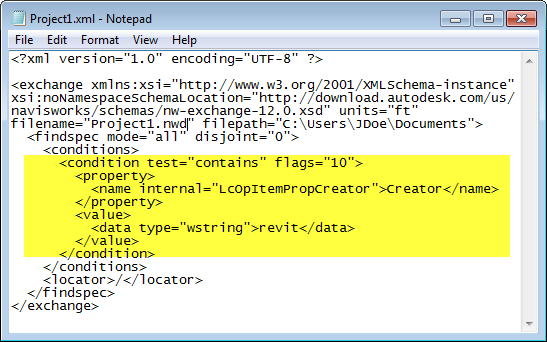
In your xml file, copy the lines of code that correspond to the condition node highlighted in yellow above.
Open the property map file here: C:\Program Files\Autodesk\Navisworks Manage [year]\Quantification\takeoff_maps\TakeoffPropertyMap.xml (or use a file map template of your choice). Paste your copied text into the property map file (find and replace the existing condition node if it is visible in the file).
In the property map file, locate the code
, and change the text Revit file map to any other name you wish to use for the TakeoffFileMap. Save your property map file in the file path: C:\Program Files\Autodesk\Navisworks Manage [year]\Quantification\...
If you close and reopen Quantification in Navisworks, your customized properties will be picked up automatically.