The Catalog Browser is located at the bottom panel of the Spec and Catalog tabs. It displays everything from a catalog with customization and filtering functionality.
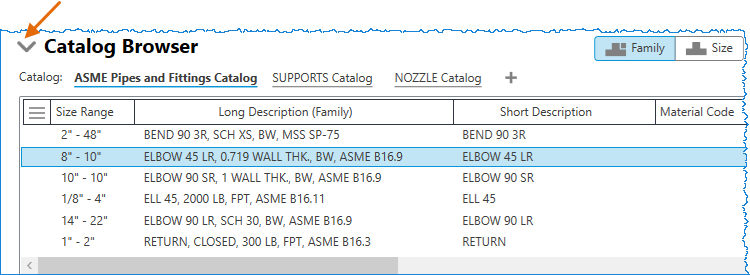
Expander
You can click on the expander to expand or collapse the Catalog Browser. Collapsing the Catalog Browser provides more visibility of the Spec and Catalog tabs for editing components.
Catalog Tabs
The catalog tabs display all opened catalogs. The active catalog is highlighted with bold text.
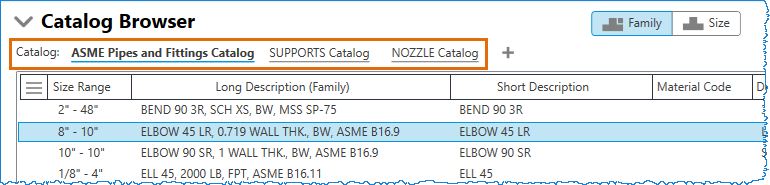
- Click a catalog name to switch the active catalog.
- Right-click a catalog name to close it.
- Click the plus (+) button to open a catalog.
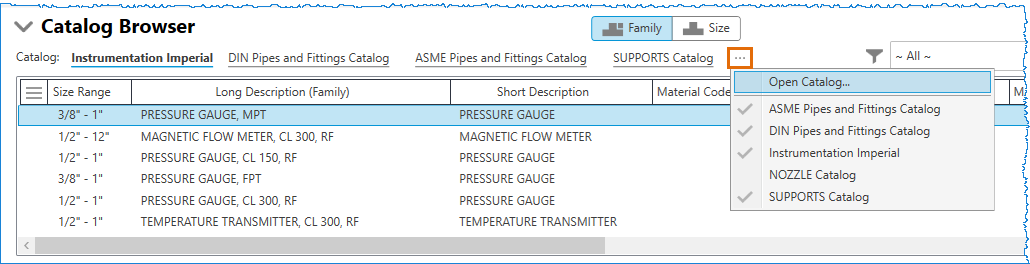
The (+) button changes to the ellipsis button (…) button when there are too many open catalogs.
- Click the (…) button to view all open catalogs and switch between them or open a new catalog.
Components List
The components list displays all data of the active catalog, with functionality for customizing displayed properties and their sequence.

- Click
 to expand a full list of catalog properties and choose which ones to display in the components list.
- Drag a property to move it left or right.
- Click a property to sort the order of components.
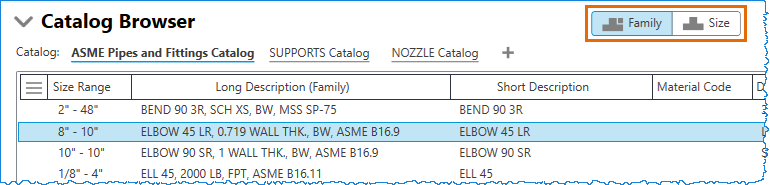
Family and Size Toggle
You can switch between the Family and Size tabs to display the components list by part families or part sizes.
Search and Filter
The search function helps find parts with particular keywords quickly. The property filter helps filter parts with desired property values.
Enable the property filter by clicking the left side of the search bar. Clear all property filters by clicking the same button again. The property filter displays right under the property name in the components list. The available values of each property filter are updated to show only valid values with an active search.
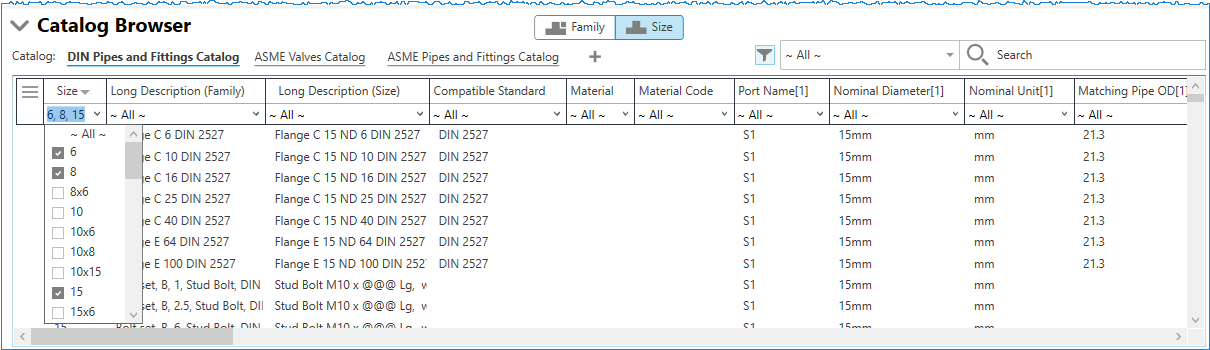
Active search and filters are saved for each opened catalog and cleared when the catalog is closed. Switching the active catalog does not lose the search and filters; they are restored when the catalog is switched back to active.
Shortcut Menu Options
The following options are displayed.
- Add to Spec. In Spec tab, adds the selected part to the active spec.
- Duplicate Component. Creates a copy of the selected part.
- Remove from Catalog. Removes the selected part.