- On the ribbon, click Home tab
 Project panel Project Manager Project Setup.
 - In the Project Setup tree view, expand P&ID Class Definitions.
- Continue to expand the list until you locate and click a component or line class definition (for example: Engineering ItemsEquipment).
- On the Class Settings pane, under Annotation, click Add Annotation.
- In the Symbol Settings dialog box, Symbol Properties, locate and click Symbol Name. Enter a new name for the symbol.
- Under Symbol Properties, locate and click Block. Click the [...] button.
- In the Select Block Drawing dialog box, browse to and select the drawing that contains the block you want to use. Click Open. Note:
You cannot use a drawing file as a block for the symbol; the block you want to use must be in the drawing file that you select.
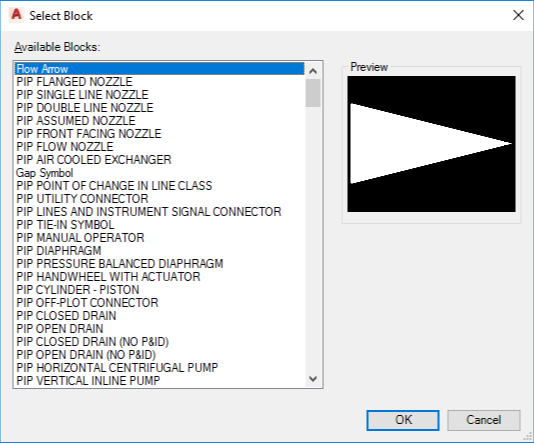
- In the Select Block dialog box, select a block from the Available Blocks list. Click OK.
- In the Symbol Settings dialog box, change the properties under General Styles Properties and Other Properties as needed. Click OK.