Optimizing, Saving, and Publishing a Scene
Before saving, exporting, and publishing a scene, why not optimize your scene. Optimizing a scene speeds up rendering and lowers memory use.
For reference information on the Optimize module, see Optimize.
How to Optimize a Scene
Imported FBX files are automatically scene optimized.
We highly recommend against loading .ma and .mb file into VRED. Instead, we suggest the use of .fbx.
In the Menu Bar, select File > Optimize Scene.
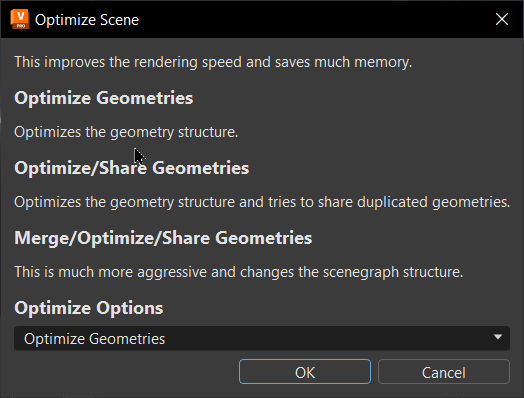
Click Optimize Options and select one of these optimization options:
- Optimize Geometries - Optimizes the structure of the geometry.
- Optimize/Share Geometries - Optimizes the structure of the geometry and tries to share duplicate geometries.
- Merge/Optimize/Share Geometries - Optimizes by changing the Scenegraph structure. This has a significant impact on the geometry.
Click OK.
For more advanced optimization options, in the Menu Bar, select Scene > Optimize to open the Optimize dialog.
How to Save a Scene
From the File menu, select the appropriate saving option, then click Save. This saves the current scene file with a supported VRED file type.
Save or Save As - Saves as you would from other applications, using the supported VRED file format .vpb (VRED Project Binary).
Save Selected - Saves the current selection to a supported VRED file format.
Save Package - Saves the project with textures stored in a sub-folder, instead of inline.
How to Publish a Scene
From the File menu, select the appropriate saving option, then click Save.
- In the Menu Bar, select File > Publish.
- Locate and select a file.
- Click Save.
How to Export Information from a Scene
There are a variety of export options to choose from, which enable different types of information from a scene, such as geometry, images, sequencer batches, and variants to be exported. Choose the option that best suits your needs.
To export the current scene as a specific file format, use File > Export, then select a file format from the Save as type field.
To export the selected Scenegraph content into one of the supported formats, use File > Export Selected and select a file format from the Save as type field.
To export a snapshot of the viewport, use File > Snapshot. The snapshot will be stored in the folder specified in the Path option of the Render Settings > File Output > Snapshot preferences.
To export specific scene data, use File > Export Scene Data, then select one of the following:
- Switched Geometry - Exports switched geometry data (*.osb).
- CubeImages - Exports the scene to a set of cube images. The export is based around a center point you create, such as with a standard primitive (which you hide using the Scenegraph). CubeImages render settings can be set in Edit > Preferences > Export.
- Render Jobs - Exports jobs from the Render module to the current scene (XML Render Queue Description .xml).
- Sequences - Places all sequences set in the Sequencer module into a separate xml file.
- Variants - Places all variants and variants sets into a separate xml file.