Selecting Objects in the Viewport
The following table provides instructions for selecting and deselecting objects:
| To: | Do this: |
|---|---|
| Select an object | Shift+ -click the object -click the object |
| Deselect an object | Shift+ -click the object -click the object |
| Deselect all | Shift+-click in empty space |
| Select objects fully enclosed in the selection frame | Shift+-drag from top left to bottom right |
| Select objects fully and partially enclosed in the selection frame | Shift+-drag from bottom right to top left |
| Deselect objects in the selection frame | Shift+-drag |
| Add an object to a selection | Ctrl+Shift+-click the object |
| Remove an object from a selection | Ctrl+Shift+-click the object or on an empty space to clear the selection |
Setting a Selection Target
For a quick way to select only objects, references, groups, or other entities, use the Edit > Selection menu. The option selected sets the selection target. To change this, make another selection.
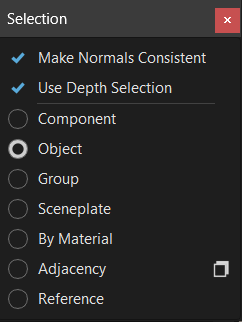
Select Specific Elements of an Object
Shift+ -click the object, then select the option you want:
Component - Selects individual surface patches inside a shell, geometries (meshes, lines, points), and light sources.
Object - Selects shells, surfaces that are not in a shell, geometries (meshes, lines, points), and light sources.
Group - Selects the next parent of an object.
Sceneplate - Selects frontplates and backplates.
By Material - Selects all objects with the same material.
Adjacency
 - Opens the Adjacency Settings for choosing the method used for selecting normals and setting a specified angle.
Adjacency Settings
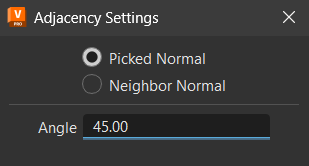
This function is the same as the Geometry Editor's Adjacency Selection.
Picked Normal - Selects all components/geometries that are neighboring to the selected geometry and are within the specified angle to the picked normal.
Neighbor Normal - Selects all components/geometries that are neighboring the selected geometry and are within the specified angle to its neighbor.
Angle - Sets the angle used by Picked Normal or Neighbor Normal.
Reference - Selects references.
How to Change Selection Behavior
In the Menu Bar, click Edit > Selection.
Choose a selection behavior:
- Make Normals Consistent - When flipping normals using Alt-click, the vertex and face normals of each selected object will be made consistent, that is, pointed in the same direction.
- Use Depth Selection - Enables you to select all objects within the selection frame, whether they are behind another object or not.
- Select an option from the list to choose components, objects, groups, sceneplates, by the material, adjacency of the normals, or references.