Working with Script Plugins
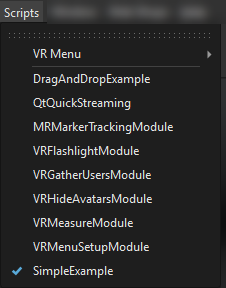
VRED Professional supports custom Python modules, called script plugins. They have to be copied to a specific location (see Loading a Script Plugin) for them to be automatically loaded during the next VRED start-up. After this, all loaded script plugins can be found listed in the Scripts menu.
How are Script Plugins Handled?
Script plugins are created to be independent from VRED's 'main' context, in which every Python code executed in the Script Editor, Terminal, or Script preferences, or scripts loaded together with VPBs is run. Script plugins are not affected by creating a new scene, unlike the 'main' context, which is, and is also flushed and reset to its default state.
Every Python command executed in the Terminal or Script Editor will not influence plugins or interfere with each other.
How to Update a Script Plugin
To update a script plugin, use Edit > Reload Script Plugins and close any open plugin windows, since the running code in memory cannot be updated, otherwise. Edit the plugin, close its window, then initiate Edit > Reload Script Plugins to update the plugin.
If the plugin needs to do some house keeping when its unloaded, try this callback function:
This example is from QtQuickStreaming.py:
def onDestroyVREDScriptPlugin():
    """
    onDestroyVREDScriptPlugin() is called before this plugin is destroyed.
    In this plugin we want to stop all processes.
    """
    streamingPlugin.deleteAllProcesses()
Script plugins have access to VREDPluginWidget, VREDMainWindow and vrMainWindow, which are copied into the globals of each plugin when it is loaded or re-loaded.
Scripted Plugins
VRED comes with an assortment of scripted plugins, which are listed in the Scripts menu.
DragAndDropExample (MIME Data Access) - Our scripting interface supports drag and drop functionality, enabling scripts to receive drops from the Scenegraph, Material Editor, and other decoupled modules. This feature is designed primarily for advanced users who create their own script plugins, allowing them to easily integrate elements from VRED into their scripts using drag and drop.
Use the set of exposed functions to decode binary MIME data from the drop and convert it into typed instances that the script can directly process (for instance, vrd objects and qt objects). We also expose various MIME type identifiers VRED uses.
Use the provided example script plugin, DragAndDropExample, to see how this works.
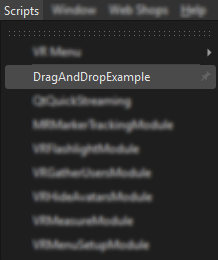
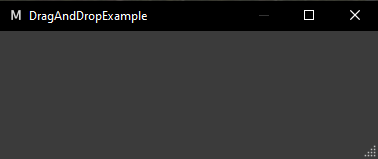
When the example script plugin dialog appears, drag materials, scene nodes, cameras, etc. into it. Once something is dragged into the example script plugin dialog, its values are displayed in a terminal. See the accompanying documentation for the supported functions and MIME types.
QtQuickStreaming - QtQuickStreaming creates a convenience UI for starting and stopping Qt Quick applications with WebGL streaming enabled. Use it to stream the GUI of a Qt Quick application to a web browser and show the web page in a web engine in the Media Editor or web frontplate in the Sceneplate Editor. See Using QtQuickStreaming for full details.
Important:This application will run in the background, as a child process of VRED, on the local machine.
VRFlashlightModule - Adds the Flashlight tool to the VR Menu. Use it to show or hide a flashlight. See the Python docs, Showing a flash light in VR for more information.
VRGatherUsersModule - Adds the Gather Users tool to the VR Menu. Use it to teleport all users in a collaboration session to a shared location and enable all participants to look at the same thing from the same view. See the Python docs, Gather all Users in a Collaboration Session for more information.
VRHideAvatarsModule - Adds the Show Avatars tool to the VR Menu. Use it to show or hide avatars. See the Python docs, Hide Avatars in a Collaboration Session for more information.
VRMeasureModule - Adds the Measure tool to the VR Menu. Use it to measure the distance between two selectable points in VR. See the Python docs, Measure Distances in VR for more information.
VRMenuSetupModule - Adds a VR Menu option to the Scripts menu. Use it to add tools or removing them from the VR Menu you interact with when in VR/MR. See the Python docs, Allowing to Configure the VR Menu for more information.
SimpleExample - Opens the SimpleExample dialog to see how it works.

Use this example when creating your own custom Qt widget with added action buttons. This script plugin contains New Scene, Load Scene, and Create Snapshot buttons. See Loading a Script Plugin to learn how to load this script plugin example and add it to your Scripts menu.