メッセージ ボックス関数のリファレンス(iLogic)
メッセージ ボックス関数は、ルールにメッセージ ボックスとデータ入力ボックスを作成します。
MessageBox.Show および InputBox は、標準の VB.NET 関数です。詳細については、VB.NET のドキュメントを参照してください。
MessageBox.Show は、VB6 および VBA の MsgBox 関数に対応する VB.NET の関数です。iLogic では、MsgBox を使用することもできます。
InputListBox および InputRadioBox は iLogic 関数です。
メッセージ ボックス関数にアクセスするには、iLogic の[ルールを編集]ダイアログの[スニペット]領域にある[システム]タブで、[メッセージ ボックス]ノードを展開します。
[ルールを追加]ダイアログ ボックスからメッセージ ボックス ウィザードを起動することで、メッセージ ボックスのコードを記述できます。
iLogic の MessageBox.Show 関数
iLogic におけるメッセージ ボックス関数の基本となる関数です。この関数を使用してメッセージ ボックスを表示します。
構文
MessageBox.Show("Message", "Title")
“Message”
メッセージ ボックスのテキスト領域の内容です。
“Title”
メッセージ ボックスのタイトル バーの内容です。
iLogic の MessageBoxButtons 関数
メッセージ ボックス内のボタンを MessageBoxButtons パラメータを使用して指定し、MessageBox.Show 関数に対応する値を指定することができます。
たとえば、次のいずれかを入力します。
MessageBox.Show("Message",'"Title", MessageBoxButtons.OK)このオプションは、 [OK] ボタンが表示される単純なメッセージ ボックスを作成します。
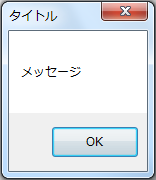
他にも次のようなオプションがあります。
MessageBox.Show("Message",'"Title", MessageBoxButtons.OKCancel)MessageBox.Show("Message",'"Title", MessageBoxButtons.RetryCancel)MessageBox.Show("Message",'"Title", MessageBoxButtons.YesNo)MessageBox.Show("Message",'"Title", MessageBoxButtons.YesNoCancel)MessageBox.Show("Message",'"Title", MessageBoxButtons.AbortRetryIgnore)iLogic の MessageBoxIcon 関数
MessageBox.Show 関数に MessageBoxIcon パラメータを含めることで、メッセージ ボックスにアイコンを追加できます。
たとえば、次のいずれかを入力します。
MessageBox.Show("Message",'"Title", MessageBoxButtons.YesNoCancel, MessageBoxIcon.Error)このオプションは、メッセージ ボックスにエラー アイコンを追加します。
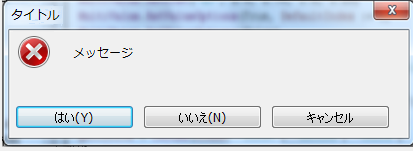
他にも次のようなオプションがあります。
MessageBox.Show("Message",'"Title", MessageBoxButtons.YesNoCancel, MessageBoxIcon.Exclamation)MessageBox.Show("Message",'"Title", MessageBoxButtons.YesNoCancel, MessageBoxIcon.Information)MessageBox.Show("Message",'"Title", MessageBoxButtons.YesNoCancel, MessageBoxIcon.None)MessageBox.Show("Message",'"Title", MessageBoxButtons.YesNoCancel, MessageBoxIcon.Question)MessageBox.Show("Message",'"Title", MessageBoxButtons.YesNoCancel, MessageBoxIcon.Stop)MessageBox.Show("Message",'"Title", MessageBoxButtons.YesNoCancel, MessageBoxIcon.Warning)iLogic の DefaultButton 関数
メッセージ ボックスが最初に表示されたときに選択するメッセージ ボタンを指定します。ボタンを指定するには、MessageBox.Show 関数に MessageBoxDefaultButton パラメータを含めます。MessageBoxButtons の使用する値に応じて、メッセージ ボックスの 3 つの有効なボタンの中から選択します。
たとえば、次のいずれかを入力します。
MessageBox.Show("Message",'"Title", MessageBoxButtons.YesNoCancel, MessageBoxIcon.Exclamation, MessageBoxDefaultButton.Button2)このオプションでは、2 番目のボタン( [いいえ] )が既定で選択されます。
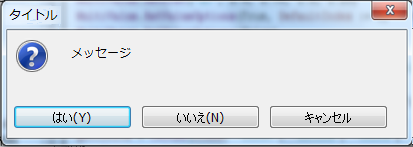
他にも次のようなオプションがあります。
MessageBox.Show("Message",'"Title", MessageBoxButtons.YesNoCancel, MessageBoxIcon.Exclamation, MessageBoxDefaultButton.Button1)MessageBox.Show("Message",'"Title", MessageBoxButtons.YesNoCancel, MessageBoxIcon.Exclamation, MessageBoxDefaultButton.Button3)iLogic の InputBox 関数
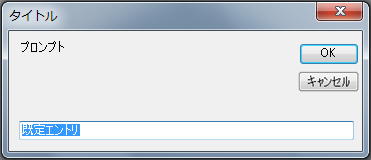
入力を要求し、入力場所を提供するメッセージ ボックスを作成します。
構文
myparam = InputBox("Prompt", "Title", "Default Entry")
"Prompt"
ボックスに表示するメッセージです。
"Title"
ボックスのタイトル バーに表示するテキストです。
"Default Entry"
ボックスの入力フィールドに表示するテキストです。
例
iLogic の InputListBox 関数
選択可能な値の一覧を示すメッセージ ボックスを表示します。一覧から値を選択すると、関数からその値が返されます。
構文
d0 = InputListBox("Prompt",MultiValue.List("listName"), defaultEntry, Title := "Dialog Title", ListPrompt := "List Prompt")
"Prompt"
ボックスの[OK]ボタンの上に表示するメッセージです。
MultiValue.List("listName")
使用するマルチバリュー リストの名前です。
defaultEntry
リスト ボックスで最初に選択されている値です。
Title
タイトル バーに表示するテキストです。
ListPrompt
Message
ボックスの一覧の上に表示するテキストです。
戻り値
d0
一覧から選択された値です。
例
material = InputListBox("Choose Part material", MultiValue.List("material"),  _
material, Title := "Part material", ListName := "Available Standard materials")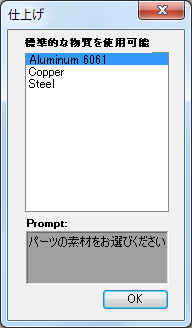
iLogic の InputRadioBox 関数
2 つの有効なオプション 1 つの選択を求めるメッセージ ボックスを表示します。
構文
booleanResult= InputRadioBox("Prompt", "Button1 Label", "Button2 Label", booleanParam, Title :="Title")
"Prompt"
ボックスに表示するメッセージです。
"Button1 Label"
最初のオプションに対して表示するメッセージです。
"Button2 Label"
2 番目のオプションに対して表示するメッセージです。
booleanParam
最初のオプションを選択するには True を指定し、2 番目のオプションを選択するには False を指定します。
Title
ボックスのタイトル バーに表示するテキストです。
戻り値
booleanResult
最初おオプションを選択した場合には True、2 番目のオプションを選択した場合には False を返します。
例
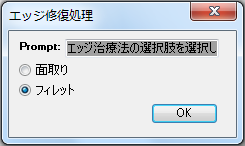
booleanParam= InputRadioBox("Choose an Edge Treatment option", "Chamfer", "Fillet", true, Title :="Edge
Treatment")