USD Asset Resolver
The USD Asset Resolver is the component in OpenUSD that translates asset references (such as USD files, textures, or other resources) into the actual locations where those assets are stored and accessed. It allows you to use custom asset management systems, databases, or naming conventions without changing the USD files themselves.
You can manage how USD resolves asset paths in Maya through the USD Asset Resolver Settings dialog. It defines where and how the resolver searches for assets, including project tokens, user-defined paths, and environment variables.
To access the USD Asset Resolver Settings dialog, go to Windows > Settings/Preferences > Preferences > USD, then under Asset Resolver, click USD Asset Resolver Settings. A second way is to click Windows > USD Tools > USD Path Editor then open the Settings tab in the dialog.
Mapping File
At the top of the Asset Resolver Settings, you will find the Mapping File. The Mapping File specifies a file that contains data used by the resolver, such as search paths and tokens. If you provide a valid mapping file, the context data types it defines appear in the related context data groups for that tab in the Settings Mapping File section.
Use the Browse button to navigate and select the file. You can also create custom mapping files to match your specific environment setup.
Example of a USD mapping file:
#usda 1.0
(
    customLayerData = {
        string[] searchPaths = ["E:/Assets/Kitbash3d/Source"]
        string[] tokenMappingPairs = ["assets", "E:/Assets/Kitbash3d/Source/library/assets"]
        string[] pathMappingPairs = ["assetA/assetA.usd", "assetA/assetA_v002.usd"]
        string[] regexMappingPairs= ["\b[a-z]{4}\b", "path"]
    }
)Use searchPaths and tokenMappingPairs for standard workflows. The other methods (pathMappingPairs and regexMappingPairs) are experimental.
Managing Asset Paths
There are four sections in the Asset Resolver Settings that let you manage how USD resolves asset paths in Maya.
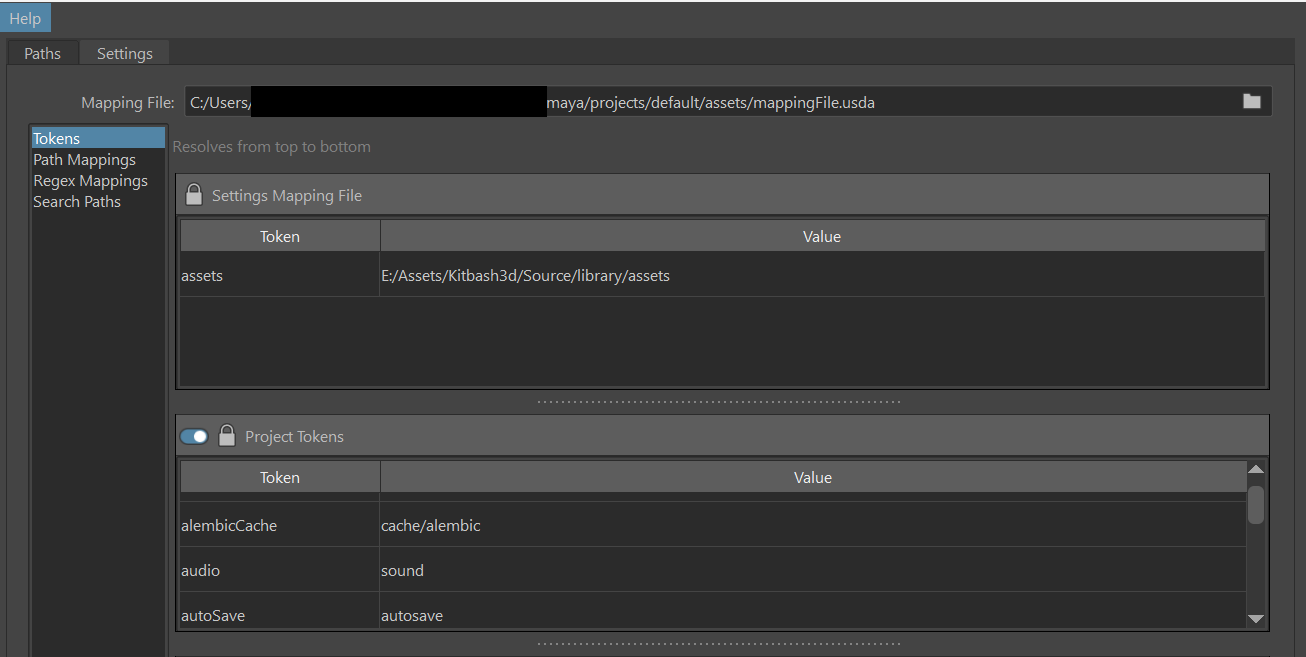
Tokens: The Tokens view displays all available tokens grouped by named group, showing their Key and Value pairs. The paths displayed in the Settings Mapping File section are locked and read-only because they are set by the Mapping File.
The Project Tokens are a special context data group automatically added by Maya. The group can be enabled or disabled to let the USD Asset Resolver use the directories defined in Maya’s project window as search tokens. When enabled, your current Maya project folders automatically become tokenized search locations. Project tokens can be enabled or disabled using the Project Tokens toggle.
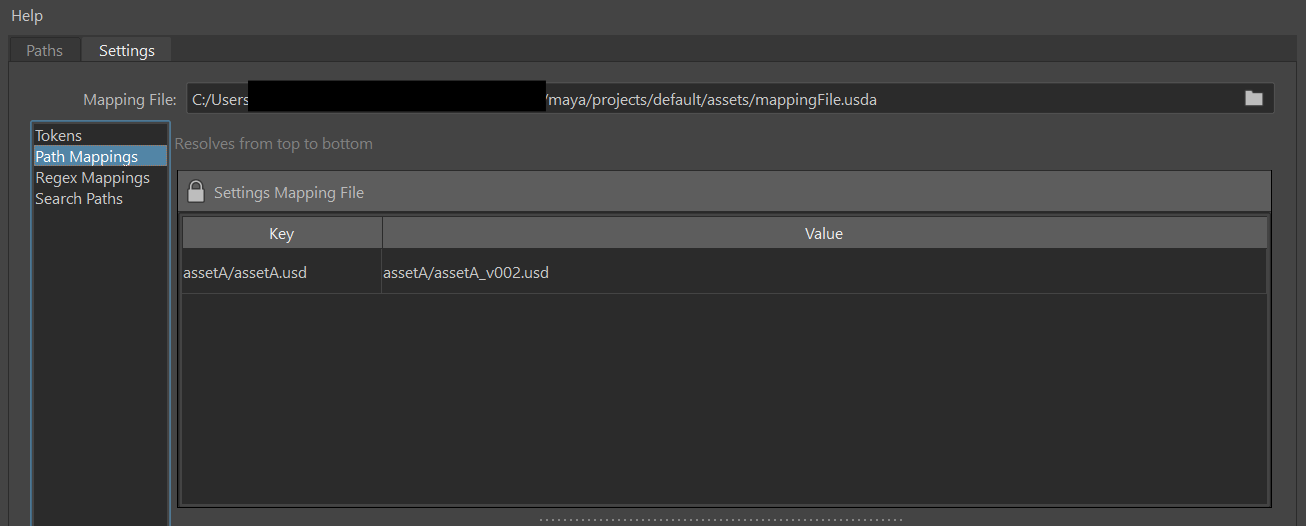
Path Mappings: Path mappings are organized by named group priority (strongest to weakest). Each path mapping shows its Key and Value pair in a columnar layout and are read-only since they are read from the Mapping File. They provide visibility into which path substitutions are active during USD asset resolution, helping diagnose unexpected path behavior when working with references, payloads, and sublayers.
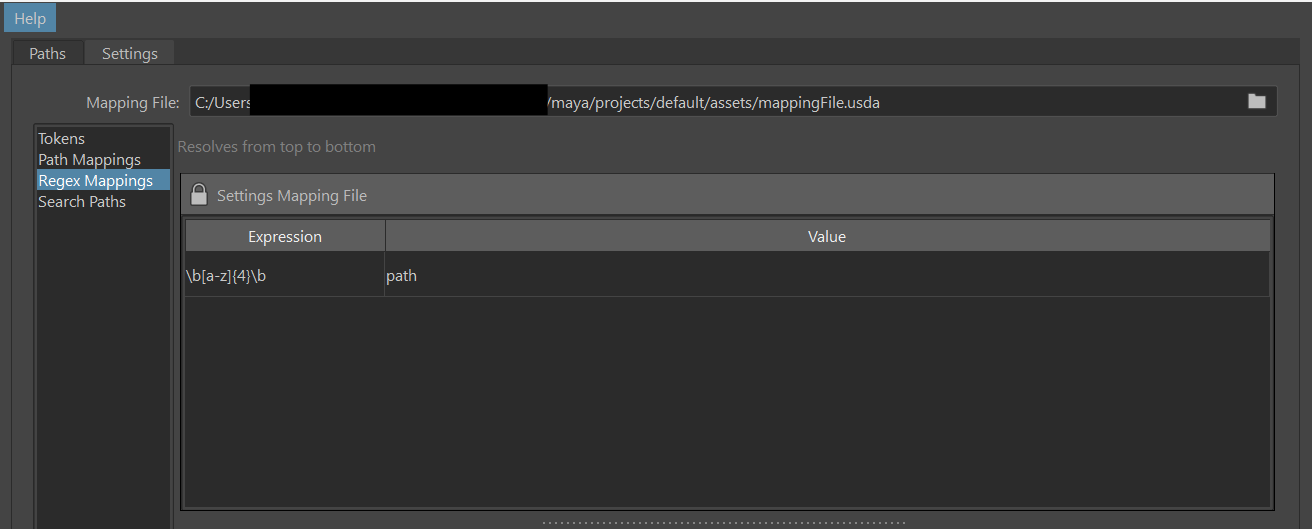
Regex Mappings: Similar to the Path Mappings, Regex mappings are organized by named group priority (strongest to weakest). Each regex mapping shows its Expression and Value pair in a columnar layout, they are also locked and read-only since they are read from the Mapping File as well. They give visibility into which regex-based path substitutions are active during USD asset resolution.
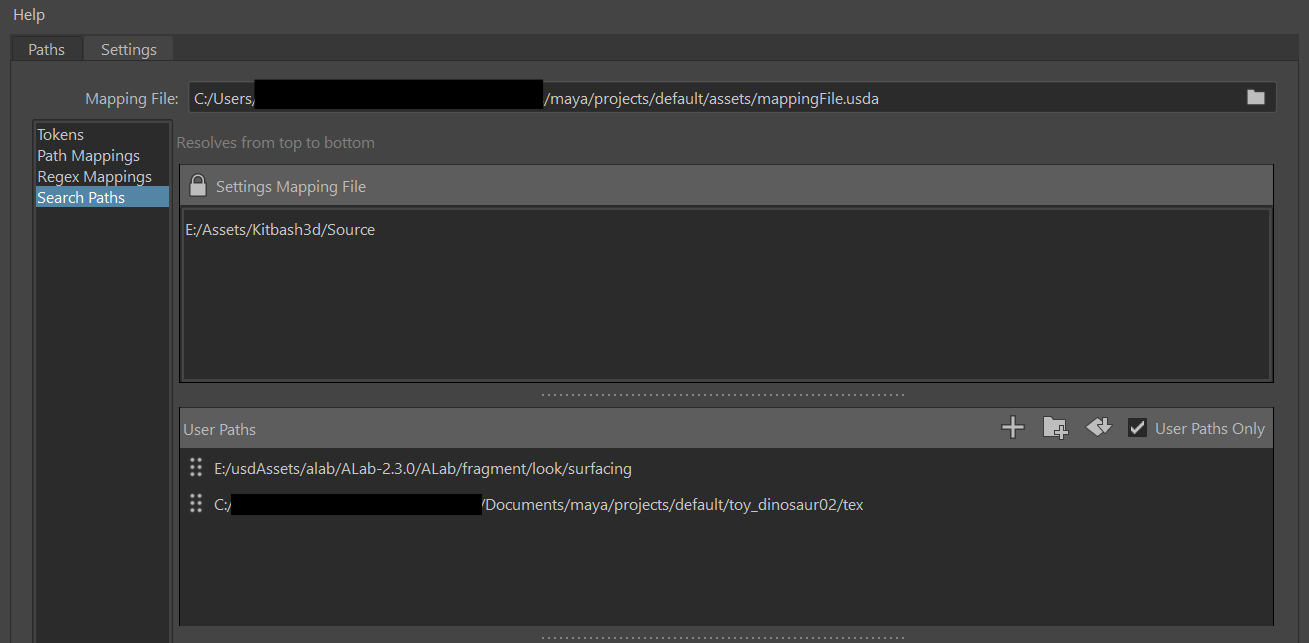
Search Paths: Search paths in the top section Settings Mapping File are read from the loaded Mapping File and are displayed as read-only rows.
The order of search paths affects performance. Place paths that are used most often at the top of the list for faster resolution. Avoid using broad or root-level paths (for example, C:), as they can significantly slow down searches.
The User Paths section is an editable context data group that lets you set and organize specific search paths. There are several controls:
- Add: Click the + button to add a new blank row where you can enter a custom search path.
- Add via Browse: Opens a file browser to select a directory and add it to the list. If multiple paths are selected, the Browse button is disabled.
- Move Up/Move Down: Manually reorder user-defined paths to control their search priority relative to extension and environment variable paths.
- Reorder: Reorder user-paths to control their search priority relative to extension and environment variable paths
- User Paths Only: Enable this option to restrict the Asset Resolver to search only within user-defined paths. When on, paths from Mapping Files and paths from extensions and environment variables are ignored.
Use searchPaths and tokenMappingPairs for standard workflows. The other methods (pathMappingPairs and regexMappingPairs) are experimental.
Environment Mapping
Paths listed here are added automatically through a mapping file or environment variables. These entries are read-only and cannot be reordered, but you can copy them for reference.
The Asset Resolver automatically gathers search paths from the following environment variables:
- ADSK_AR_SEARCH_PATH
- PXR_AR_DEFAULT_SEARCH_PATH
- ADSK_AR_MAPPING_FILE
ADSK_AR_SEARCH_PATH and PXR_AR_DEFAULT_SEARCH_PATH define search paths used to resolve relative asset references. ADSK_AR_MAPPING_FILE points to a system-wide default mapping file that can include both tokens and search paths. On Windows, these variables use semicolon-separated path strings. These variables use semicolon-separated path strings on Windows and colon-separated strings on Linux.
How tokens and environment variables work in Asset Resolver
The Asset Resolver supports tokens and environment variables to make asset paths more flexible and portable across systems. For example, if an asset is referenced as:
<assets>/trees/tree1.usdaand the mapping file defines a token called assets that points to the correct folder location, the resolver automatically finds the referenced file.
Similarly, environment variables can also be used in USD paths. If an environment variable named assets exists (defined either in your operating system or in the DCC session), the resolver can locate the file when the path is written as:
 {assets}/trees/tree1.usda
 ${assets}/trees/tree1.usda
%assets%/trees/tree1.usdaThe USD Exporter currently does not export assets with tokenized or environment variable paths. To author these kinds of assets, you need to build custom tooling, such as custom scripts, prim writers, or chasers.
Using tokens, search paths, and environment variables directly in USD files
When authoring USD files, you can reference assets using tokens, search paths and environment variables recognized by the Asset Resolver.
Token example
subLayers = [
    @<library_>/file.usda@
]
In this example, <library_> represents a predefined token that resolves to a specific folder when the USD file is loaded.
Search path example
subLayers = [
    @folder/file.usda@
]
In this example, the Asset Resolver uses search paths to resolve the full path of the relative path folder/file.usda. These search paths can come from:
- A mapping file.
- User defined paths.
- Either of the following two environment variables:
- ADSK_AR_SEARCH_PATH
- PXR_AR_DEFAULT_SEARCH_PATH
The Asset Resolver checks each search path in the order shown in the Asset Resolver Settings dialog, and stops at the first match. For instance, if the search paths are:
  C:/assets1/
  C:/assets2/
The Asset Resolver tries:
C:/assets1/folder/file.usdaIf not found, then it tries
C:/assets2/folder/file.usdaEnvironment variable example
subLayers = [
    @$cyber_district/file.usda@
]
In this example, $cyber_district represents an environment variable whose value is used by the Asset Resolver to resolve the path.
On Windows, environment variables are not case-sensitive, while on other operating systems they are case-sensitive. Tokens are case-sensitive on all operating systems.