Bezier Controllers
The versatile Bezier controllers interpolate between keys using an adjustable spline curve.
- Assign Controller > Bezier
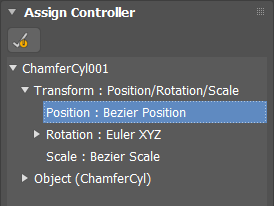
Use Bezier controllers whenever you want fully adjustable interpolation between keys. Bezier is the only controller that supports the following:
- Dragging tangent handles
- Step tangents for abrupt changes from one key to the next
- Constant velocity controls
Procedures
To set the tangent type for a transform key:
 Select an object that has some transform-animation keys.
- Go to the
 Motion panel and at the bottom of the PRS Parameters rollout, click the button for the type of transform key to change, such as Position.
 - On the Key Info (Basic) rollout, click the left and right arrow buttons to choose a key.
- Choose a tangent type from the In or Out tangent flyouts.
To normalize time for a key:
- Select an object, and then choose a key to normalize.
You can use the arrows in the Key Info (Basic) rollout to step through keyframes.
On the
Motion panel > Key Info (Advanced) rollout, click Normalize Time.The key is moved in time to average the velocity through the key.
Interface
Motion panel > Parameters > Key Info (Basic) rollout
You can open a dialog with the same parameters by right-clicking a key in Track View, or by right-clicking a key on the track bar and then choosing the key to edit.
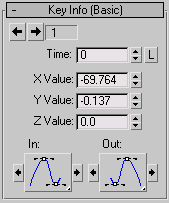
[key number]
The current key number. To go to an adjacent key, click the left or right arrow button.
Time
When in the animation the key occurs.
L [time lock]
Controls dragging the key horizontally in Track View edit modes. When on, you can drag the key vertically only.
X/Y/Z
Adjusts the value of the key; that is, the vertical position in the Curve Editor.
Bezier Scale Controller (Lock X)
Causes the X value to affect all three axes of scale. The Y and Z values are ignored and their function curves are not displayed.

When X is locked, the Y and Z values are not affected by changes in the X value. If you lock X when all three axes are at identical values, alter the X value, and then unlock X, the Y and Z values remain where they were while X retains its new value.
In/Out [key tangents]
The two flyouts set the interpolation properties of the In and Out tangents of the key.
See Tangent Types.
Tangent Copy
Copies the tangent type between the tangents of the current key or between the tangents of the previous and next key. Use the arrow buttons on either side of the Key Tangent flyouts as follows:
- The left arrow of the In tangent copies to the Out tangent of the previous key.
- The right arrow of the In tangent copies to the Out tangent of the current key.
- The left arrow of the Out tangent copies to the In tangent of the current key.
- The right arrow of the Out tangent copies to the In tangent of the next key.
Motion panel > Parameters > Key Info (Advanced) rollout
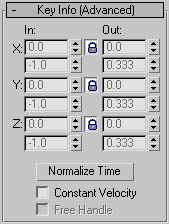
Controls in the rollout affect velocity in three ways:
- Control the absolute velocity at a key using the In/Out values
- Average velocity over a specified amount of time using Normalize Time
- Force constant velocity from one component key to the next using Constant Velocity
In/Out
The In field displays the rate of change as the parameter approaches the key. The Out field displays the rate of change as the parameter leaves the key.
These fields are active only for keys that use the Spline tangent type.
The number in the field is the rate of change expressed as parameter units per Tick. By changing the two values for X, Y, and Z you are changing the length and angle of the tangent handle.
Lock button
When on, changing one Spline tangent changes the other by equal but opposite amount. For example, if the Lock button is on and the In value is 0.85, then the Out value is -0.85.
Normalize Time
Averages the position of the keys in time and is applicable to any consecutive blocks of selected keys. Useful if you want to smooth out the motion and have an object that speeds up, slows down, speeds up, and slows down.
Constant Velocity
Interpolates values between a key and the next one in a way that makes the object move at a constant velocity across that curve segment.
Free Handle
Used for automatically updating the length of the tangent handle. When this is turned off, the length of the tangent is at a fixed percentage from its neighboring key. As you move a key, the handles adjust to stay the same percentage away from the neighboring keys. When this is turned on, the handle lengths are based on time lengths.
Create Position Lock Key / Create Rotation Lock Key
Sets both the incoming handle of the current key and the outgoing handle of the previous key to Linear interpolation. This prevents overshoot from the Spline interpolation.
To use these two features, first create a keyboard shortcut in Customize > Customize User Interface. Look for Create Position Lock Key and Create Rotation Lock Key in the Action list and assign hotkeys. Or you can add these commands to a toolbar or a quad menu (Quads panel).