Merge Animation
Merge Animation merges (transfers) animation data from one object to another. Animation data can be transferred from one scene to another, or between objects in the same scene. Animation data from several objects can be merged at the same time.
- [Available only as a CUI action]
Attention: The Merge Animation command is available only as a Customize User Interface action; to use it you first must add it to the user interface explicitly. For transferring animation data between scenes, we highly recommend that you use the Save Animation and Load Animation functions instead of Merge Animation. See Saving and Loading Animation.
Within the Merge Animation dialog, objects eligible for transferring or receiving animation data are called nodes. Source nodes refer to objects from which animation data can be transferred, while current nodes can receive animation data. Merge nodes are source nodes that have been mapped to (matched up with) current nodes in the Merge Animation dialog in preparation for merging.
In order for a particular attribute's animation data to be transferred from a merge node, the corresponding current node must have the same attribute. For example, if a merge node has an animated Bend modifier applied to it, the current node must also have a Bend modifier applied to it for the animation data to transfer successfully.
The Merge Animation feature is ideal for transferring animation data between similar hierarchies, such as character structures. In character creation, it is a common practice to name bones for different characters with the character name plus a suffix or prefix that describes the bone. For example, you might have one character called Alien with bones named Alien_Pelvis, Alien_LeftHand, and so on. Another character called Chef would have bones named Chef_Pelvis, Chef_LeftHand, and so on. The Merge Animation dialog can automatically filter prefixes and suffixes so you can quickly map the merge nodes for complex hierarchies.
Procedures
To replace the animation in the current scene with the animation from another scene:
- Load the scene that will receive the merged animation data.
- Launch the Merge Animation dialog.
- In the Merge Animation dialog, click Source File to choose the file from which to merge animation data. The objects appear under Source Nodes in the Object Mapping rollout.
- On the Object Mapping rollout, drag and drop the source nodes to the Merge Nodes column, matching them with the appropriate current nodes.
- In the Source Time Range group, choose Replace Animation.
- Specify the source node attributes that will be merged.
- Click Merge Animation to merge the animation data from the merge nodes to the current nodes.
To insert animation data from one character to another:
The Source Objects and Current Objects entry fields allow you to enter wildcard expressions to filter prefixes and suffixes of node names. The filtered text is ignored by the Auto Name Mapping tool, so complex structures of similarly-named nodes can be mapped quickly. This feature is handy for transferring an animation between character structures, providing the source and current nodes have been named with the same conventions.
Load the file with the character to which animation data will be merged.
Launch the Merge Animation dialog.
Click Source File and choose the animation source file.
In the Merge Animation dialog, under Source Objects, use a wildcard expression to specify multiple items that share a set of characters in their names. For example, if the character bones are named Skater_Head, Skater_RFoot, and so on, enter Skater* under Source Objects.
Click Refresh for Source Objects.
Under Current Objects, use a wildcard expression to filter the current nodes' prefix or suffix. Click Refresh.
Click Auto Name Mapping.
Source nodes are placed in the Merge Nodes column, corresponding with current nodes with the same prefix or suffix.
Specify whether to replace or paste animation data from the source file. If pasting animation data, the frame times for the merge nodes are added to the current nodes.
Specify the source node attributes that will be merged.
Click Merge Animation to merge animation data from merge nodes to corresponding current nodes.
To insert animation from one character assembly to another:
For character assemblies, the Insert Animation feature can be used to merge animation data.
- Load the file into which the animation data will be merged.
- Select the character assembly node.
- On the Modify panel, click Insert Animation. Select the source file from which animation data will be merged.
- Follow the previous procedure from step 4.
To merge animation data from objects in the same scene:
- Launch the Merge Animation dialog.
- Click Source Object, and choose the object from which animation data will be transferred. This object and its hierarchy appear under Source Nodes in the Object Mapping rollout.
- On the Object Mapping rollout, drag and drop source nodes to the Merge Nodes column, matching them with the appropriate current nodes.
- Specify whether to replace or paste animation data from the source file. If pasting animation data, the frame times for the merge nodes are added to the current nodes.
- Specify the source node attributes that will be merged.
- Click Merge Animation to merge the animation data from the merge nodes to the current nodes.
Interface
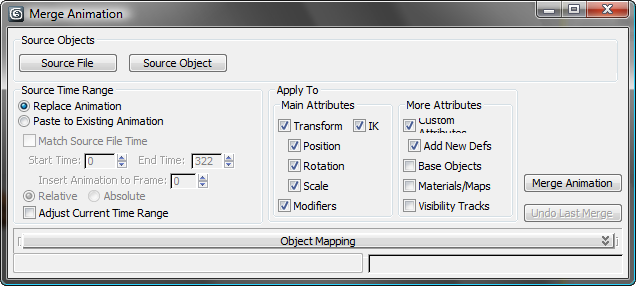
The Merge Animation dialog has the following controls.
Source Objects group
Source File
Click to select a source file containing the animation data. Animation data from this file will be merged into the current scene. All objects in the scene are displayed under Source Nodes in the Object Mapping rollout.
Source Object
Selects a source object from within the current scene. If a source object is selected, the Source File selection is ignored.
Source Time Range group
Replace Animation Completely replaces existing animation data in the current scene with the animation data from the source file.
Paste to Existing Animation Appends the source file animation data to the existing animation data based on the following time parameters.
Match Source File Time Sets the source time range to match the active time segment in the source file.
Start Time and End Time Start Time and End Time set the frame range to merge from the source file. Start Time sets the first frame in the range. End Time sets the end frame number to merge from the source file.
Insert Animation to Frame Sets the start time in the current scene. Animation data will be pasted into the current scene starting at this frame. Any existing animation data in the current scene prior to this frame will remain the same.
Relative/Absolute When Relative is chosen, animation data pasted into the scene will change the current scene objects relative to their current status. For example, if an object in the source file is animated to move from the XYZ position 0,0,0 to 12,0,0, the object receiving the animation data in the current scene will start at its current position and move 12 units along the X axis.
When Absolute is chosen, animation data pasted into the scene will replace the current animation data. For example, if an object in the source file is animated to move from the XYZ position 0,0,0 to 12,0,0, the object receiving the animation data in the current scene will start at exactly 0,0,0 and animate to 12,0,0.
Adjust Current Time Range
When on, adjusts the current time range to accommodate the source range settings.
Apply To / Main Attributes group
Specify the source file attributes whose animation data will be merged. Current nodes must have the same attributes as merge nodes for the attribute animation data to be merged.
Transform
Enables selection of Position, Rotation and Scale animation data for merging.
IK
Merges animation data of IK chains created with IK solvers.
Position
Merges Position transform animation data.
Rotation
Merges Rotation transform animation data.
Scale
Merges Scale transform animation data.
Modifiers
Merges animation data of modifiers. In order for animation data of a modifier to be transferred, the current object must already have the same modifier applied to it.
Apply To / More Attributes group
Selects additional attributes to be merged from the source file.
Custom Attributes
Merges animation data of any custom attributes on source objects.
Add New Defs
Adds custom attribute definitions to the current object if it doesn't have the same definitions as the source object.
Base Objects
Merges animation data of parameters at the object base level. For example, if a sphere's Radius parameter is animated, checking this option will merge the Radius animation data. This option will also merge animation data at an object's sub-object level, such as the animation of vertices on a spline or Editable Mesh object.
Materials/Maps
Merges animation data of materials and/or maps.
Visibility Tracks
Merges animation data of visibility tracks.
Merge Animation
Merges the animation data based on settings on this dialog. Before animation data can be merged, Merge Nodes must be listed for their corresponding Current Nodes on the Object Mapping rollout. The progress bar at the bottom of the dialog shows the progress of the merge operation. After merging, this dialog remains on-screen so you can check whether the merge was performed properly before closing the dialog.
Undo Last Merge
Undoes the last merge. If the merge was not performed properly, you can change settings and try again.
Object Mapping rollout
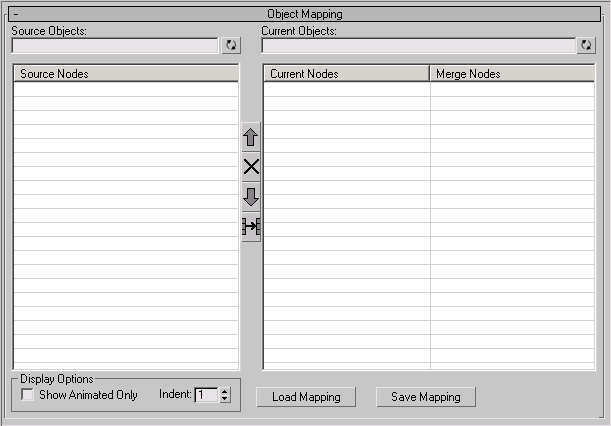
Sets up a one-to-one correspondence (mapping) between source objects and current objects. Animation data on objects in the Merge Nodes column will be merged to the corresponding object in the Current Nodes column.
To move objects to the Merge Nodes column, drag them from the Source Nodes column, or use Auto Name Mapping to automatically map objects with the same names or partial names.
Source Objects
Allows you to specify wildcard expressions for filtering source objects. Click Refresh to view objects specified by the wildcard expression.
Refresh
Refreshes the display based on wildcard expressions entered in the Source Objects field.
Source Nodes
Displays the object selected with the Source Object option, and all its children. Objects with keyframed animation are listed in red, and objects with procedural controllers (such as a Noise or Expression controller) are listed in green. The display can be limited with wildcard expressions entered in the Source Objects field.
Current Objects
Allows you to specify wildcard expressions for filtering current objects. Click Refresh to view objects selected by the wildcard expression.
Refresh
Refreshes the display based on wildcard expressions entered in the Current Objects field.
Current Nodes
Displays objects in the current scene. Animated objects are listed in red. Display can be limited by wildcard expressions in the Current Objects field.
Merge Nodes
Lists the current objects that will receive animation data from the corresponding object under Current Nodes. To place an object in the Merge Nodes column, drag and drop the item from Source Nodes, or use Auto Name Mapping to automatically map objects with the same or similar names.
 Move Up
Moves the selected Merge Node up one row.
 Clear Selected
Clears selected entries under Merge Nodes.
 Move Down
Moves the selected Merge Node down one row.
 Auto Name Mapping
Automatically maps source objects to the Merge Nodes column, matching names with current objects. The mapping process filters any wildcard expressions entered in the Source Objects and Current Objects fields. If no wildcard expressions are entered, source objects are mapped only to current objects with identical names.
Display Options group
Show Animated Only
Displays animated objects only.
Indent
Sets the number of characters by which child objects are indented in the display.
Load Mapping
Loads a previously saved . mnm file. This type of file can be loaded and saved only on the Merge Animation dialog.
Save Mapping
Saves the current mapping in an . mnm file. The name of the source file and the mapping of source and current objects are saved. This type of file can be loaded only with the Load Mapping option on the Merge Animation dialog.