Snap Frames
Moving a key or range bar with Snap Frames on forces its position to an absolute frame increment.

- Track View > Editing Keys in Curve Editor > Curves toolbar > (Snap Frames)
- Track View > Dope Sheet Introduction > Display toolbar > (Snap Frames)
- Track View > Tools Toolbar > (Snap Frames)
- Track View > Edit menu > Snap Frames
Snap Frames applies to selection sets of multiple keys: When Snap Frames is on, each key in a selection set will snap to the nearest frame when the selection is moved or scaled. Default=on.
With Snap Frames off, you can move keys with subframe timing for greater accuracy. While the editor always depicts a key's exact position in time, the numeric displays show the exact timing only when Time Display is set to FRAME:TICKS or MM:SS:TICKS.
When you use the Time Display format MM:SS:TICKS, which doesn't use frames, Snap Frames snaps to time values that match frame boundaries.
In Dope Sheet > Edit Keys mode, keys are displayed on a box grid. Keys that are snapped to frames are displayed as filled boxes. Keys that have been moved with snap frames off are displayed as narrow rectangles within the grid. When using the Curve Editor, a similar display is available in the track bar.
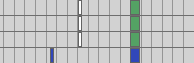
Subframe keys moved with snap frame off
Procedures
To use Snap Frames:
Snap Frames is on by default, so the following procedure only applies if you have turned off snap frames previously.
On the Track View Dope Sheet toolbar, click
 (Edit Keys).Note: This isn't an absolute necessity, but it makes it easier to see the snapping action. You can also view the snapping in the track bar in either Dope Sheet or Curve Editor mode.
On the Track View toolbar, turn on
(Snap Frames).In the Track View Key window, select one or more keys.
Use
 (Move Keys) or
  Scale Keys to move the keys.
With Snap Frames on, each key in a selection set snaps to the nearest frame when the selection is moved or scaled.