Respect Animation Range
Respect Animation Range constrains a parametric, non-keyable controller track to be active only within the track's current animation range. Choosing this option changes the track's background color to gray.
- Track View > Select a Controller track > Edit menu > Controller submenu > Respect Animation Range
Procedures
Example: To set a controller track to respect the animation range:
Create a sphere.
On the
 Motion Panel > Assign Controller rollout, highlight the sphere's Position track.
Click
 (Assign Controller), and then choose Noise Position from the Assign Controller dialog.
3ds Max opens the Noise Controller dialog. Keep the current settings and close the dialog.
 Select the sphere, and then right-click it. From the quad menu, choose Dope Sheet. In the Dope Sheet editor, make sure
  (Edit Ranges) is active.
Expand the hierarchy items in the Controller window until you find the sphere's Position track, then click the track to highlight it.
Drag the track's range bar to the right so it starts at frame 10.
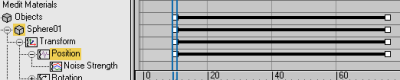
 Play the animation or scrub the time slider.
The animation occurs throughout the time range, even during frames 0-9 where the Position track range isn't present. This is because Ignore Animation Range is the default setting.
On the Track View Edit menu > Controllers submenu, choose Respect Animation Range.
The background color of the track changes.
- Play the animation.
Because Respect Animation Range is on, the sphere moves only within the track's animation range.