Configure Modifier Sets Dialog
This dialog lets you create custom modifier and button sets for the Modify panel.

 Modify panel > (Configure Modifier Sets) > Configure Modifier Sets dialog
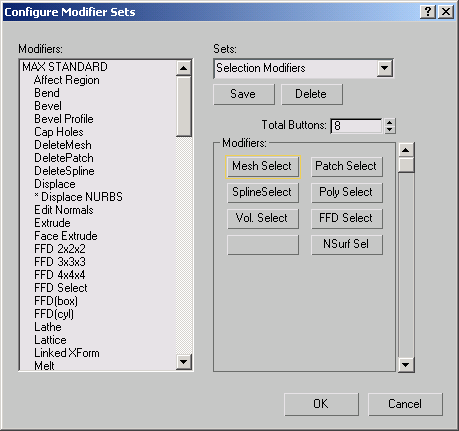
Modifiers list
Lists all modifiers currently available. It's organized into these categories: Channel Info, Max Edit, Max Standard, Deformations, Max Surface, Surface Tools, Modifiers, Radiosity, LIGHT, Max Additional, Shell, Spline Edits, World Space Modifiers, and others. To add a modifier to the current button set, drag the modifier's name from this list onto a button in the Modifiers group box.
Sets edit field and drop-down list
Lets you choose the modifier set to edit. To create a new button set, enter the name in the edit field, and then click Save.
Save
Saves the current button set.
Delete
Deletes the current button set. Not undoable.
Total Buttons
The number of buttons in the button set. A button set can have up to 32 buttons.
Modifiers group
Previews how the button set will appear on the Modify panel. Because the box shows only 16 buttons at a time, a scroll bar on the right lets you see any remaining buttons.
To change a button, drag the name of a modifier from the Modifiers list to a button in this group box, or click the button (its border highlights) and then double-click the modifier name.