Select and Place
Use the Select And Place tool to position an object accurately on the surface of another object. This is roughly equivalent to the AutoGrid option, but can be used at any time, not just when creating the object.

- Main Toolbar > Select and Place
- Edit menu > Placement
- Right-click an object. > quad menu > Transform quadrant > Placement
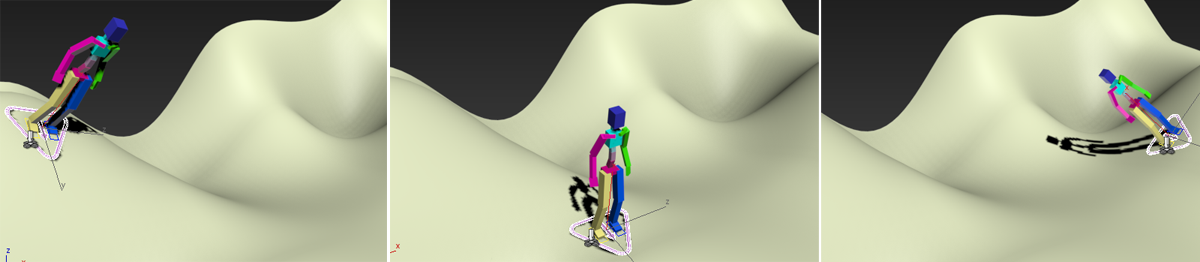
Placing a character on a rolling terrain
To place a single object, you do not need to select it first. When this tool is active, clicking an object selects it and dragging the mouse moves it. The contact point with the underlying surface is, by default, the object's pivot. To use the object's base as the contact point instead, turn on Use Base As Pivot (see following).
As you drag an object, its orientation can change, based on the normal of the underlying surface and the Object Up Axis setting. So, for example, with the default +Z setting, the software continually aligns the object's local Z axis with the underlying surface normal, rotating the object along with its local axis. In general, this setting preserves the moved object's "right-side-up" orientation in relation to the underlying surface.
Select and Rotate
Also available from the Select And Place flyout is Select And Rotate, which performs the same function as Select And Place with the Rotate option active (see following).
Interface
The Placement Settings dialog provides controls for modifying object movement when using Select And Place. To open the dialog, right-click the Select And Place button on the Main Toolbar.
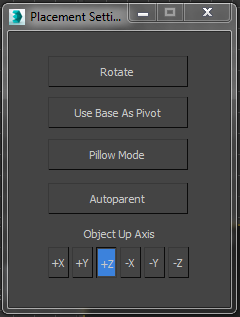
Rotate
When on, dragging the object rotates it around the local axis specified with the Object Up Axis setting (see following), while preventing translation.
Use Base as Pivot
Uses the base of an object as the contact point with other objects. This is most useful for objects whose pivot is not already located in the base of the object.
For the purposes of this control, "base" is defined as the point on the object at which the "bottom" end of the specified Object Up Axis intersects the object surface. For example, a sphere's pivot is located at its center by default. So if you use Select And Place to position a sphere on another object, the bottom half of the sphere will fall under the object's surface because Select And Place uses the center as the base. But if you turn on Use Base As Pivot and set Object Up Axis to +Z (the default), Select And Place uses the intersection of the local –Z axis and the sphere's surface as the base instead.
Pillow Mode
Moves objects around each other with no intersection between them. This option is useful when moving objects over an uneven surface.
Autoparent
Links objects in a hierarchical relationship. When this control is on, if you place an object in contact with another, the placed object becomes the child of the other object.
Object Up Axis
Specifies the local axis of the transformed object that is used to orient the object when moving it.
Key Controls
Several key controls are available while using Select And Place:
- To clone an object, drag it while holding the
Shiftkey. - To adust the position of an object along the Up Axis (that is, vertically), hold the
Ctrlkey while dragging. - To prevent an object you're placing from rotating, hold the
Altkey while dragging.
You can place several objects at the same time either by selecting them before activating Select And Place, or by selecting additional objects while holding down Ctrl when Place mode is active. Each object moves according to its own pivot, unless objects are linked.