Influence Helper
Use the Influence Helper to soft select vertices and apply proximity-based falloffs to effects.
 Create panel >
  (Helpers) > Standard > Object Type rollout > Influence button
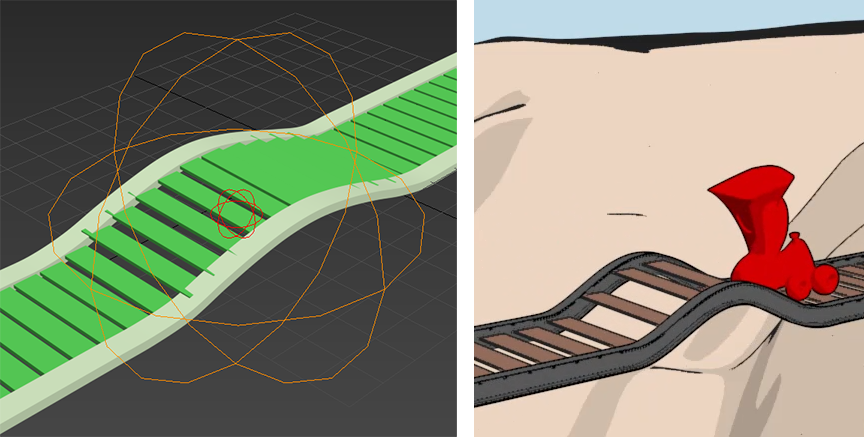
Influence Helper shown selecting vertices to create an effect used in an animation of a cartoon train. The inner gizmo is applying maximum influence to all vertices inside while the outer gizmo gradually tapers the effect off.
Interface
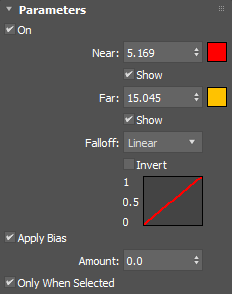
On
Enables the helper's effect.
Near
Sets the starting distance of the effect. Click the color swatch to select a new color for the associated gizmo, if desired.
Show
Displays the Near gizmo in the viewport.
Far
Sets the farthest distance of the effect. Click the color swatch to select a new color for the associated gizmo, if desired.
Show
Displays the Far gizmo in the viewport.
Falloff
Sets the type of falloff curve: either Linear, Smooth or Smoother.
Invert
Inverts the falloff value.
Apply Bias
Applies a bias amount to the falloff curve.
Amount
Sets the amount of bias to apply to the falloff curve.
Only When Selected
When enabled, only applies the bias to targets that fall within the selection area.