Customize Icons
Customize your user interface by changing icons to older versions or to your preferred PNG or SVG files.
Icons can be in PNG or SVG file format. In PNG format, several sizes are available for use with different screen resolutions (DPI). SVG is a vector format that can scale, so only a single file is needed.
To change an icon:
Open the MAXScript Listener window.
Select MAXScript.
In the output (white) pane, type
CustomControlsOptions.PrintIconPaths=true.The word True appears in blue below your text.
Move the cursor over the icon you want to change.
The icon's location path, size, state, and available files appear in MAXScript Listener.
Tip: Move the mouse carefully as any icon the mouse passes over will be listed. This may become confusing if too many icons are listed.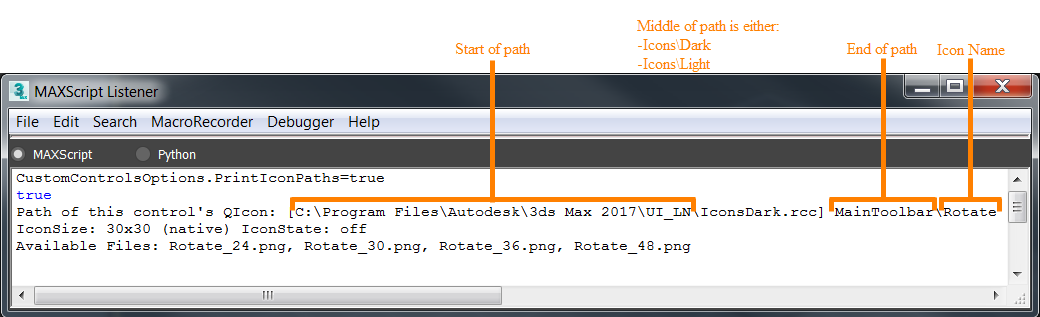
Take note of the icon's path and name.
In Windows Explorer, navigate to the UI_LN folder in the icon path.
In the UI_LN folder there is a folder called Icons.
In the Icons folder, do one of the following:
- If you are using the user interface with the light theme, create a folder called Light.
- If you are using the user interface with the dark theme, create a folder called Dark.
In the Light/Dark folder, create a folder for the end of the path and copy your appropriately named SVG or PNG file(s) therein.
Note: The PNG files must follow the nomenclature of either IconName.png or IconName_Size.png.For the example above, if providing several icon sizes, the complete icon path would be C:\Program Files\Autodesk\3ds Max 2017\UI_LN\Icons\Dark\MainToolbar. The icon file would be called Rotate.png (and/or Rotate_24.png, Rotate_30.png, etc.).
If using SVG icons no sizing is required, so the file would simply be called Rotate.svg.
Close 3ds Max.
Reopen 3ds Max.
The new icons appear.