Menu Editor
The Menu Editor lets you customize 3ds Max menus and quad menus.
- Default menu: Customize menu > Menu Editor
The Menu Editor displays the currently loaded menu and quad menu configurations, and lets you customize them by adding or removing menu items. Customized configurations are stored in .mnx files (for menus) and .qmnx files (for quad menus). These files can be copied and used in later versions of 3ds Max to preserve your customizations.
On this dialog you can:
- Load or save menu and quad menu configurations.
- See where menu actions are used in the currently active menu and quad menu configuration, and find the action associated with a specific menu or quad menu item.
- Edit macroscripts that define menu actions.
- Create, rename, move, or delete menus, quad menus, menu separators, and menu items.
- Flatten sub-menus (move sub-menu items up to the menu level).
- In Developer Mode, you can create new top-level menus and quad menus for use in a plug-in, and create translation files for those configurations.
Procedures
To add a new menu item:
- Menu items are based on Action Items. Find the action for the menu item you want to create in the Action list on the left hand side of the dialog. You can use the Group list and Search box to find a specific item.
- Select the target menu location in the Edit Menu drop-down, and then drag the item to the location you want it to appear in the menu in the list on the right hand side of the dialog.
To delete a menu or menu item:
- Right-click the menu or menu item you want to remove and select delete. The right-click menu also lets you rename a menu or menu item.
To find the menu associated with an action:
- Right-click the action. A menu cascade appears showing the path to the menu item using the action. If the action is used in multiple menus, all the menu cascades appear.
- Select the menu cascade you want to view. The containing menu and menu item appear in the menu list on the right hand side of the dialog.
To edit the script associated with a menu item:
Right-click the menu item or action you want to edit.
Select Edit Macro Script.
The Script Editor opens displaying the script that defines the item.
Interface
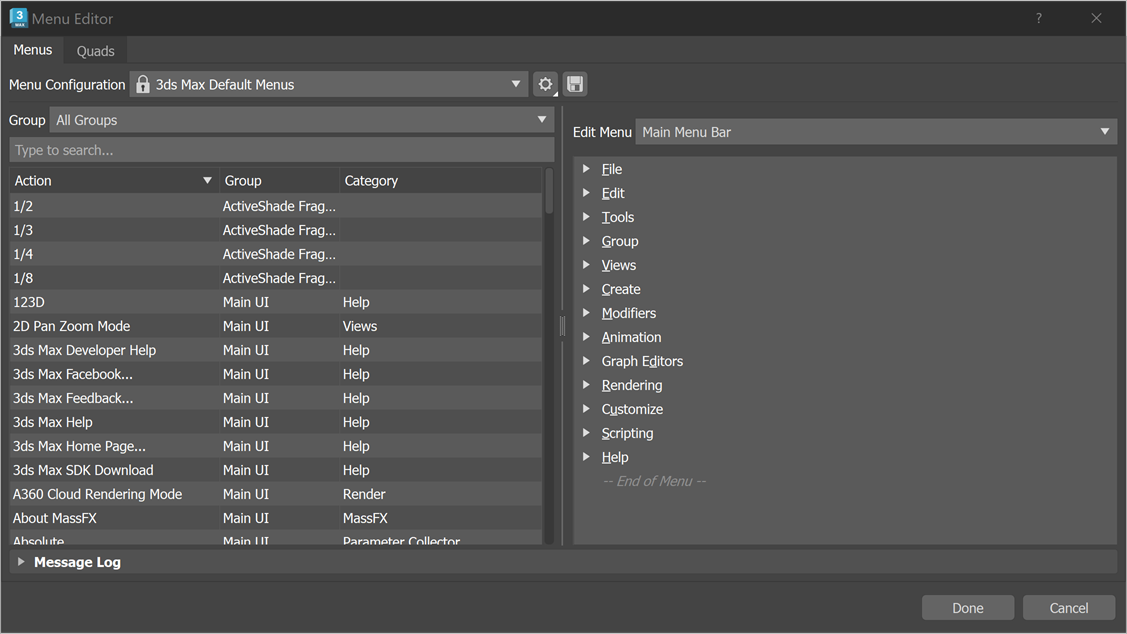
Menus Tab
Menu Configuration
Lets you choose the menu configuration to edit.
Group
Action items are organized into groups related to their feature area. This drop-down lets you specify which group of action items to look at.
Search Field
Lets you filter the list of action items by keyword.
Action List
Lists action items by name, and including their group and category, where assigned. From this list you can right-click items to see where they are used in the menu tree, and to edit their underlying macroscripts. You can also drag items from this list into the menu structure on the right to create a new menu item.
Edit Menu
Lets you select a menu to edit.
Menu Tree
Provides a tree view of sub-menus and menu items in the menu selected in the Edit Menu list.
Quads Tab
Quads Configuration
Lets you choose the quad menu configuration to edit.
Group
Action items are organized into groups related to their feature area. This drop-down lets you specify which group of action items to look at.
Search Field
Lets you filter the list of action items by keyword.
Action List
Lists action items by name, and including their group and category, where assigned. From this list you can right-click items to see where they are used in the menu tree, and to edit their underlying macroscripts. You can also drag items from this list into the menu structure on the right to create a new quad menu item.
Edit Quad
Lets you edit the selected quad menu. In this list you can add new quad menu items, as well as rename, re-order, and delete existing items. You can also create sub-menus and separators. You can right-click an existing item, and view its corresponding action in the action item list.
Developer Mode
The Menu Editor includes a Developer Mode, which you access by selecting the settings icon:
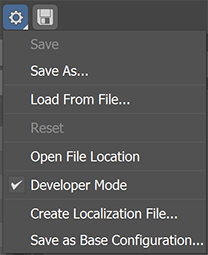
This mode is intended for developers who want to create menu customization files for their plug-ins. In Developer Mode, you can access additional functionality useful for developing plug-ins that expose their own menus or modify / add to existing ones.
When you switch to Developer Mode, only the base menu configuration and either the selected preset or an empty preset is loaded; plug-in and user defined menus are not loaded. This simplifies the menu structure and provides a clean configuration for a developer to work with. As a developer, you can add menu items to existing menus (for example, the main menu bar), or create new top-level menus for use as a menu bar in your dialog or right-click context menu.
Developer Mode lets you create, rename, and delete top-level menus. Top-level menus can then be used as a menu bar or right-click context menu in a plug-in.
Customizations are saved as a .mnx or .qmnx transformation file ("Save as..."). The "Save as Base Configuration" option is for internal use only.
For Quad menus, in Developer Mode you get an additional Quad Menu Context selection, to display only the quad menus in that context. This lets you add/rename/delete quad menus for a specific context, and more importantly, create a new quad menu context for use in your own plug-in. In non-Developer mode, Quad menus are listed for all contexts.
Developer mode also provides access to the localization workflow. This is a resource ID based workflow, very similar to the existing process for localizing MAXScript string resources (See the "Resource String Replacement" topic in the MAXScript help for more information).
To localize a configuration, select "Create localization file", and select a target .mnx or .qmnx file. This creates a skeleton resource file for the configuration file, which contains the resource ID and display text for each item in the menu/quad. This file is then copied and translated for each target language. Once translated, the .res file is placed in the target language sub-directory for the plug-in (for example, for French, in a directory called fr-FR under the directory containing the .mnx/.qmnx file).