Rendering Preferences
On the Rendering panel of the Preference Settings dialog, you set options for rendering, such as the default color of ambient light in rendered scenes. The many choices available enable you to reassign the renderers used for production and draft rendering.
- Default menu: Customize menu > Preferences > Preference Settings dialog > Rendering tab
- Alt menu: Customize menu > Customization > Preferences > Preference Settings dialog > Rendering tab
Interface
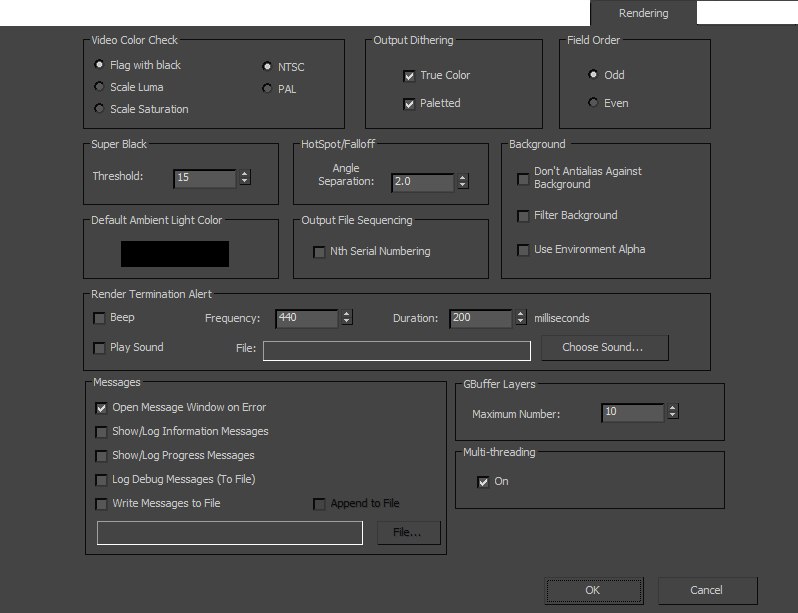
Video Color Check group
Some pixel colors are beyond the safe NTSC or PAL (Phase Alternate Line) threshold. You can choose to flag or modify them to acceptable values.
- Flag with Black Flags all illegal pixels with black to show you the illegality of your image. This mode teaches you how to make correct colors, instead of depending on Scale options. Scale options force a natural discontinuity in the color values. In some cases, that discontinuity can cause visible aliasing.
- Scale Luma Scales the luminance to bring the color into range, and maintains saturation. This generally makes the illegal areas appear darker than they should be.
- Scale Saturation Scales the chroma to bring the color into range, and maintains saturation. Because this option keeps the brightness levels of the pixels fairly equal to the unscaled ones, this is the more useful of the two scale methods.
NTSC/PAL
Determines the standard for the video color check.
Output Dithering group
Sets output dithering for all file types.
True Color
Toggles dithering for any true color output device. For 24-bit work, turn on True Color. For paletted work, turn it off.
Paletted
Turns dithering on or off for any 8-bit paletted device.
Field Order group
Odd/Even
Selects the field order of rendered images when the Render To Fields option is enabled on the Render Setup dialog. Some video devices require that the even field be first, other video devices require that the odd field be first. Determine the correct field order for your video device. If the video output of your device is strobing or appears jittery, it may be due to incorrect field order, try changing this parameter and re-rendering your animation.
Super Black group
Threshold
Keeps the super black threshold above a certain level primarily for luminance keying.
HotSpot/Falloff group
Angle Separation
Locks the spotlight hotspot and falloff cones at the angle separation defined by the spinner (degrees). This option constrains the hotspot angle so that it can't equal the falloff and cause aliasing artifacts.
Default Ambient Light Color group
Click the color swatch to change the default ambient light color for renderings. This setting defines the darkest color for rendered shadows in the scene.
Output File Sequencing group
Nth Serial Numbering
Specifies whether output frame files generated using a frame-step value other than 1 are numbered sequentially (on) or according to their true frame numbers (off).
Background group
Don't Antialias Against Background
Ensures that the edges of rendered geometry are not antialiased against the background. The inside of the geometry is still antialiased. Keep this control off unless you're creating sprites for game development, or require special compositing techniques because the background will not be rendered. In these cases, turning on this option helps avoid generating alpha antialiasing on the outlines of the geometry. Default=off.
Filter Background
Controls whether the antialiasing filter of the renderer affects the background image. See Plate Match /MAX R2.5/VIZ R2 Filter Types in Default Scanline Renderer Rollout for detailed information of filtering background and antialiasing.
Use Environment Alpha
Controls whether or not the renderer uses the environment map’s alpha channel in creating the alpha for the rendered image. When off, the background is transparent. When on, the alpha of the resulting image is a combination of the scene and image alpha.
Render Termination Alert group
Beep
Beeps when the rendering has finished. You can set the frequency and the duration.
Play Sound
Plays a sound file when the rendering has finished.
Choose Sound Opens the Open Sound browser dialog, select a sound file using the browser. You can test sound files with the Play button in the Open Sound dialog. Press  to turn off the sound.
Messages group
The options in this group are also available on the Render Message Window right-click menu (the Open On Error preference is also available on the window itself). Changing a preference here changes its state on the right-click menu, and vice versa.
Open Message Window on Error
Whenever the renderer detects an error, it generates an error message. When this option is on, the Messages Window is displayed and the error message appears in it. Default=on.
Show/Log Information Messages
When on, displays informational messages in the Messages Window. Default=off.
Show/Log Progress Messages
When on, displays progress messages in the Messages Window. Default=off.
Log Debug Messages (to file)
When on, writes debug messages to the log file, if one has been specified. Default=off.
Debug messages are never displayed in the Messages Window. The renderer can generate a large number of them, which would make the window hard to read.
Write Messages to File
When on, generates a log file. Default=off.
The other log file options are unavailable unless you turn on Write Messages To File:
- Append to File When on, appends messages to the existing file. When off (or if the named file is not found), only new messages are written to the file. Default=off.
- File Click to display a file dialog that lets you choose the name and location of the . log file.
- File name field When you have specified a log file, this field shows its name and its path.
GBuffer Layers group
Maximum Number
Limits the number of layers that are stored in the G-buffer during rendering. Default=10; Range=1 to 999.
Memory requirements might dictate that you limit the number of G-buffer layers. The RLA and RLF image formats, used for compositing, can store many G-buffers for object Z buffer information, material ID, transparency, and so on.
Multi-threading group
On
Causes 3ds Max to treat the rendering task as separate threads. This option works with multiprocessor systems. Each processor in your computer handles a different thread, which makes full use of available processing power and speeds up rendering to its maximum level. When off, 3ds Max treats a rendering task as a single processing task and doesn't divide it up.