Gizmos Preferences
You set the display and behavior of the Transform gizmos on the Gizmos panel of the Preference Settings dialog.
- Default menu: Customize menu > Preferences > Preference Settings dialog > Gizmos tab
- Alt menu: Customize menu > Customization > Preferences > Preference Settings dialog > Gizmos tab
Interface
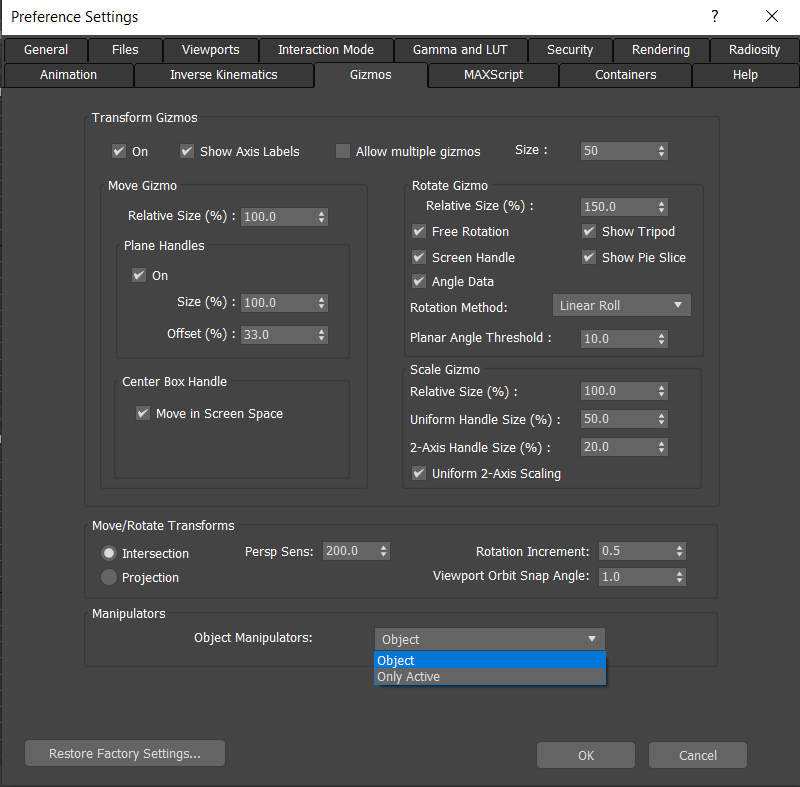
Transform Gizmos group
On
When on, 3ds Max uses the Transform gizmo to enable more powerful move, rotate, and scale options. When off, a basic tripod is displayed, with no axis specificity.
Show Axis Labels
Toggles the display of the axis labels on the Transform gizmo.
Allow Multiple Gizmos
Toggles the display of more than one gizmo at a time.
When off, a transform gizmo is displayed for only one object at a time in a selection set.
When on and the Use Center flyout > Use Pivot Point Center setting is active, each object in a selection set has its own transform gizmo.
Size
Sets the size of the Transform gizmo as a percentage of the viewport size. Range=1 to 100.
Move Gizmo group
Relative Size (%)
Sets the size of the Move gizmo, relative to the Size value of the Transform gizmo. Range= 0.0 to 500.0.
Plane Handles
The plane handles let you constrain object movement along combinations of any two axes.
On Toggles the use of plane handles on the Transform gizmo.
Size Sets the size of the plane handles, as a percent of the distance from the Offset to the tripod axis. Range=0.0 to 100.0.
Offset The percentage of the distance from the gizmo's tripod axis to the outer extent of the Primary axis handles.
For example, 0 = no plane handles; 100 = plane handles extend as far as the Primary axis handles.
Center Box Handle
The center box can be used as a handle for translations constrained parallel to a viewport.
Move in Screen Space Toggles the use of the center box handle.
Rotate Gizmo group
Relative Size (%)
Sets the size of the Rotate gizmo, relative to the Size value of the Transform gizmo. Range= 0.0 to 500.0.
Free Rotation
Toggles the ability to rotate about any combination of axes.
When off, you can rotate only about a specific axis, or, if Screen Handle is on (see following), parallel to the screen.
Show Tripod
Toggles display of an axis tripod at the pivot point. This tripod also highlights the selected axis while rotating.
Screen Handle
Toggles display of the screen orbit, which lets you rotate an object parallel to a viewport.
Show Pie Slice
When on, a shaded pie slice acts as a visual indicator of the direction and amount of rotation.
Angle Data
When on, numerical feedback appears in the viewport during single-axis rotation, indicating the amount of rotation around the X, Y, or Z axis.
Rotation Method drop-down list
Sets the rotation method for the gizmo:
Linear Roll: Rotate the virtual trackball by dragging in a single direction, tangent to the Rotate gizmo.
Note: A tangent handle appears to show the best direction to drag the mouse.Circular Crank: Rotate the virtual trackball by dragging around the Rotate gizmo, in a circular manner.
Legacy R4: Turns off virtual trackball behavior, and uses the rotation method from 3ds Max 4.
Planar Angle Threshold
Determines when the Circular Crank rotation method automatically switches to Linear Roll to prevent loss of control over the gizmo.
This occurs when a Primary axis is nearly 90 degrees to the view plane, making it different to circle around. Any angle to the view plane that is higher than this setting will use Crank mode, but any angle equal to or less than this setting will always function as a Linear Roll.
Scale Gizmo group
Relative Size (%)
Sets the size of the Move gizmo, relative to the Size value of the Transform gizmo. Range= 0.0 to 500.0.
Uniform Handle Size (%)
Sets the size of the handle for uniform scaling (the distance from the transform center to the edge of the uniform handle), as a percentage of the scale gizmo size.
2–Axis Handle Size (%)
Sets the size of the handle for non-uniform scaling along 2–axes (the distance from the edge of the uniform handle to the edge of the 2–axis handle), as a percentage of the scale gizmo size.
Uniform 2–Axis Scaling
Forces scaling using a 2–axis plane handle to be uniform.
Move/Rotate Transforms group
Controls the way you can move selected objects with the mouse in a non-orthographic view such as Perspective.
- Intersection Shoots a ray from the mouse point into the screen. This makes moving objects easier, but as you move toward the horizon, the object moves great distances.
- Projection Projects the motion of the mouse onto the plane. This ensures that there are no singularities at the horizon, and that motion is always smooth and stable. However, it can become difficult to move objects when the plane is not parallel to the screen.
Persp Sens
Sets mouse sensitivity for projection transforms.
Rotation Increment
Specifies the amount of rotation generated by moving the mouse 1 pixel. Lower this value for angular rotations smaller than the default .5 degrees. The lower this value, the more mouse movement is needed to rotate objects.
Viewport Orbit Snap Angle
Sets the viewport rotation increment in degrees.
Turn on Angle Snap on the main toolbar, and then use Orbit to rotate a viewport. The viewport rotation snaps by the value set here. The Orbit cursor displays a small magnet in the upper left to indicate that Angle Snap is on.
Manipulators
There is a new option in the Gizmos tab at the bottom called Manipulators. There are two settings associated with this option, "Object" and "Only Active", with Object being the legacy default. This option setting is saved to 3dsMax.ini in a new "Manipulators" section.
- Object: When set to "Object", both the manipulators from the base object and any modifiers being edited are displayed.
- Only Active: When set to "Only Active", only the active modifier/object's manipulators are displayed.