Display Performance Panel (Nitrous Driver)
For Nitrous viewports, you adjust the progressive display and adaptive degradation methods on the Display Performance panel of the Viewport Configuration dialog.
- Status bar > Right-click
 (Progressive Display)
- Click or right-click the General viewport label (“[ + ]”) . > General Viewport Label Menu > Configure > Viewport Configuration dialog > Display Performance tab
- Click or right-click the Shading viewport label. > Shading Viewport Label Menu: Nitrous Viewports > Configure > Viewport Configuration dialog > Display Performance tab
- Default menu: Views menu > Viewport Configuration > Viewport Configuration dialog > Display Performance tab
- Default menu: Views menu > Progressive Display toggles the use of progressive display.
- Alt menu: Scene menu > Configure Views > Viewport Configuration > Viewport Configuration dialog > Display Performance tab
- Alt menu: Scene menu > Configure Views > Progressive Display toggles the use of progressive display.
- Keyboard >
Otoggles the use of adaptive degradation.
The progressive display and adaptive degradation settings are saved with your MAX scene file.
Interface
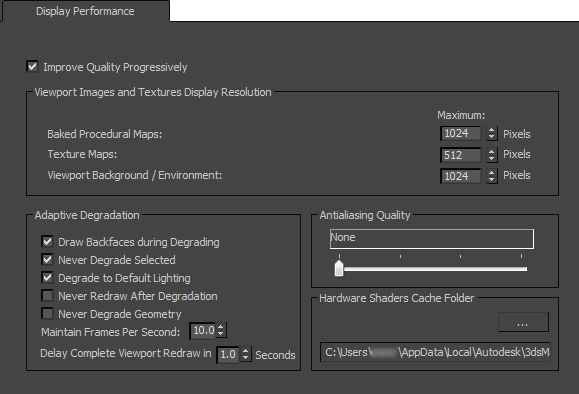
Improve Quality Progressively
When on, viewport quality is improved incrementally. This option is similar to the way the Quicksilver hardware renderer improves quality through successive iterations. Default=on.
Viewport Images And Texture Display Resolution group
By default, regular 2D bitmaps display in viewports at their highest resolution. You can improve performance by using these controls to limit the size that is displayed. Limiting the bitmap size overrides the bitmap proxy settings.
Procedural Maps
Procedural maps display in viewports as "baked" bitmaps. This value sets the resolution, in pixels, used to display procedural maps. Default = 1024 x 1024 pixels.
Texture Maps
Sets the resolution, in pixels, used to display texture maps (2D maps). Default = 512 x 512 pixels.
Viewport Background / Environment
Sets the resolution, in pixels, used to display background and environment maps. Default = 1024 x 1024 pixels.
Adaptive Degradation group
Draw Backfaces during Degrade
Applies only to wireframe views, and only to objects with Object Properties > Backface Cull turned on (this stops viewports from drawing polygons that face away from the point of view). When on, viewports draw backface polygons during degradation, to save time. When off, backfaces are still culled. Default=on.
Never Degrade Selected
When on, selected objects are not subject to degradation. Default=on.
This option applies only to renderable geometry. Lights and cameras can still degrade to bounding boxes during degradation.
Degrade to Default Lighting
When on, improves performance by turning off all viewport lights and enabling default lighting during degradation. Default=off.
Never Redraw After Degrade
When off, viewport display restores when degradation ends, redrawing all degraded objects. If this takes too long for your scene, turn this option on. When on, objects will degrade but never redraw on mouse up, continuing to display at the most recent level of degradation. Default=off.
 As viewport degradation occurs, the Adaptive Degradation button on the status bar turns aqua, as shown here. Normally, when the degradation stops, the color returns to the usual "on" color, but when Never Redraw After Degrade is on, the background remains aqua, even when active degradation is not happening. To resolve this, either turn off Adaptive Degradation or turn off Never Redraw After Degrade. Then, to redraw the screen, press
~ (tilde).Never Degrade Geometry
When on, no geometry is degraded. Default=off.
Maintain Frames Per Second
Lets you set the frame rate in frames per second that adaptive display will attempt to maintain. If the frame rate drops below this, 3ds Max will increase the amount of degradation based on the other settings on this panel. Default=10.0.
Delay Complete Viewport Redraw in [X] Seconds
Viewports do not redraw completely when degradation stops (for example, when you stop panning), until this time interval has passed. Default=1.0 second.
Hardware Shader Cache Folders group
Manages the location of hardware shaders on your computer.
 Open Configure System Paths Click to display the Configure System Paths dialog, which lets you choose an alternate location for saving hardware shaders.
[cache folder path]
Displays the path of the folder used to save hardware shaders.
The default location is in your user settings:
/users/<username>/appdata/local/autodesk/3dsmax/2016 - 64bit/enu/plugcfg/.