SteeringWheels Panel
These controls affect interaction with the SteeringWheels feature. Any changes in settings persist between sessions.
- Click the Wheel menu button at the lower-right corner of the SteeringWheels. > Configure
- Click or right-click the General viewport label (“[ + ]”) . > General Viewport Label Menu > SteeringWheels > Configure > Viewport Configuration dialog > SteeringWheels tab
- Default menu: Views menu > Viewport Configuration > Viewport Configuration dialog > SteeringWheels tab
- Alt menu: Scene menu > Configure Views > Viewport Configuration > Viewport Configuration dialog > SteeringWheels tab
Interface
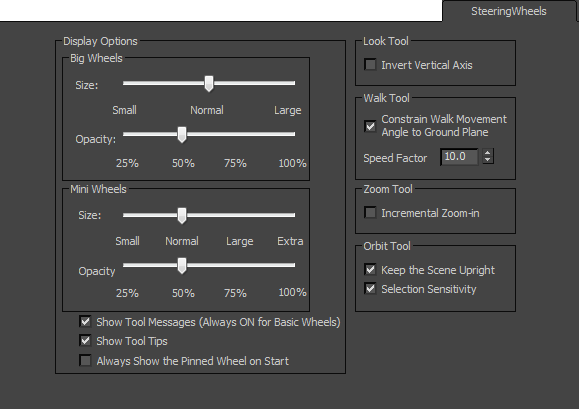
Display Options group
Big Wheels
Use the sliders to specify the size and opacity of the standard-size wheels. The changes take place when you click OK.
- Size Sets the size of the Full Navigation Wheel, View Object Wheel, and Tour Building Wheel.
- Opacity Sets the opacity of the Full Navigation Wheel, View Object Wheel, and Tour Building Wheel.
Mini Wheels
Use the sliders to specify the size and opacity of the small wheels. The changes take place when you click OK.
- Size Sets the size of the Mini Navigation Wheel, Mini View Object Wheel, and Mini Tour Building Wheel.
- Opacity Sets the opacity of the Mini Navigation Wheel, Mini View Object Wheel, and Mini Tour Building Wheel.
Show Tool Messages
Toggles the display of tool messages such as “Press the arrow keys to move” for the Look tool.
Show Tool Tips
Toggles the display of the tool tips that display when you hover the mouse cursor over a control.
Always Show the Pinned Wheel on Start
When on, and you first start 3ds Max, the SteeringWheels automatically appear at the mouse cursor position. When off, the SteeringWheels must be activated manually. Default=off.
Look Tool group
Invert Vertical Axis
Affects how vertical mouse dragging controls view movement with the Look tool. When on, dragging upward moves the viewpoint upward, and dragging downward moves the viewpoint downward. When off, dragging upward moves the viewpoint downward, and dragging downward moves the viewpoint upward. Default=off.
Walk Tool group
Constrain Walk Movement Angle to Ground Plane
When on, constrains Walk motion (Forward, Backward, Left, Right, Up, and Down) relative to the world XY plane regardless of the current Look Direction. When off, Walk motion occurs perpendicular to the view plane. Default=on.
Speed Factor
Sets the relative rate of Walk motion. Range=0.1 to 10.0. Default=10.0.
Zoom Tool group
Incremental Zoom-in
When on, and you’re using the Zoom tool on the Full Navigation wheel, you can zoom in by a factor of 25 percent by clicking. When off, you must drag to zoom using the Zoom tool on the Full Navigation wheel.
Orbit Tool group
Keep the Scene Upright
Prevents the scene from rotating so that it appears to be upside down when using the Orbit tool.
Selection Sensitivity
When on, using the Orbit tool rotates the view around the current selection, rather than a predefined center.