Select Background Image Dialog
The Select Background Image dialog allows you to choose a file or sequence of files for a viewport background.
- Scene menu > Configure Views > Viewport Background > Viewport Background > Viewport Background dialog > Background Source group > Files > Select Background Image dialog
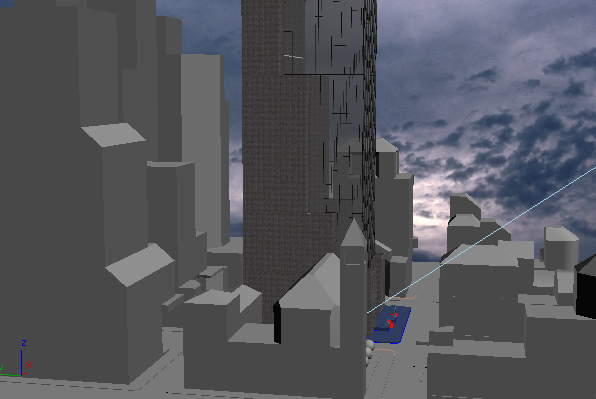
Cityscape model with a sky image used as the viewport background
You can also convert a set of sequentially numbered files to an Image File List (IFL). This is the same process used by the IFL Manager Utility.
Procedures
To select a background image for a viewport:
Activate the viewport where you want the image.
Choose Views menu > Viewport Background > Viewport Background.
Under Background Source in the dialog that displays, click Files.
In the Look In field, navigate to the directory containing the file you want to use for the background.
Note: The Select Background Image File dialog uses the last location where a bitmap was chosen, rather than the default bitmap path defined on the Configure User Paths dialog.Highlight the file name in the file list window.
Click Open to select the image and close the dialog.
Click OK to close the Viewport Background dialog and display the background image.
To select a set of still images as a viewport background:
Activate the viewport where you want the image.
Choose Views menu > Viewport Background > Viewport Background.
Under Background Source, click Files.
In the Look In field, navigate to the directory containing the sequence of files.
The files must be sequentially numbered (for example, image01.bmp, image02.bmp, image03.bmp).
Tip: If necessary, change Files Of Type to match the file extension of the sequence, or choose All Formats.Turn on Sequence, and choose the name of the first sequential file (for example, image01.bmp).
Tip: Click the Setup button to display the Image File List Control dialog.In the Image File List Control dialog, use the Browse button to set the Target Path to a directory on your hard disk. Do not set this path to a CD-ROM drive, because you cannot save the file there.
Choose the options you want, and then click OK.
The Image File List (IFL) file is saved to the target directory.
Interface
History
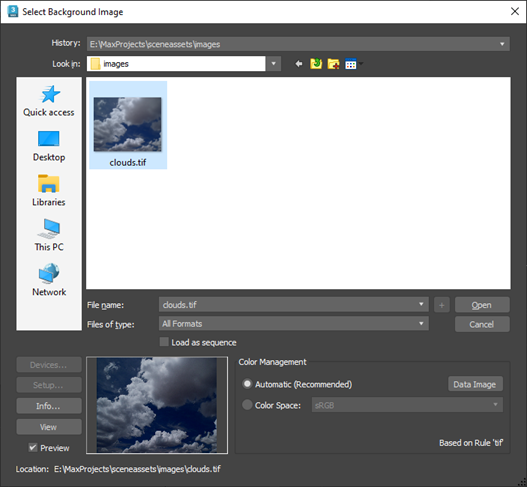
Displays a list of the most recent directories searched. Whenever an image is selected, the path used is added to the top of the history list as the most recently used path. The history information is saved in the 3dsmax.ini file.
Look in
Opens a navigation window to browse other directories or drives.
 Go To Last Folder Visited
Click to return to the folder you previously browsed to.
 Up One Level
Moves you up a level in the directory structure.
 Create New Folder
Lets you create a new folder while in this dialog.
 View Menu
Lets you choose the level of detail to display in the file list.
- Thumbnails: Displays the contents of a directory as thumbnails, without the details.
- Tiles: Displays the contents of a directory as large icons, without the details. If you widen the dialog, these tile across the width.
- Small Icons: Displays the contents of a directory as small icons, tiled across the width, without the details.
- List: Displays the contents of a directory without the details.
- Details: Displays the contents of a directory with full details such as size and date.
[file list window]
Lists the contents of the directory, in the format specified by the View menu.
File name
Displays the file name of the file selected in the list.
Files of type
Displays all the file types that can be displayed. This serves as a filter for the list.
Load as sequence
If there are more than one files that have the same root name and end in sequence numbers, turning Load as sequence creates an Image File List (IFL). Default=off.
Each time you choose an image, 3ds Max checks to see if an IFL sequence can be created. If the selected image does not yield a list, this option is unavailable.
You can use wild-card characters to filter image files. When Load as sequence is turned on, you can click Setup to configure the IFL file.
Open
Selects the highlighted file and closes the dialog.
Cancel
Cancels the selection and closes the dialog.
Devices
Lets you choose the hardware output device; for example, a digital video recorder. The device, its driver, and its 3ds Max plug-in must all be installed on your system to use the device.
Setup
When Sequence is turned on, and there are sequential files in the directory displayed, clicking Setup displays an Image File List Control dialog to create an IFL file.
Info
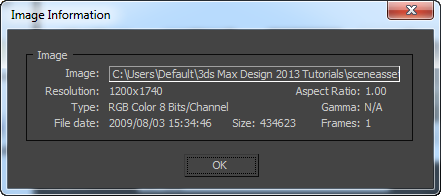
Displays expanded information about the file, such as frame rate, compression quality, file size, and resolution. The information here depends on the type of information that is saved with the file type.
If the file has an embedded value, this dialog displays that value. Otherwise, it displays "N/A".
View
Displays the file at its actual resolution. If the file is a movie, the Windows Media Player is opened so the file can be played.
Preview
Displays the image as a thumbnail in the image window. Default=on.
Image Window
Displays a thumbnail of the selected file.
Color Management [OCIO color management modes only]
Declares the color space used by an image so that colors can be properly converted to the rendering space.
Automatic (Recommended)
Assigns the color space specified by the Automatic Color Space Assignment Rules. The assigned space is shown read-only in the Color Space box and the applicable rule is displayed below. The rules can be viewed or edited in your Color Management Settings.
For image file lists (IFL), Automatic applies the transform determined by the settings to each file individually. If you instead specify a Color Conversion manually, that transform gets applied to all images in the list.
Color Space
Sets an input color space for the image file. Use this only if the space assigned by the rules is not the space used by the image.
Data Image
Sets the Color Space to Raw. This is normally used for files that contain non-color data, such as normal maps, weight maps, and so on, and typically does not apply to background images.
Gamma [Gamma Workflow color management mode only]
Specifies how to handle gamma for the bitmap image.
Automatic (Recommended)
Uses the gamma value embedded in the incoming bitmap. If there is no embedded gamma value, 3ds Max makes an intelligent decision based on the image's bit depth. Low-dynamic-range images (8- or 16-bit) are assumed to have the standard sRGB gamma of 2.2, and high-dynamic-range (floating-point or logarithmic) images are assumed to be linear and use a gamma of 1.0 (no correction).
For most scenes, you should leave the gamma-handling set to Automatic.
Override
Sets a user-defined gamma value as an override.
Data Image
Activates Override and sets the value to 1.0. This is normally used for files that contain non-color data, such as normal maps, weight maps, and so on, and typically does not apply to background images.
Location
Displays the full path for the file.