Initializing Civil View
To use Civil View, you must initialize it and then restart 3ds Max.
- Civil View menu > Initialize Civil View
To start Civil View after you install 3ds Max, choose Civil View menu > Initialize Civil View. 3ds Max displays an initialization dialog. After you choose the initialization settings and click OK, a dialog warns you to restart 3ds Max.
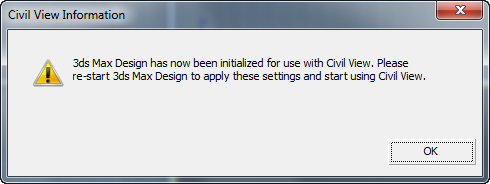
Click OK to close the warning, then close and restart 3ds Max to begin using the Civil View features.
Interface
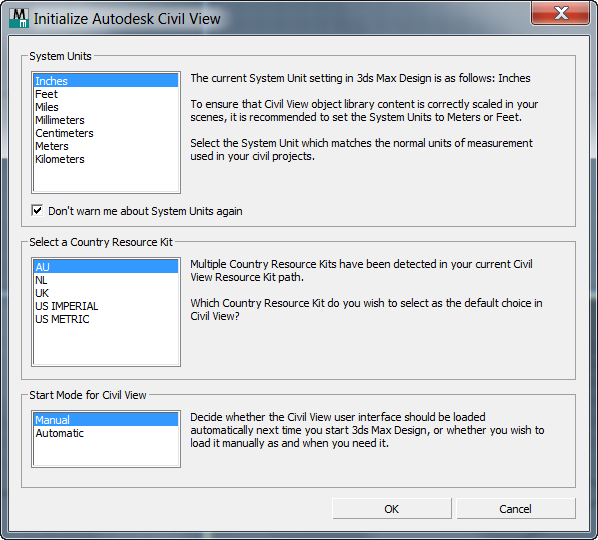
System Units
Choose the System Units to use while working with Civil View models. Civil View projects typically use Meters or Feet.
- Don't warn me about System Units again When off, Civil View displays a warning when the System Units are other than Meters or Feet. When off, it displays the warning only once, in this dialog.
Select a Country Resource Kit
Chooses the Country Resource Kit to use with Civil View.
This setting is a preference you can change on the Civil View Preferences dialog > Resource Kit Paths panel.
Start Mode for Civil View
When on, 3ds Max starts Civil View when you start 3ds Max itself. When off, you must start Civil View explicitly in each 3ds Max session by choosing Civil View > Start Civil View.
This setting is a preference you can change on the Civil View Preferences dialog > General panel.