To Create an Object: Standard Primitive or Extended Primitive
With some variations, the steps shown in the following images apply to creating any type of object on the Create panel. For specific examples, see the Procedures section in any object's topic.
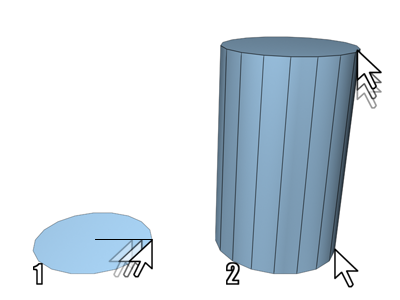
1. Radius defined
2. Height defined
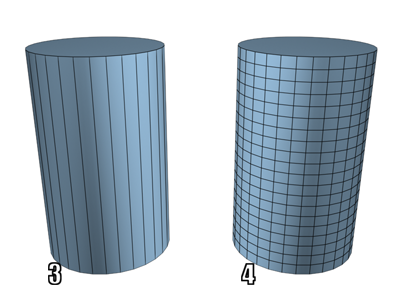
3. Sides increased
4. Height Segments increased
Choose an object category:
Click
 (Create tab) to view the Create panel.
Click one of the buttons at the top of the Create panel. For example,
 (Geometry).
Choose the subcategory Standard Primitives from the list.
A number of buttons appear on the Object Type rollout.
Choose an object type:
Click the button for the type of object you want to create.
The button highlights, showing that it is active. Four rollouts appear: Name and Color, Creation Method, Keyboard Entry, and Parameters.
Choose a creation method (optional):
You can accept the default method and skip this step.
- Choose a method in the Creation Method rollout.
Preset the creation parameters (optional):
You can adjust all creation parameters after you create an object. Skip this step if you prefer.
- In the Parameters rollout, you can set parameters before you create an object. However, the values of parameters you set by dragging the mouse (for example, the Radius and Height of a cylinder) have no effect until after you create the object.
Create the object:
Put the cursor at a point in any viewport where you want to place the object, and hold the mouse button down (do not release the button).
Drag the mouse to define the first parameter of the object; for example, the circular base of a cylinder.
Release the mouse button. The first parameter is set with this release.
In some cases, such as Sphere, Teapot, and Plane, this completes the object. You can skip the remaining steps.
Move the mouse forward and back without touching the mouse button. This sets the next parameter; for example, the height of a cylinder.
If you want to cancel: Until you complete the next step, you can cancel the creation process with a right-click.
Click when the second parameter has the value you want, and so on.
The number of times you press or release the mouse button depends on how many spatial dimensions are required to define the object. (For some kinds of objects, such as Line and Bones, the number is open-ended.)
While creating a multi-step object (between clicks), you can navigate the viewport interactively as follows:
- To pan the viewport, drag while holding down the middle mouse button.
- To orbit the viewport, drag while holding down
Altand the middle mouse button. - To zoom the viewport, scroll the mouse wheel or hold down
AltandCtrland drag forward and back with .
.
When the object is complete, it is in a selected state and ready for adjustments.
Name the object (optional):
3ds Max gives each new object a default name based on the primitive type and the order of creation. For example: Box001, Sphere030. You can change the name to anything you like using the method described following.
Also, to change the number of digits appended to the default object name, edit the initialization file as follows: add (if necessary) a section named [Preferences] and in that section add the setting NameSuffixLength=#, where # is the number of digits. For example, to use default names like Box00123, add this:
[Preferences]
NameSuffixLength=5
To rename an object, highlight the object name in the Name And Color rollout, and then enter a name. This option is available only when a single object is selected.
Naming objects is a good practice for organizing your scenes. To name a set of selected objects, see Named Selection Sets.
Change the object’s display color (optional):
The color swatch next to the object name field displays the selected object's color and lets you select a new one. The color is the one used to display the object in viewports. Click the color swatch to display the Object Color dialog.
You can also change object colors with Layers.
Adjust the object's parameters:
- You can change the creation parameters immediately after you complete an object, while it’s still selected. Or, you can select the object later and adjust its creation parameters on the Modify panel.
While making adjustments, you can use viewport navigation controls like Zoom, Pan, and Orbit to change your view of the selected object. You can also adjust the time slider.
Complete the creation process:
While the object type button remains active, you can continue creating objects of the same type until you do one of the following:
- Select an object other than the one you created most recently.
- Transform an object.
- Change to another command panel.
- Use commands other than viewport navigation or the time slider.
After you end the creation process, changing parameters on the Create panel will have no effect on the object; you must go to the Modify panel to adjust the object’s parameters. See Using the Modify Panel.