Scatter Compound Object
Scatter is a form of compound object that randomly scatters the selected source object either as an array, or over the surface of a distribution object.
- Select an object. >
 Create panel >
  (Geometry) > Compound Objects > Object Type rollout > Scatter
 - Default menu: Select an object. > Create menu > Compound > Scatter
- Alt menu: Select an object. > Objects menu > Compound Objects > Scatter
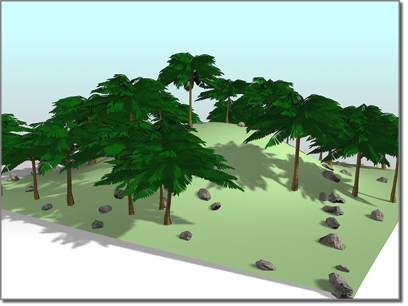
The plane of the hill is used to scatter the trees and two different sets of rocks.
Procedures
To create a Scatter object:
Create an object to be used as a source object.
Optionally, create an object to be used as a distribution object.
 Select the source object, and then on the Object Type rollout, click Scatter.Note: The source object must be either a mesh object or an object that can be converted to a mesh object. If the currently selected object is invalid, the Scatter button is unavailable.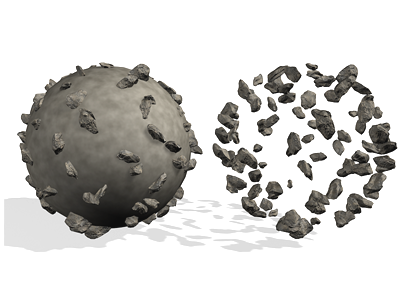
Results of scattering source object with distribution object visible (left) and hidden (right)
You now have two choices. You can either scatter the source object as an array without using a distribution object, or use a distribution object to scatter the object. See the following procedures.
To scatter the source object without a distribution object:
- Choose Use Transforms Only in the Scatter Objects rollout > Distribution group.
- Set the Duplicates spinner to specify the desired total number of duplicates of the source object.
- Adjust the spinners on the Transforms rollout to set random transformation offsets of the source object.
To scatter the source object using a distribution object:
- Make sure the source object is selected.
- Choose the method by which you want to clone the distribution object (Reference, Copy, Move, or Instance.)
- Click Pick Distribution Object, and then select the object you want to use as a distribution object.
- Make sure that Use Distribution Object on the Scatter Object rollout is chosen.
- Use the Duplicates spinner to specify the number of duplicates. (This is not necessary if you're using the All Vertices, All Edge Midpoints or All Face Centers distribution methods.)
- Choose a distribution method in the Scatter Object rollout > Distribute Object Parameters group under Distribute Using.
- Optionally, adjust the Transform spinners to randomly transform the duplicates.
- If the display is too slow, or the meshes too complicated, consider choosing Proxy on the Display rollout or decreasing the percentage of displayed duplicates by reducing the Display percentage.
Most of the spinner values are animatable, so you can animate things like the number of duplicates, their transformations, and so on.
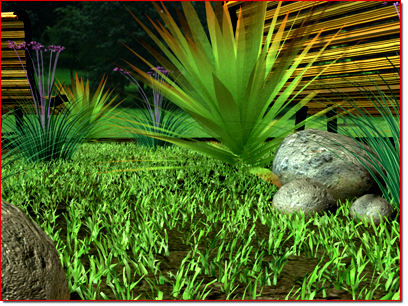
Scatter objects (the grass) with a high number of duplicates
Interface
Pick Distribution Object rollout
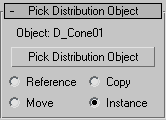
Contains the options for selecting a distribution object.
Object
Displays the name of the distribution object selected with the Pick button.
Pick Distribution Object
Click this button, then click an object in the scene to specify it as a distribution object.
Reference/Copy/Move/Instance
Lets you specify how the distribution object is transferred to the scatter object. It can be transferred either as a reference, a copy, an instance, or moved, in which case the original shape is not left behind.
Scatter Objects rollout
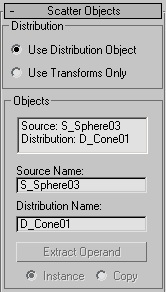
The options on this rollout let you specify how the source object is scattered, and let you access the objects that make up the compound Scatter object.
Distribution group
These two options let you choose the basic method of scattering the source object.
- Use Distribution Object Scatters the source object based on the geometry of the distribution object.
- Use Transforms Only This options doesn't need a distribution object. Instead, duplicates of the source object are positioned using the offset values on the Transforms rollout. If all of the Transform offsets remain at 0, you won't see the array because the duplicates occupy the same space.
Objects group
Contains a list window showing the objects that make up the Scatter object.
[list window]
Click to select an object in the window so that you can access it in the Stack. For example, if your distribution object is a sphere, you can click Distribution: D_Sphere01, open the Stack list, and select Sphere to access the sphere's parameters.
Source Name
Lets you rename the source object within the compound Scatter object.
Distribution Name
Lets you rename the distribution object.
Extract Operand
Extract a copy or an instance of the selected operand. Choose an operand in the list window to enable this button.
Instance/Copy
This option lets you specify how the operand is extracted: as either an instance or a copy.
Source Object Parameters group
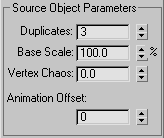
These options affect the source object locally.
Duplicates
Specifies the number of scattered duplicates of the source object.
This number is set to 1 by default, but you can set it to 0 if you want to animate the number of duplicates, beginning with none. Note that the Duplicates number is ignored if you're distributing the duplicates using either Face Centers or Vertices. In these cases, one duplicate is placed at each vertex or face center, depending on your choice.
Base Scale
Alters the scale of the source object, affecting each duplicate identically. This scale occurs before any other transforms.
Vertex Chaos
Applies a random perturbation to the vertices of the source object.
Animation Offset
Lets you specify the number of frames within which each source object duplicate's animation is offset, at random, from the original. So, for example, if you set Animation Offset to 10, each duplicate will start animating at a random frame between 0 and 10. At the default setting of 0, all duplicates move identically.
Distribution Object Parameters group
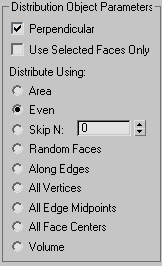
These options affect how the duplicates of the source object are arranged, relative to the distribution object. These options have an effect only when a distribution object is used.
Perpendicular
When on, orients each duplicate object perpendicular to its associate face, vertex, or edge in the distribution object. When off, the duplicates maintain the same orientation as the original source object.
Use Selected Faces Only
When on, limits distribution to the selected faces passed up the Stack. Perhaps the easiest way to do this is to use the Instance option when picking the distribution object. You can then apply a Mesh Select modifier to the original object and select only those faces you want to use for the distribution of the duplicates.
Distribute Using
These options let you specify how the geometry of the distribution object determines the distribution of the source object. These options are ignored if you're not using a distribution object.
Area Distributes duplicate objects evenly over the total surface area of the distribution object.
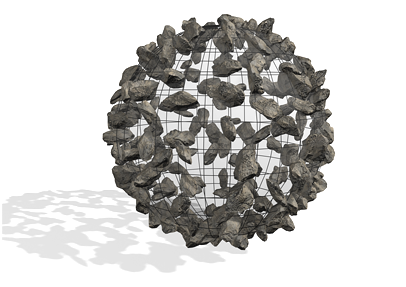
Objects distributed over a spherical surface with Area turned on
Even Divides the number of faces in the distribution object by the number of duplicates, and skips the appropriate number of faces in the distribution object when placing duplicates.
Skip N Skips N number of faces when placing duplicates. The editable field specifies how many faces to skip before placing the next duplicate. When set to 0, no faces are skipped. When set to 1, every other face is skipped, and so on.
Random Faces Applies duplicates randomly over the surface of the distribution object.
Along Edges Assigns duplicates randomly to the edges of the distribution object.
All Vertices Places a duplicate object at each vertex in the distribution object. The Duplicates value is ignored.
All Edge Midpoints Places a duplicate at the midpoint of each segment edge.
All Face Centers Places a duplicate object at the center of each triangular face on the distribution object. The Duplicates value is ignored.
Volume Scatters objects throughout the distribution object's volume. All other options restrict distribution to the surface. Consider turning on Display rollout > Hide Distribution Object with this option.
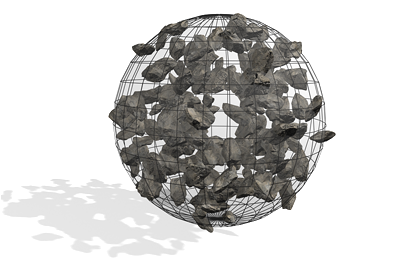
Objects fill a spherical volume with Volume turned on
Display group
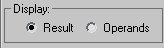
Result/Operands
Choose whether to display the results of the scatter operation or the operands before the scattering.
Transforms rollout
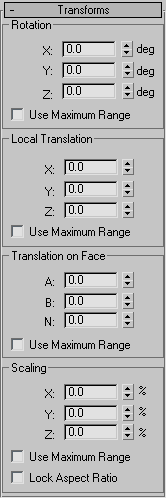
The settings in the Transforms rollout let you apply random transform offsets to each duplicate object. The values in the transform fields specify a maximum offset value that's applied randomly with a positive or negative value to each duplicate. Thus, if you set a rotation angle of 15 degrees, duplicates are rotated randomly from –15 to +15 degrees. For example, one duplicate might be rotated 8 degrees, another –13, another 5, and so on. You can use the Transform settings with or without a distribution object. When there is no distribution object, you must adjust the Transform settings in order to see the duplicates.
Rotation group
Specifies random rotation offsets.
X, Y, Z deg
Enter the maximum random rotational offset you want about the local X, Y, or Z axis of each duplicate.
Use Maximum Range
When on, forces all three settings to match the maximum value. The other two settings become disabled, and the setting containing the maximum value remains enabled.
Local Translation group
Specifies translation of the duplicates along their local axes.
X, Y, Z
Enter the maximum random movement you want along the X, Y, or Z axis of each duplicate.
Use Maximum Range
When on, forces all three settings to match the maximum value. The other two settings become disabled, and the setting containing the maximum value remains enabled.
Translation on Face group
Lets you specify the translation of duplicates along barycentric face coordinates of the associate face in the distribution object. These settings have no effect if you're not using a distribution object.
A, B, N
The first two settings specify the barycentric coordinates on the surface of the face, while the N setting sets the offset along the normal of the face.
Use Maximum Range
When on, forces all three settings to match the maximum value. The other two settings become disabled, and the setting containing the maximum value remains enabled.
Scaling group
Lets you specify the scaling of duplicates along their local axes.
X, Y, Z %
Specifies the percent of random scaling along the X, Y, or Z axis of each duplicate.
Use Maximum Range
When on, forces all three settings to match the maximum value. The other two settings become disabled, and the one containing the maximum value remains enabled.
Lock Aspect Ratio
When on, maintains the original aspect ratio of the source object. Typically, this provides uniform scaling of duplicates. When Lock Aspect Ratio is off, and any of the X, Y, and Z settings contain values greater than 0, the result is non-uniform scaling of duplicates because the values represent random scaling offsets in both positive and negative directions.
Display rollout
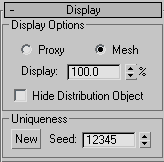
Provides options that affect the display of the Scatter object.
Display Options group
These options affect the display of the source and destination objects.
- Proxy Displays the source duplicates as simple wedges and speeds up viewport redraws when manipulating a complex Scatter object. This has no effect on the rendered image, which always displays the mesh duplicates.
- Mesh Displays the full geometry of the duplicates.
Display %
Specifies the percentage of the total duplicate objects that appear in the viewports. This has no effect on the rendered scene.
Hide Distribution Object
Hides the distribution object. The hidden object does not appear in the viewport or in the rendered scene.
Uniqueness group
Lets you set a seed number upon which the random values are based. Thus, altering this value changes the overall effect of the scattering.
New
Generates a new, random seed number.
Seed
Use this spinner to set the seed number.
Load/Save Presets rollout
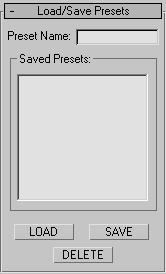
Lets you store preset values to use in other Scatter objects. For example, after setting all of your parameters for a specific Scatter object and saving the settings under a specific name, you can then select another Scatter object and load the preset values into the new object.
Preset Name
Lets you define a name for your settings. Click the Save button to save the current settings under the preset name.
Saved presets window
Displays saved preset names.
LOAD
Loads the preset currently highlighted in the Saved Presets list.
SAVE
Saves the current name in the Preset Name field and places it in the Saved Presets window.
DELETE
Deletes the items selected in the Save Presets window.