Boolean Explorer
Use the Boolean Explorer to keep track of operands when assembling complex compound objects. From the Boolean Parameters rollout, click Open Boolean Explorer.
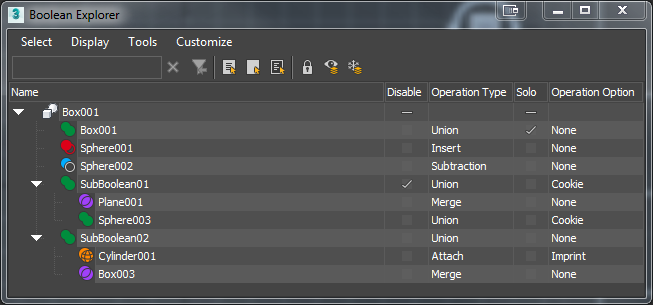
Boolean Explorer with Example Operands
Operands automatically appear in the Boolean Explorer whenever you add an operand in the Boolean Parameters rollout. You can also drag objects from the scene explorer to the Boolean Explorer to add them as new operands. All changes to the order of operands and their operations in the Boolean Parameters rollout are automatically updated in the Boolean Explorer.
Menu bar
Select menu
Select All
Selects all operands in the list.
Select None
Turns off all selections in the list.
Select Invert
Selects all operands currently not selected.
Find Case Sensitive
Enable to search for operands using case sensitivity.
Find Using Wildcards
Enable to search for operands using wildcards (* and ?).
Find Using Regular Expression
Enable to search for operands using .
Display menu
Expand All
Expands all operand trees in the list.
Expand Selected
Expands selected operand trees in the list.
Collapse All
Collapses all operand trees in the list.
Collapse Selected
Collapses selected operand trees in the list.
Tools menu
Select Objects In Scene
Selects the currently selected Booleans in the scene.
Lock Cell Editing
Locks all operands in the list, preventing any changes to be made.
Customize menu
Configure Columns
Opens the Configure Columns window. Drag column headers to the window to remove them from the Boolean Explorer. Drag headers back to configure the columns to display.
Toolbars
Toggles the display of the Find, Selection, and Tools buttons below the menu bar.
Save Current Layout as Default
Saves the currently configured layout as default.
Collapse Selected
Collapses selected operand trees in the list.