ChamferBox
Use ChamferBox to create a box with beveled or rounded edges.
 Create panel >
  (Geometry) > Extended Primitives > Object Type rollout > ChamferBox button
- Default menu: Create menu > Extended Primitives > Chamfer Box
- Alt menu: Objects menu > Extended Primitives > Chamfer Box
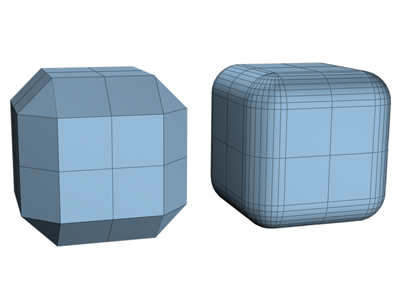
Examples of chamfered boxes
Procedures
To create a standard chamfered box:
- From the Create menu, choose Extended Primitives > Chamfer Box.
- Drag the mouse to define the diagonal corners of the base of the chamfered box. (Press
Ctrlto constrain the base to a square.) - Release the mouse button, and then move the mouse vertically to define the height of the box. Click to set the height
- Move the mouse diagonally to define the width of the fillet, or chamfer (toward the upper left increases the width; toward the lower right decreases it).
- Click again to finish the chamfered box.
To create a cubic chamfered box:
On the Creation Method rollout, click Cube.
Beginning at the center of the cube, drag in a viewport to set all three dimensions simultaneously.
Release the button, and move the mouse to set the fillet or chamfer.
Click to create the object.
You can change a cube's individual dimensions in the Parameters rollout.
Interface
Creation Method rollout
Cube
Forces length, width, and height to be equal. You can change a cube's individual dimensions in the Parameters rollout.
Box
Creates a standard chamfered box primitive from one corner to the diagonally opposite corner, with individual settings for length, width, and height.
Parameters rollout
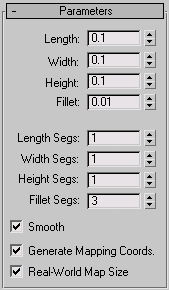
Length, Width, Height
Sets the corresponding dimensions of the chamfered box.
Fillet
Slices off the edges of the chamfered box. Higher values result in a more refined fillet on the edges of the chamfered box.
Length, Width, Height Segs
Sets the number of divisions along the corresponding axis.
Fillet Segs
Sets the number of segments in the filleted edges of the box. Adding fillet segments increases the edge roundness.
Smooth
Blends the display of the faces of the chamfered box, creating a smooth appearance in rendered views.
Generate Mapping Coords
Generates coordinates for applying mapped materials to the chamfered box. Default=on.
Real-World Map Size
Controls the scaling method used for texture mapped materials that are applied to the object. The scaling values are controlled by the Use Real-World Scale settings found in the applied material's Coordinates rollout. Default=off.